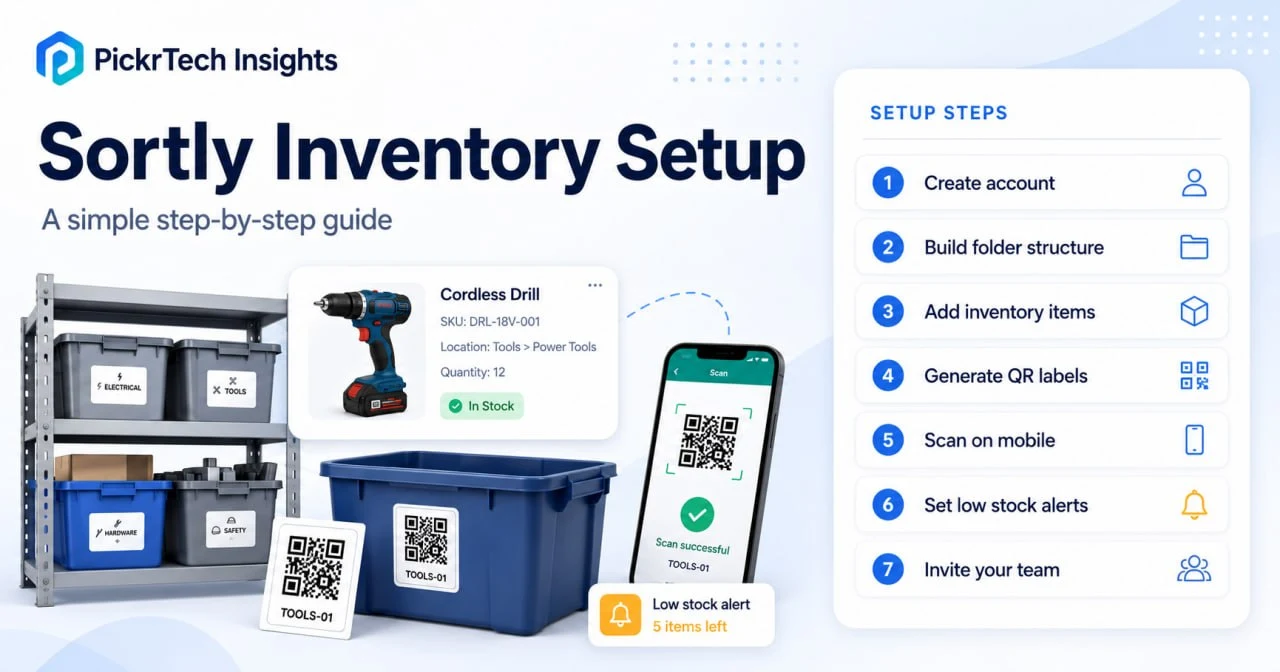
Sortly inventory workflow with storage bins, QR labels, mobile scanning, low-stock alerts, and team access.
TL;DR: This guide turns a small spreadsheet or manual inventory process into a scannable Sortly system in one afternoon. If you want to test the same idea before adopting Sortly, start with our barcode scanner Excel inventory spreadsheet workflow. The free plan (100 entries, 1 user) covers account setup, folder structure, item entry, and phone-camera scanning. Printing your own QR labels, low-stock alerts, and a second user start on the Advanced plan — $49/month, or $24/month on the first-year annual promotion. Prices and plan limits checked July 2026 against Sortly’s pricing page.
Where this guide fits: This guide is for teams ready to set up Sortly. If you are still deciding whether Sortly is the right fit, read the Sortly review. If you have not mapped your inventory fields yet, start with the inventory management checklist.
Before you begin: What you’ll need
Account requirements
Sign up for a free Sortly account using your email or Google/Apple single sign-on. The free plan gives you 100 entries and one user license — no credit card required for the free plan itself. One quirk worth knowing before you build anything: according to Sortly’s help center, folders count toward that 100-entry cap alongside items, so a deep folder tree eats into your pilot budget. Item quantities don’t count — 1 SKU with 500 units on hand is still 1 entry.
⚠️ Reader warning: The free plan and the free trial are different things. The 14-day trial unlocks a paid tier’s features but requires a credit card and converts to a paid subscription automatically unless you cancel before it ends. Sortly emails a reminder three days before conversion, but set your own calendar reminder anyway.
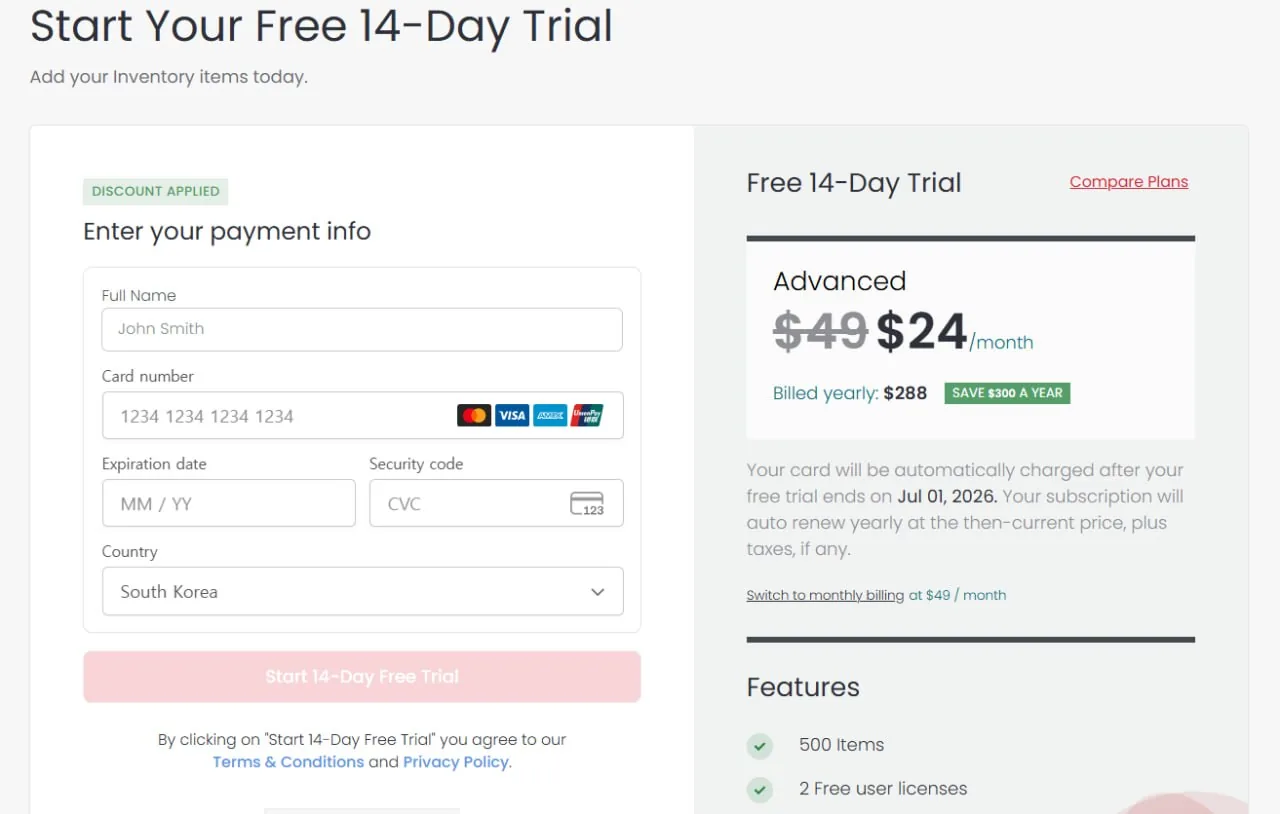
Sortly’s paid-plan trial requires payment information and automatically converts unless canceled before the trial ends.
Data to prepare
Gather your current inventory: item names, quantities on hand, and physical locations. If you already have a spreadsheet (CSV or XLSX), have it ready for bulk import. If you are still deciding whether inventory should stay in a spreadsheet or move into dedicated software, read Inventory Spreadsheet vs Software: When to Switch. Optional but handy: photos of your items — your phone camera is fine.
Equipment
You need a computer or smartphone to access Sortly. For scanning, download the Sortly mobile app on iOS or Android — it uses your phone’s built-in camera to read QR codes and barcodes on every plan, including free.
Estimated time: 20–30 minutes for the free-plan steps (1–3 and 5)
Difficulty: Beginner
Cost implications: Steps 1–3 and 5 run entirely on the free plan. Step 4 (printing your own QR labels), Step 6 (low-stock alert notifications), and Step 7 (a second user) require the Advanced plan at $49/month — $24/month for the first year on the annual promotion, billed at $288/year. Barcode-format label creation and third-party scanner support sit higher, on Ultra at $149/month. Full plan-by-plan numbers are in the 12-month cost section below.
Step-by-step walkthrough
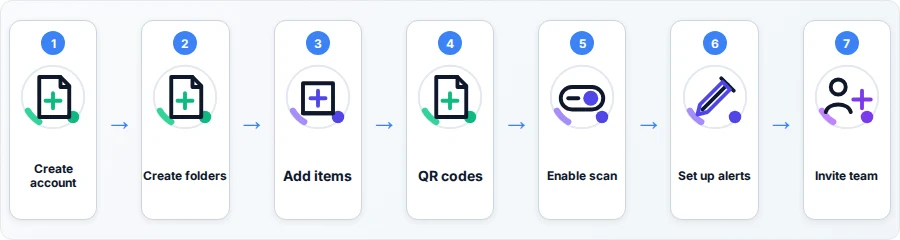
Step 1: Create your Sortly account
Head to https://sortly.com and click the sign-up button. You can register with an email address or log in via Google or Apple — SSO is faster.
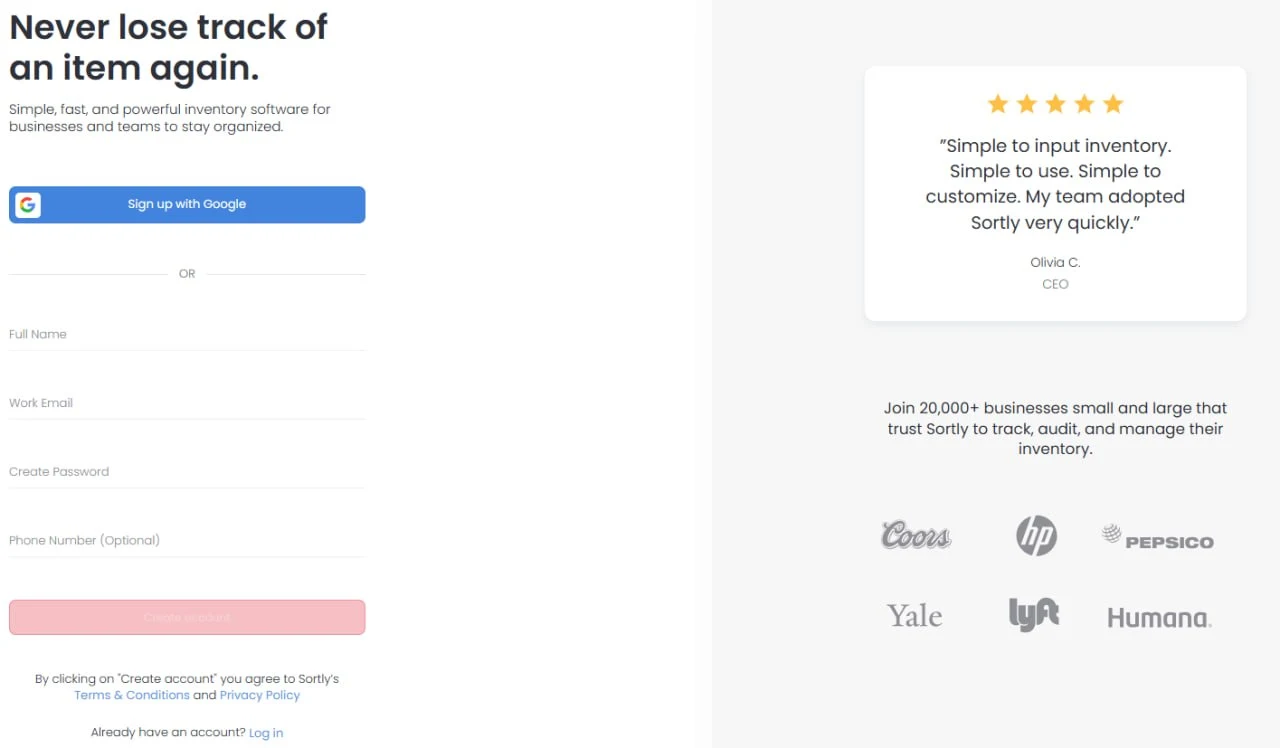
Sortly free account signup form with email and single sign-on options
Enter your business name, email, and password (or authenticate through your existing account), then check your inbox for a verification link. Click it, log in, and you’re done.
You’ll land on a blank workspace ready to build. The left sidebar holds navigation options; the main area is where you’ll organize folders and items. Think of it as your command center.
Expected result: You’re logged into a clean Sortly workspace with the ability to create folders and add inventory.
💡 Pro tip: Use your work email so inviting team members later is seamless — no confusion about which account is yours. One more reason: if a teammate ever signed up for their own free Sortly account with an email, that address can’t be invited to your workspace until they delete the old account.
Step 2: Create your first folder structure
Before adding individual items, think about how your inventory actually sits in the real world. Create top-level folders for your physical locations: click “Create Folder” or the “+” button and name it “Warehouse,” “Stockroom,” “Office,” or whatever matches your space.
Next, add subfolders within each location for product categories or aisles. Under “Warehouse,” you might create “Electronics,” “Office Supplies,” and “Seasonal Items.” This nested structure mirrors your physical layout, making it dead simple to locate anything and set permissions by department later.
Two caveats on the free plan. First, every folder counts against your 100-entry cap, so keep the tree to two levels while you pilot — 6 to 10 folders leaves you 90-plus slots for actual items. Second, the free plan includes exactly 1 custom field (Advanced has 5, Ultra 10), so pick the one attribute you’d genuinely miss — supplier, expiry date, serial number — and use tags or notes for the rest.
Expected result: A lean folder tree that reflects your physical locations and product categories.
Step 3: Add your first inventory items
Click into a folder and select “Add Item” or hit the “+” button. Type the item name (e.g., “Laptop Computer Model X”), enter the quantity you have, and add a unit price if you’re tracking cost. Upload a photo by snapping it from your phone or uploading from your computer — photos are invaluable later when your team needs to pick the right item.
Alternatively, skip manual entry and bulk import. Sortly’s Bulk Import (Settings > Bulk Import) takes two paths: Quick Import accepts your existing CSV or XLSX as-is — only Item Name and Quantity columns are required, and you map the rest of your columns to Sortly fields on screen. Advanced Import uses Sortly’s downloadable template and can create folders during the upload. One rule either way: create any custom fields and custom units of measure in Sortly before importing, or those columns will error out.
Start by adding 5–10 high-value or frequently tracked items by hand. This hands-on approach teaches you the interface before you commit to migrating your entire inventory.
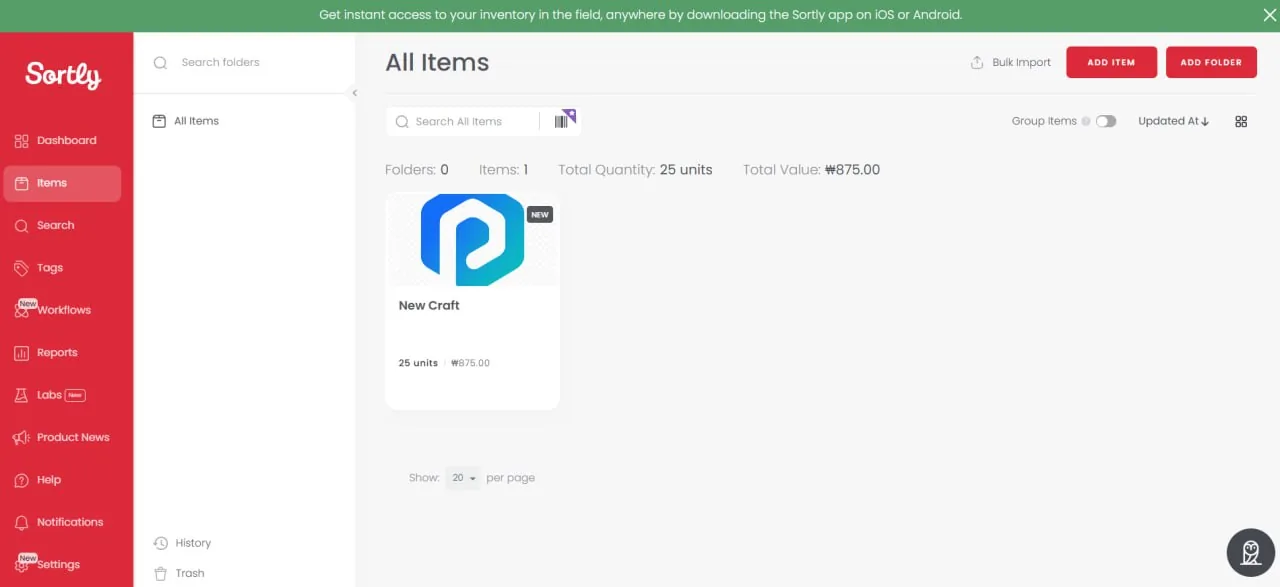
Sortly All Items view with inventory summary, sidebar navigation, and item cards
Expected result: 5–10 items visible in your folders as cards or list entries, complete with names, quantities, and photos.
💡 Pro tip: If an item comes in multiple variants (colors, sizes, etc.), photograph it from a few angles. This prevents picking mistakes later.
Step 4: Generate and assign QR codes or barcodes (Advanced plan and up)
⚠️ Reader warning: Creating and printing your own labels is not included on the free plan. Per Sortly’s pricing page, unlimited QR code label creation starts on Advanced ($49/month), and barcode-format label creation starts on Ultra ($149/month). If you tap “Create Label” on a free account, expect an upgrade prompt rather than a label. You have three routes: link existing retail barcodes for free (below), start the 14-day trial (credit card required, auto-converts), or subscribe to Advanced.
On Advanced or a trial: select an item and look for “Generate Label” or “Barcode.” Sortly creates a unique QR code for each item, and generates a print-ready PDF — print onto standard Avery label paper with your regular printer, or use a single-label or thermal printer. Labels can go out one at a time or in batches, and you can reprint later at a different size.
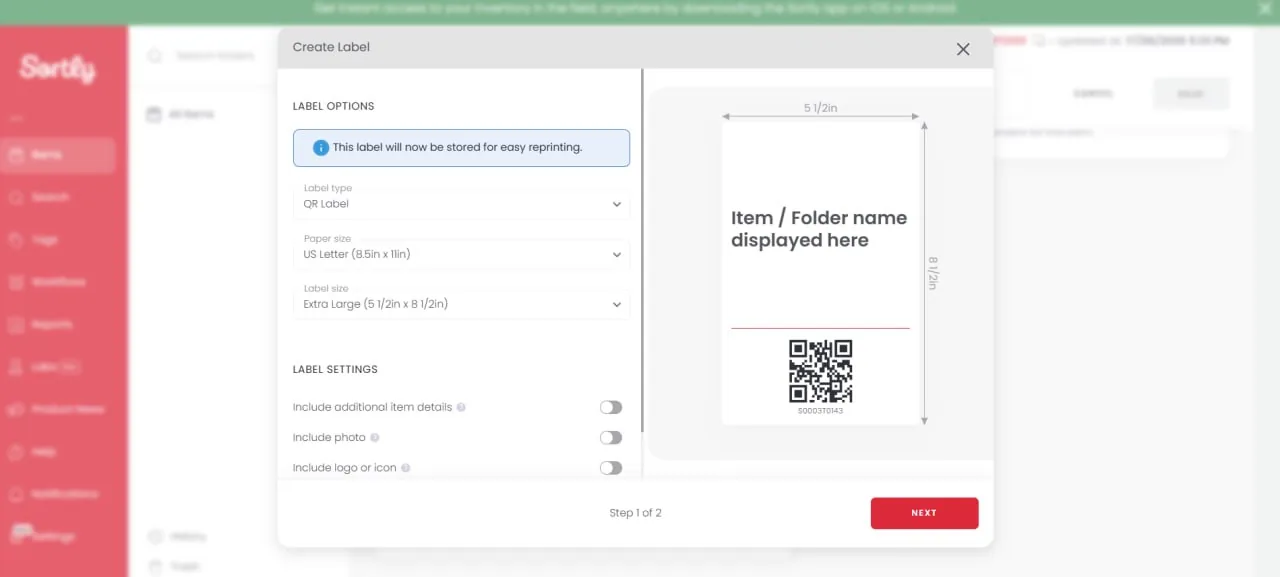
Sortly label creation modal with QR label preview and paper size options (available on Advanced and up)
The free route: if items already carry barcodes (like retail products), scan the existing barcode into the item’s dedicated Barcode field instead of generating new codes. Scanning and linking existing codes works on every plan — it’s only creating new labels that’s gated. For a pilot built around retail-barcoded stock, this route costs nothing.
Expected result: Printed QR labels ready to apply (paid plan or trial), or existing retail barcodes linked to item records (any plan).
Step 5: Enable barcode scanning on mobile
Download the Sortly mobile app from the iOS App Store or Google Play Store and log in. Sortly’s app pages list iOS 18.5+ and Android 12+ as the current minimums.
Open the app and find the camera or scanning icon — usually at the bottom or top. Grant camera permissions when prompted.
Point your phone at a QR code or barcode linked to one of your items. The app recognizes the code, pulls up the item details, and lets you adjust the quantity on the spot. The change syncs across all devices while you’re online — update from the warehouse floor and the web dashboard follows.
Test this with one item first. Scan the code, confirm the item details appear correctly, and change the quantity. You’ll see the update in the app and on the web dashboard.
Expected result: The mobile app successfully scans a code, displays the correct item, and quantity updates flow through to the web dashboard.
💡 Pro tip: You don’t need dedicated scanning hardware to start — your phone’s camera handles both QR codes and barcodes on every plan. Sortly lists third-party handheld scanner support from the Ultra tier if you outgrow the camera; external and Bluetooth scanners aren’t supported on the lower plans.
Step 6: Set up low stock alerts (paid plans)
⚠️ Reader warning: Alert notifications are a paid-plan feature. You can store a minimum quantity (“Min Level”) on an item on any plan, but the email and in-app notifications that fire when stock drops below it come with Sortly’s alerts feature on Advanced and up. On the free plan, a Min Level is just a number you have to check manually.
On a paid plan: open an item’s details and set the minimum quantity — if you never want to drop below 5 units, enter 5. When stock falls below the threshold, Sortly notifies the team members you choose via email or in-app alert. You can also set alerts at the folder level or in bulk, and date-based alerts handle expirations and maintenance schedules using a date custom field.
Customize thresholds item-by-item based on how long items take to arrive, how fast they move, and how much space you have. High-value or fast-moving items deserve earlier warnings; slow-movers may not need alerts at all. Start with your top 10–15 items, then expand.
Expected result: Low stock alerts configured on key items (paid plan). When inventory drops below the threshold, the right people get notified.
Step 7: Invite team members and set permissions (Advanced plan and up)
The free plan includes exactly 1 user license, so team access starts with a paid plan: Advanced includes 2 user licenses, Ultra 5, and Premium 8, and you can buy extra seats from the Manage Team page on any paid plan (each plan has a seat ceiling).
To invite someone, find “Team” or “Users” in Sortly’s settings, click “Invite,” enter their email, and pick an access level — full admin access, a standard role that can scan and edit items, or read-only. Fully customizable roles (defining exactly what a role can add, edit, or delete) are a Premium-tier feature, but the standard access levels cover most small teams.
For security, restrict folder access where certain staff should only see specific areas — warehouse staff usually shouldn’t browse office inventory or cost fields. After you invite a user, review their folder permissions to limit what they can see and edit.
Team members get an email invitation and must verify their account before logging in.
Expected result: Team members invited and assigned roles (paid plan). They receive email invitations and can access the workspace once they verify.
Common problems and fixes
CSV import fails or displays a formatting error during bulk upload.
⚠️ Cause: With the Advanced Import template, column order and header names must match exactly. With either path, referencing a custom field or unit of measure that doesn’t exist in your account yet will throw errors, and files that push you past your plan’s item limit fail outright.
🔧 Fix: For simple data, use Quick Import — it accepts your own CSV/XLSX and only requires Item Name and Quantity columns. For the Advanced template, download it fresh from Settings > Bulk Import, fill in under the existing headers without reordering columns, and remove blank trailing rows. Create custom fields in Sortly before importing. If a partial import fails, delete the rows that already went through before re-uploading — otherwise the successful rows import twice and you get duplicates.
QR code scanner fails to recognize printed labels or reads inconsistently.
⚠️ Cause: The printed QR codes are too small, printed at low resolution, or your camera lens is dirty. Codes need adequate size and contrast to scan reliably.
🔧 Fix: Reprint labels at a larger size — at least 1.5 inches square works well. Sortly supports several predefined label sizes for standard and label printers, so choose a larger supported template if the code is difficult to scan. Make sure your printer’s quality is set to standard or high. Clean your phone’s camera lens with a soft cloth. Test scanning from different distances (6–12 inches is ideal). If labels are old or faded, reprint them — faded QR codes won’t scan.
Mobile app doesn’t update quantities in real-time, or changes appear delayed on desktop.
⚠️ Cause: Your internet connection is weak, or you were working offline. Changes sync when the app reconnects, but it can take a few seconds to a few minutes. Note that offline mobile access itself is an Advanced-and-up feature — on the free plan the app needs a live connection.
🔧 Fix: Verify that the phone has an active WiFi or cellular connection. In the Sortly mobile app, go to Settings > Sync Inventory > Full Sync. Make sure “Sync Only On WiFi” is disabled if you are using cellular data, and confirm that “Disable Sync” is turned off. After the full sync finishes, refresh the web dashboard and compare the affected item again.
Users report they can’t find items or folders they should have access to.
⚠️ Cause: Folder permissions are too restrictive, or a read-only access level doesn’t grant what the user needs. Items may exist in folders the user can’t see.
🔧 Fix: As an admin, review the user’s access level and folder permissions in Team settings. Verify that restricted folders are intentional. If a user needs to edit inventory, move them off read-only. If they only need specific folders, make sure those folders are explicitly allowed in their permissions. This also explains a missing Bulk Import option — it only appears for users whose role includes that permission.
Verification checklist
- You’ve created a free Sortly account and can log in from desktop and mobile
- You’ve built a folder structure representing your physical locations, keeping total entries (items + folders) under the 100-entry free cap
- You’ve added at least 5–10 inventory items with names, quantities, and photos
- You’ve linked existing retail barcodes to items — or, on Advanced/trial, generated and printed QR labels and attached them
- You’ve tested mobile scanning and confirmed a quantity change shows up on the web dashboard
- Paid plan only: you’ve set low stock alerts on at least 3 critical items and received a test notification
- Paid plan only: you’ve invited at least one team member and confirmed they received their invitation email
- You’ve verified that desktop and mobile views show the same item counts and locations
What Sortly costs over 12 months
Sortly runs a standing promotion: 50% off the first year of new yearly subscriptions, then 20% off yearly billing from year two. Monthly billing has no discount. Here’s what each plan actually costs across a first year and a renewal year. Checked July 2026 against sortly.com/pricing; all figures USD.
| Plan | Included limits | Monthly billing (12 mo) | Yearly, first 12 months | Yearly renewal (year 2+) |
|---|---|---|---|---|
| Free | 100 entries, 1 user, 1 custom field | $0 | $0 | $0 |
| Advanced | 500 items, 2 users, QR labels, alerts, offline mode | $588 | $288 ($24/mo) | ≈$470 ($39.20/mo) |
| Ultra | 2,000 items, 5 users, barcode labels, purchase orders | $1,788 | $888 ($74/mo) | ≈$1,430 ($119.20/mo) |
| Premium | 5,000 items, 8 users, custom roles, QuickBooks Online | $3,588 | $1,788 ($149/mo) | ≈$2,870 ($239.20/mo) |
For the guide’s representative case — a two-person shop tracking 200–400 SKUs that wants printed QR labels and low-stock alerts — Advanced on yearly billing is the realistic landing spot: $288 for the first year, then roughly $470/year. Budget for the renewal number, not the introductory number: under the currently published discounts, Advanced rises from $288 in the first year to about $470 per year at renewal. Enterprise (10,000+ items, 12+ users, API access) is quote-only.
When to consider a different approach
Sortly works well for small businesses managing straightforward, single-location or multi-location inventory without complex requirements. But some situations call for a different tool.
Manufacturing or assembly: If your business manufactures products with bill-of-materials (BOM) tracking, recipe-style ingredient management, or work-order tracking, Sortly’s item-level focus won’t cut it. You’d need a platform designed for manufacturing that handles BOM hierarchies and production-batch tracking.
Multi-warehouse with advanced shipping: If you run multiple warehouses and need sophisticated inter-warehouse transfers, automated picking, or shipping-label integration, Sortly’s folder structure might feel limiting. Enterprise inventory platforms offer routing logic and carrier integrations that Sortly doesn’t.
Accounting system requirements: If you require deep accounting integration, note that Sortly’s QuickBooks Online connector sits on the Premium plan ($299/month) and covers sending invoices and purchase orders — not automated journal entries or compliance reporting. Sortly’s current native integrations page does not list Xero or NetSuite. If either system is essential, confirm whether an API-based or third-party workflow is practical before choosing Sortly.
Unsure if Sortly is right for you? Start with the free plan and test these three scenarios. For the broader tradeoffs on pricing, scale limits, and who should skip it, read our Sortly review. If your workflow needs more customization or scale, compare database software options.
Recommended first 30-minute setup order
If you only have half an hour, run the steps in this priority order and defer anything that needs a paid plan. The goal is a working, scannable system today — refinements can wait until you know how you actually use it.
- Create the account (~2 min). Sign up with email or SSO and verify.
- Build top-level location folders only (~5 min). Three or four folders, no subfolders yet — and remember every folder counts against the 100-entry free cap.
- Add your top 10 items by hand (~10 min). Names, quantities, and photos; skip cost fields for now. This gives you real data and teaches you the interface.
- Link and scan one existing barcode (~8 min). This proves the scan-to-update loop on the free plan. No retail barcodes on your stock? This is the moment to decide whether label printing justifies Advanced — don’t start the trial casually, since it needs a card and auto-converts.
- Defer alerts and team invites. Both need a paid plan, so postponing them costs nothing. Configure them in week one if you upgrade.
Setup mistakes to avoid
Mistake 1: Creating one flat list instead of nested folders. Many people add all items to a single “Inventory” folder without organizing by location or category. This makes finding items slow and prevents you from setting location-based permissions. Spend 5 minutes upfront building a logical folder tree — it pays dividends within days.
Mistake 2: Skipping photos when adding items. Typing just the item name saves seconds per item but creates visual confusion later. Your team won’t remember whether “Widget A” is the red one or the blue one. Always take a quick photo, even a simple snapshot from your phone. Sortly supports this natively.
Frequently asked questions
Can I import my existing spreadsheet?
Yes. Settings > Bulk Import offers Quick Import (upload your own CSV/XLSX; only Item Name and Quantity are required) and Advanced Import (Sortly’s template, which can also create folders). Two limits worth knowing before you start: imports are capped by your plan’s item limit, and bulk updates to existing items aren’t supported via spreadsheet — the import only creates new items. Test with a small batch first.
Does Sortly work offline?
Offline mobile access — viewing and updating inventory without a connection, then syncing when you’re back online — starts on the Advanced plan. On the free plan the app needs a live WiFi or cellular connection, so if you scan in dead zones (basements, metal warehouses, remote sites), that’s a concrete reason to budget for Advanced.
Can I track expiration dates or serial numbers?
Yes, via custom fields — but the free plan includes only 1, Advanced 5, Ultra 10, and Premium 20, and date-based alerts (the notifications that make expiry tracking useful) are a paid feature. Sortly’s core model is quantity and location; it isn’t built for pharmaceutical-grade lot control or serialized-asset-heavy operations, so pilot your specific use case on the trial before migrating everything.
Next steps
- Review your first setup against the inventory management checklist.
- Still comparing inventory apps? Use our inventory management tools comparison alongside the software evaluation scorecard.
- If Sortly feels too limited, compare broader database software options.
Sources and notes
- Sortly pricing page — plan prices, first-year promotion, item/user limits, QR vs. barcode label tiers, and trial terms (checked July 2026)
- Sortly Help Center: Manage Your Sortly Account or Subscription — entry limits counting items and folders combined
- Sortly Help Center: Bulk Importing New Items/Folders — Quick vs. Advanced Import, required fields, and duplicate-row behavior
- Sortly Help Center: Pricing & Plan Information — annual 20% discount, add-on seats, trial auto-conversion
- Sortly features page — scanning, label creation, alerts, and permissions capabilities
Disclaimer
This guide is for general informational purposes only and does not constitute professional accounting, tax, legal, or financial advice. Pricing, features, and plan details were verified against Sortly’s official website in July 2026 and may change without notice. Always consult a qualified professional for advice specific to your business situation.
Last reviewed: July 2026 by the PickrTech editorial team.