TL;DR: HubSpot’s free CRM is a free tier, not a timed trial, so the real question is whether it’s worth upgrading. Test three core workflows: importing and organizing your contacts, customizing your sales pipeline to match how you actually work, and confirming that email logging and mobile access fit your daily routine. As you go, note which hard caps of the free tier — 2 users and 1,000 contacts — would force an upgrade, and use the 12-month cost table below to see what that upgrade actually costs.
Where this guide fits: This guide helps you test HubSpot CRM before paying for it. If you are still comparing CRM options, start with the CRM comparison. If you want to score several tools consistently, use the software evaluation scorecard. All pricing and plan limits in this article were checked against HubSpot’s official pricing pages in July 2026.
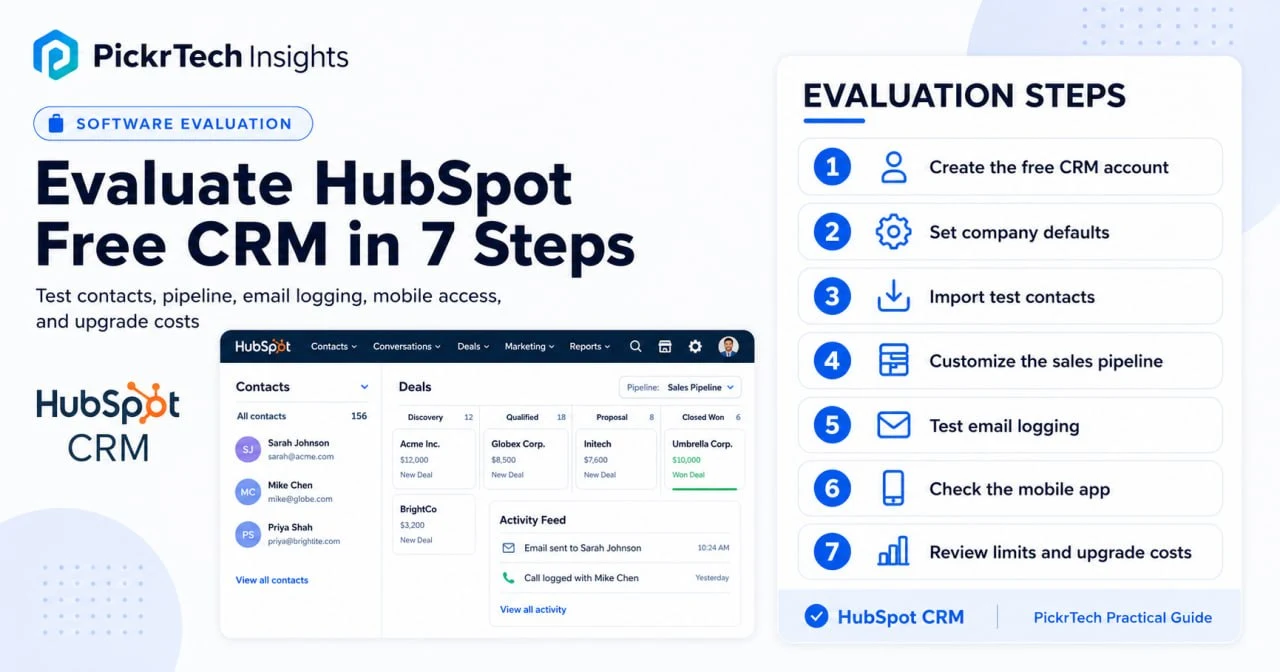
Use these seven checks to test HubSpot’s free CRM workflow, limits, and likely upgrade costs before committing to a paid plan.
Before you begin: what you’ll need
Account requirements. Be ready to provide an email address, your name, and basic company details during signup. HubSpot doesn’t require a credit card, so there’s zero risk in kicking the tires. One thing to know upfront: free accounts allow a maximum of 2 users, so if a colleague tests alongside you, that’s the whole team.
Data needed. Gather a small batch of existing contacts — 10 to 20 records — and format them as a CSV with columns for email, first name, last name, and phone number. If you’re migrating for real rather than just testing features, review our CRM migration guide first so your columns, duplicate contacts, and lifecycle stages are cleaned up before import. A small batch lets you test the import process without cluttering the account.
Estimated time: 30 minutes · Difficulty: Beginner
Cost implications. Free to start, with real caps: 2 users, 1,000 contacts, one deal pipeline, basic deal tracking, and email logging. Older free accounts may show a much larger legacy contact allowance, but current free accounts cap at 1,000. Anything beyond those limits — a third user, a second pipeline, sequences, full workflows, or custom reporting — means a paid Sales Hub tier. The full 12-month math is in the cost table further down.
How to test HubSpot’s free tier: 7 steps
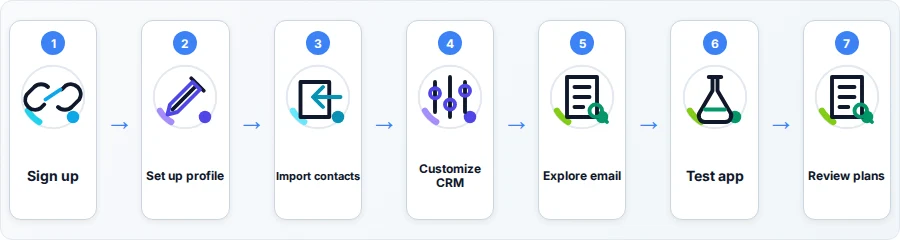
Step 1: Register for the free HubSpot CRM account
Head to the HubSpot CRM pricing page and click “Get started free.” Follow the current signup prompts for your email, name, and company details, then complete any email-verification step HubSpot presents. After activation, you’ll land in the account setup flow or CRM dashboard.
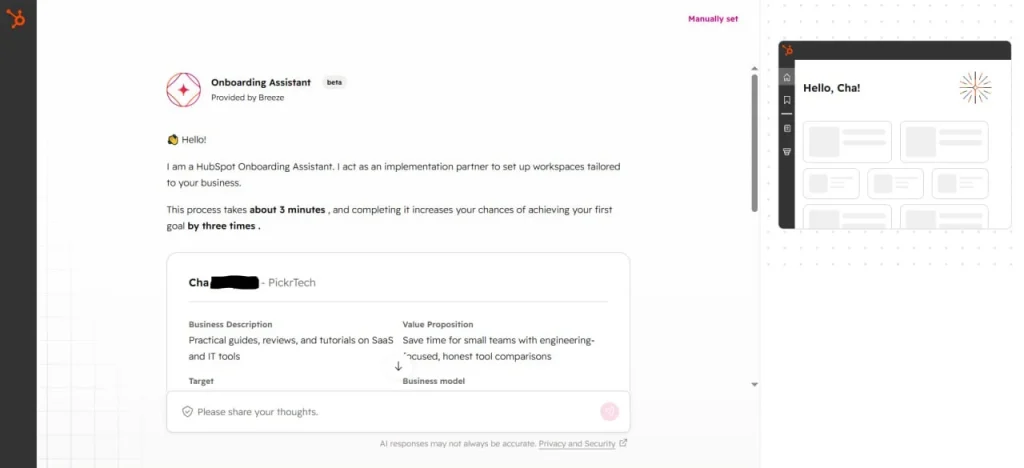
Once you’re in, you’ll see the main CRM dashboard with contacts, deals, and companies in one place. This is where you’ll do your evaluation work.
Expected result: a working HubSpot account with full access to the free tier, ready to customize.
💡 Pro tip: Use a team email address instead of a personal one, so a colleague can take over the account later if you decide to upgrade.
Step 2: Set your company profile and defaults
Click the Settings icon in the top navigation bar, then open Account Defaults. In the General tab, confirm the account name, timezone, language, date and number format, and company currency where available. HubSpot uses these account-wide defaults for dates, times, and deal values, so setting them correctly now prevents confusing activity logs and amounts later.
Expected result: future dates and deal amounts use the correct account timezone and currency, and the account name is consistent for all users.
Step 3: Import contacts and test data integrity
Open CRM > Contacts and click Import. If that shortcut isn’t visible in your account, go to More > Data Management > Data Integration and start a file import. Upload your CSV, choose the option to create and update contacts, and map the Email column to HubSpot’s primary Email property as the unique identifier. Column order does not matter. Double-check the mapped names and phone numbers, then finish the import.
Keep the batch small on purpose. Free accounts cap at 1,000 contact records, and a botched bulk import can create unnecessary cleanup before you’ve even decided whether to stay. HubSpot keeps restorable deleted records in the recycle bin for up to 90 days, so cleanup remains reversible during the evaluation.
Open your Contacts list and confirm the records show up with correct data. If you chose to create and update contacts and mapped Email as the unique identifier, matching contacts should update instead of creating duplicate records.
Expected result: your test contacts appear with all fields populated correctly and no duplicates.
💡 Pro tip: Include an Email column and map it to HubSpot’s primary Email property. HubSpot can also use Record ID or a custom unique-value property, but Email is the simplest identifier for a small contact test.
Step 4: Customize the sales pipeline to match your process
Click the Settings icon in the top navigation bar, then go to Data Management > Objects. Select Deals, open the Pipelines tab, and click your sales pipeline. Rename the default stages to match your real process — for example, “Initial Contact,” “Proposal,” “Negotiation,” and “Closed Won.” You can add stages, remove ones you don’t need, and set probability percentages for forecasting. The free tier gives you one deal pipeline; if your business runs separate processes for new sales and renewals, you’ll need Sales Hub Starter or above to model both.
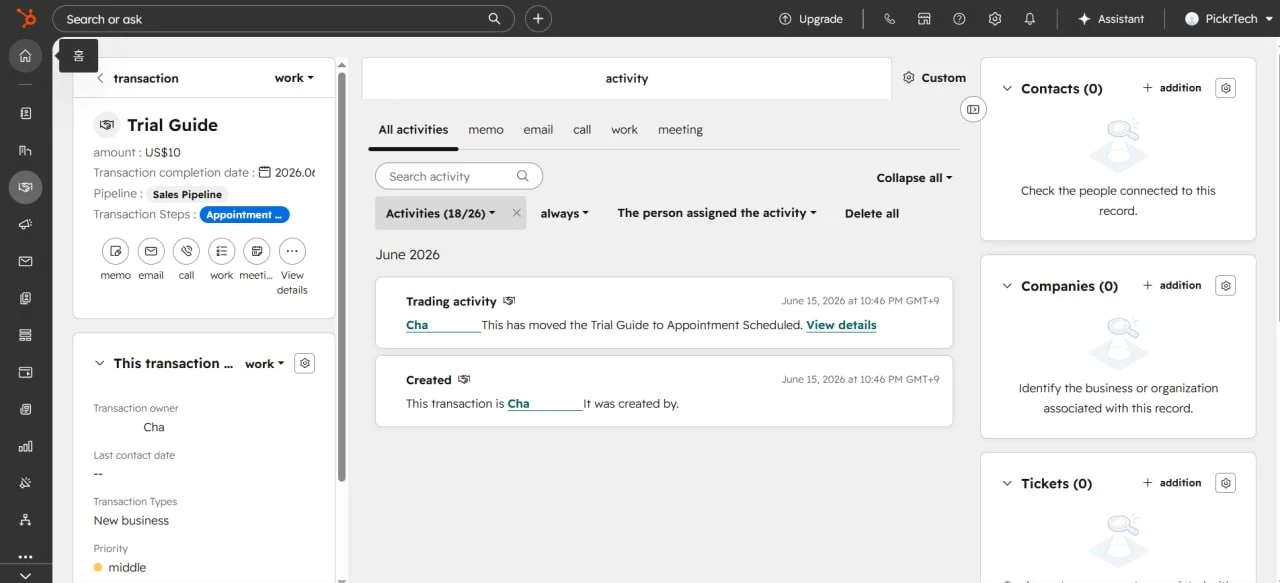
Create a test deal using one of your imported contacts to confirm deal creation works and your new stage names appear correctly.
Expected result: your pipeline reflects your real-world stages, and you can move a test deal through it without issues.
Step 5: Connect email and test logging
Click the Settings icon in the top navigation bar, then go to General > Email and click Connect personal email. Connect Gmail, Microsoft 365, Exchange, or another supported inbox. To log messages sent directly from Gmail or Outlook, install the HubSpot Sales Chrome extension or Outlook add-in. Then send a test email to one of your imported contacts with Log to CRM selected.
Confirm the email appears in the contact’s activity timeline — that tells you the connection and logging settings are working during normal use. Two free-tier limits to note while you test: one-to-one emails sent on the free tier include HubSpot branding, which is removed once you move to Starter, and you get only 3 saved email templates, so you can’t fully evaluate a template-heavy outreach workflow without upgrading.
Expected result: your inbox is connected, and the test email appears in the contact activity feed soon after sending — critical for keeping an accurate communication history.
Step 6: Test the mobile app
Download the HubSpot mobile app from the App Store or Google Play and log in. Open your contacts and one of your test deals, then verify you can view contact details, change a deal stage, and add a note or log a call from your phone.
Mobile access matters if you meet clients outside the office or work from home. Testing it now shows whether your mobile workflow will be smooth or frustrating.
Expected result: you can access contacts and deals from your phone and make updates that sync back to your desktop account.
Step 7: Find your upgrade triggers
While you’re in the CRM, click locked features like Workflows, Sequences, or the custom report builder. A popup tells you which Sales Hub tier unlocks each one. The short version: Starter removes HubSpot branding and raises template limits; Sequences, the full workflow editor, forecasting, custom reports, and lead scoring are available in Professional; Enterprise raises scoring limits and adds capabilities such as custom objects and more advanced permissions. One thing worth knowing if proposals are central to your process: quoting and CPQ are no longer bundled into Sales Hub — they now live in HubSpot’s separately sold Revenue Hub (formerly Commerce Hub). The exact prices for each tier are in the next section, or on the Sales Hub pricing page.
Expected result: you know which features are free and which cost money, so you can decide whether the free tier meets your needs or you’re paying from day one. That decision feeds directly into your final scorecard.
The 30-minute working order
Here are the same seven steps compressed into one session. The time weighting is deliberate: contact import and pipeline setup get the most minutes because they’re the two tests most likely to reveal a dealbreaker.
| Step | Time | Why it matters |
|---|---|---|
| 1. Register and verify | 2 min | Fastest way to get dashboard access |
| 2. Set company defaults | 2 min | Correct timezone and currency keep logs and deal values accurate |
| 3. Import test contacts | 8 min | Reveals whether your data structure survives the mapping step |
| 4. Customize your pipeline | 8 min | Directly shapes your team’s daily workflow — don’t skip |
| 5. Connect your email inbox | 5 min | Email logging is a dealbreaker if it doesn’t work smoothly |
| 6. Check the mobile app | 3 min | Only matters if you work away from a desk — skip if desktop-only |
| 7. Find your upgrade triggers | 2 min | Tells you whether the free tier is enough or you’re paying from day one |
What upgrading actually costs over 12 months
The evaluation question isn’t just “does the free tier work today” — it’s “what will I pay when it stops working.” Here’s the first-year math for a representative three-person team, using HubSpot’s published US prices as of July 2026, annual billing where available.
| Plan | Per-seat price | First-year total (3 seats) | What triggers this tier |
|---|---|---|---|
| Free tools | $0 | $0 — but capped at 2 users, so a 3-person team already can’t use it | Solo founders and 2-person teams under 1,000 contacts |
| Sales Hub Starter | $7/seat/mo promotional price displayed at time of check (standard catalog price starts at $20/seat/mo) | ~$252 at the displayed promotional rate; $720 at the standard catalog rate | Third user, second pipeline, removing HubSpot branding, more templates |
| Sales Hub Professional | $90/seat/mo annual ($100 monthly) | $3,240 + $1,500 required onboarding = $4,740 | Sequences, full workflow automation, forecasting, custom reports, lead scoring |
| Sales Hub Enterprise | $150/seat/mo annual | $5,400 + $3,500 required onboarding = $8,900 | Higher scoring limits, custom objects, advanced permissions |
A note on the Professional seat model. HubSpot’s current Product & Services Catalog states that new Sales Hub customers after March 5, 2024 are billed per seat with no additional seat minimums. The Professional estimate above therefore uses three paid Sales seats. Existing customers can remain on older pricing arrangements, so confirm the order form if you’re upgrading a legacy account.
The jump worth planning for is Starter to Professional. Professional adds a substantial per-seat increase plus the $1,500 onboarding fee, and it’s where features many sales teams eventually want — sequences, full workflows, forecasting, and custom reports — become available. If you already know you need those capabilities, factor the Professional number into your evaluation, not the free tier.
Setup mistakes to avoid
Over-importing on day one. Don’t upload your entire database up front. As covered in Step 3, a large import with mapping errors clutters the account, burns your 1,000-contact allowance, and forces cleanup — start with a 10–20 record test batch instead.
Skipping pipeline customization. If you leave the default deal stages unchanged, your sales process won’t map cleanly, and your team will resist a CRM whose terminology doesn’t match how they talk. Spend the five minutes renaming stages.
Ignoring email integration. Many users skip the inbox connection and regret it when they realize they’re logging every email by hand. Test logging during the evaluation so you know whether it adds value or friction.
Not testing integrations and permissions. If you plan to connect HubSpot to Slack, a website form tool, or other software, test those during your evaluation. Some integrations require paid plans and others have surprisingly involved setup — discovering that late wastes your window.
Common problems and fixes
- Sent emails aren’t logging to the contact record.
⚠️ Cause: the HubSpot email extension is installed but not actively connected, or the “Log to CRM” checkbox wasn’t checked before sending.
🔧 Fix: confirm the extension or add-in is active in your compose window, and select “Log to CRM” before sending your next test email. If it still doesn’t work, reinstall the extension and reconnect your personal email through Settings > General > Email.
- Duplicate contacts appear after importing a CSV.
⚠️ Cause: the import was set to create contacts only, or the file’s unique identifier wasn’t mapped correctly. Email is the simplest unique identifier for a contact import, but Record ID or a custom unique-value property can also be used.
🔧 Fix: choose the option to create and update contacts, then map the Email column to HubSpot’s primary Email property. Column order does not matter. Re-import with the corrected mapping so matching records update instead of duplicating, then delete any duplicates already created.
- Pipeline stages are confusing or don’t match your process.
⚠️ Cause: you didn’t customize the default stages, or you created names your team doesn’t use in daily conversation.
🔧 Fix: go to Settings > Data Management > Objects, select Deals, open the Pipelines tab, and click the pipeline you want to edit. Rename each stage to match your team’s exact terminology (e.g., “Qualified Lead,” “Needs Analysis,” “Proposal Sent”). Test by creating a deal and moving it through each stage, then adjust the names again if needed.
Verification checklist
- Your HubSpot account is created and email verified
- Account name, timezone, and company currency are set in account defaults
- Test contacts imported successfully with no duplicate records
- Deal pipeline stages renamed to match your sales process
- Email inbox connected and a test email logged to a contact record
- Mobile app installed and you can view a contact on your phone
- You identified at least two paid features you do or don’t need
- You know the tier and first-year cost for the features your team considers essential
When the free tier isn’t the right test
HubSpot’s free tier stops making sense fast if your team has more than 2 people or your contact list will pass 1,000 records within a few months. At that point you’re really evaluating Starter or Professional pricing, not a free product — so evaluate the paid edition directly through any sales-assisted trial or demo environment HubSpot makes available to your account, and budget from the cost table above instead.
HubSpot may also be the wrong platform entirely if you need advanced project management (task dependencies, Gantt charts, time tracking), a highly customized database with unusual field types and complex relationships, deep integrations with legacy enterprise software, a fully self-hosted solution, or industry-specific compliance features such as HIPAA. If any of those describe you, weigh the alternatives in our CRM comparison before spending evaluation time here. And if your team is already locked into Salesforce or Pipedrive, the cost of migrating and retraining may outweigh what HubSpot’s free tier saves.
Frequently asked questions
Does signing up require a credit card?
No. HubSpot’s free CRM tier requires only a valid email address and company website. You can use it indefinitely without entering payment information, which makes it well suited to a risk-free evaluation.
Is the free CRM really free forever?
Yes — it’s a free tier with no time limit, not a countdown trial. The pressure to upgrade comes from caps, not a clock: 2 users, 1,000 contacts, one pipeline, and no sequences or full workflow editor. When you hit those walls, the next stops are Starter or Professional, priced in the cost table above.
Do I lose my imported contacts if I never upgrade?
Not because of the free tier itself — your contacts and deals stay in the account whether or not you pay. One caveat: HubSpot may deactivate free accounts after a long period of inactivity (it has cited around 120 days), with a grace window to reactivate before data is purged. If you park the account, log in occasionally or export a CSV backup.
Can I connect HubSpot to my website forms or other tools?
Some integrations are available on the free tier and others require a paid plan. During your evaluation, open Settings > Integrations to confirm the software you want to connect is supported, and note which tier any locked integration asks for.
What happens to my data if I delete my account?
Account deletion is permanent — HubSpot can’t recover it afterward. Individually deleted records get a 90-day recycle-bin window, but a full account deletion has no comparable safety net, so export your contacts and deals as CSV files first. You can run those exports at any time on the free tier.
Next steps
- Score HubSpot against your shortlist with the software evaluation scorecard.
- Moving customer data out of spreadsheets? Use the spreadsheet-to-CRM guide before you score the account.
- If meeting booking is part of the workflow, compare scheduling tools, including HubSpot Meetings.
Sources and notes
- HubSpot Sales Hub Pricing — Current displayed tier prices, onboarding fees, and feature gates; checked July 2026
- HubSpot Product & Services Catalog — Standard list prices, the post–March 5, 2024 per-seat model, and no additional Sales Hub seat minimums
- HubSpot Free CRM Product Page — Free-tier limits (2 users, 1,000 contacts, no expiration, no credit card); checked July 2026
- HubSpot Knowledge Base – Account Defaults — Current path for account timezone and regional defaults
- HubSpot Knowledge Base – Importing Objects — CSV import process, unique identifiers, field mapping, and contact updates
- HubSpot Knowledge Base – Connect Your Personal Email — Current connection path and one-to-one email logging setup
- HubSpot Knowledge Base – Set Up and Manage Object Pipelines — Current deal-pipeline settings path and stage editing
- HubSpot Knowledge Base – Restorable and Permanent Deletions — 90-day recycle-bin window and permanence of deletions
- HubSpot Mobile App Product Page — Free app availability on iOS and Android, mobile contact and deal management
Disclaimer
This guide is for general informational purposes only and does not constitute professional accounting, tax, legal, or financial advice. Pricing, features, and plan details were verified against HubSpot’s official website as of July 2026 and may change without notice; seat minimums and promotional rates in particular vary by quote and account. Always confirm current terms with HubSpot for your situation.
Last reviewed: July 2026 by the PickrTech editorial team.