TL;DR: Complete six decisions before you open an inventory product page: check whether your current records are reliable enough to migrate, define the fields your system must hold, standardize your SKU and location rules, assign who updates stock and when, calculate reorder points, and define what a tool must prove during a pilot. The free worksheet walks through all six and calculates reorder points from your own usage and lead times. None of it depends on which tool you eventually choose.
Where this guide fits: This page is the requirements stage — what you define before shopping. If you are still deciding whether your spreadsheet has actually stopped working, read Inventory Spreadsheet vs Software: When to Switch. Once this worksheet is filled in, take it into the inventory tool comparison.

What to settle before you open a single product page
Most small business inventory projects do not fail on the software. They fail on the inputs. If your fields are undefined, your SKUs are inconsistent, and nobody owns the update step, every tool looks equally impressive in a demo and equally broken three weeks after import.
Six decisions have to be made regardless of which product you end up paying for:
- Whether your current numbers are accurate enough to import at all
- Which fields the system must hold, and what format each one uses
- How SKUs and locations are named
- Who updates stock, and what triggers the update
- What the reorder point is for each item that matters
- What a trial has to prove before you commit
Download the worksheet: PickrTech Inventory Process Worksheet (XLSX, 26 KB). It contains a Start Here tab plus six working tabs, one for each decision. The reorder point calculation is already built in. Yellow cells are yours to fill; white cells calculate themselves. Each working tab includes an example showing the expected format.
Use a 10- to 15-item count as a data-quality screen
Start with a small screening count because the result determines what happens next. Pick 10 to 15 representative high-value or fast-moving items, count them physically, and compare each quantity against your current spreadsheet or inventory record.
Tab 1 calculates a sample accuracy result. Treat it as a triage signal, not as a formal certification of the entire catalog. A small sample can expose process problems, but it cannot prove that every SKU, location, and quantity is correct.
- 98% or better in the sample — no obvious systemic problem appeared, but review every variance and still check duplicate SKUs, missing locations, and stale records before import.
- 90% to 98% — investigate and correct the largest variances before migrating.
- Below 90% — stop the migration, recount the affected items, and identify the process gap first.
The individual variances matter more than the sample percentage. Each one can reveal a movement nobody records, a field that is missing, or a location where stock accumulates without being updated. Write the cause next to every variance. Those causes become requirements later in the worksheet.
Decide which fields your system must hold
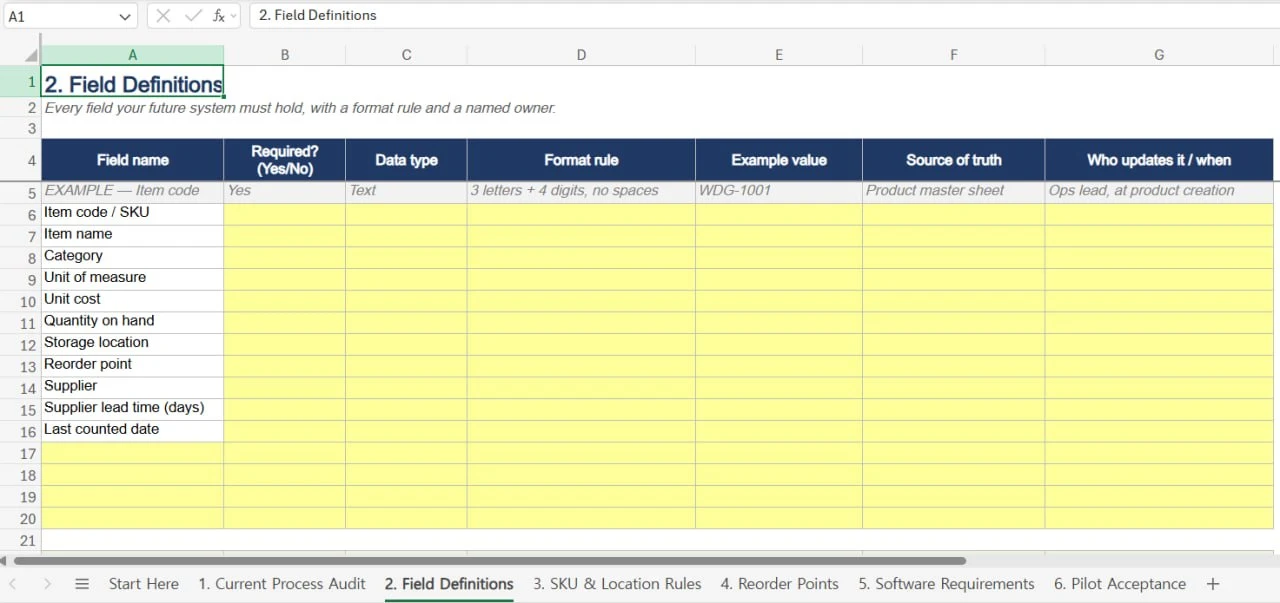
A field list is not a wish list. Each field needs a format rule and a single source of truth, agreed before import, because renaming and reformatting after the fact is where migration time actually goes.
| Field | Why the system must hold it | Format rule to agree now |
|---|---|---|
| Item code / SKU | The join key for every import, export, and future migration | Fixed length, fixed character set |
| Item name | How people actually search | Consistent capitalisation, no leading spaces |
| Unit of measure | Stops “12” meaning boxes to one person and units to another | Controlled list: each, box, case, metre |
| Quantity on hand | The number the whole system exists to keep honest | Whole numbers unless you genuinely stock fractions |
| Location | Determines whether anyone can physically find the item | Must match the codes from the next section |
| Unit cost | Turns stock levels into a cash figure | One currency, two decimals, cost not sale price |
| Reorder point | The threshold every alert depends on | Whole number, calculated not guessed |
| Supplier and lead time | Lead time drives the reorder point directly | Lead time in days, as a number |
| Last counted date | Tells you which numbers are stale | One date format across every row |
Tab 2 adds two columns that determine whether a field remains useful after launch: who updates it, and what event triggers the update. A field with no named owner or trigger is likely to become incomplete or stale. Either assign responsibility or remove the field before migration, because consistently empty columns reduce trust in the rest of the system.
Write the SKU and location rules before anything is imported
Agree the naming convention now. Renaming 400 SKUs after they have been scanned onto shelves, printed onto labels, and referenced in purchase orders is the expensive path.
Tab 3 builds the SKU from segments — typically a category code, a product identifier, and a variant code — and shows the assembled result and total length as you go. Six decisions cause most of the later pain:
- Case. Pick upper or lower and never mix. Some systems treat WDG-1001 and wdg-1001 as two items; others silently merge them.
- Separator. Use one character consistently. Spaces do not inherently break CSV files, but they can make manual entry, label printing, and system-to-system matching less reliable. Hyphens are usually easier to standardize.
- Ambiguous characters. Letter O against digit 0, letter I against digit 1. If anyone will ever read a code aloud or type it from a label, exclude one of each pair.
- Who issues a new SKU. One person or one documented rule. Two people inventing codes independently produces duplicates within weeks.
- Discontinued items. Retire the code or reuse it — but decide, and never reuse a code that still appears in historical orders.
- Variants. Separate SKU per size and colour, or a shared parent. This decision constrains which tools can support you.
An internal SKU is not the same as a GS1 GTIN, although either identifier can be encoded in a barcode. SKUs are created by your business for internal tracking. GTINs are created within the GS1 identification system and are globally unique. Retailers and marketplaces may require a GTIN, but their requirements and exemption policies vary. Keep the internal SKU and GTIN in separate fields so one is not overwritten during import.
Locations should describe where something physically sits, not what it is. For many small operations, three levels — site, area, then bay or shelf — are a practical starting point. Add deeper levels only when the physical layout genuinely requires them. Product attributes such as colour, supplier, or category belong in fields and tags rather than in the location tree.
Name who updates stock, and what triggers the update
This is the step most preparation guides skip, and it is the one that decides whether the numbers stay accurate after month one. Software does not update itself. Someone does, in response to something that happened.
List every event that changes a quantity, and name the person responsible for each:
- Goods received from a supplier
- Sale or dispatch
- Internal transfer between locations
- Damage, loss, or write-off
- Customer return back into stock
- Cycle count adjustment
Two of these are usually unowned in small businesses: write-offs and returns. Both quietly create the variances you measured in the first section. If nobody owns them today, assign them before you migrate — otherwise the new system inherits the same drift and you will conclude, wrongly, that the software is inaccurate.
Also fix a cycle count cadence now: which items, how often, and who signs off. Quarterly full counts with monthly spot checks on fast movers is a reasonable starting point for most small operations, and it is far easier to sustain than an annual count that everyone dreads.
To turn that cadence into a working system, use our Excel inventory cycle count template to assign ABC-based frequencies, run blind counts, flag recounts, and track monthly completion.
Work out reorder points from your own usage and lead times
A reorder point is the stock level at which you place the next order. Set it too low and you stock out during the supplier’s lead time; too high and cash sits on a shelf. The standard model:
Reorder point = (average daily usage × lead time in days) + safety stock, where safety stock = average daily usage × safety stock days.
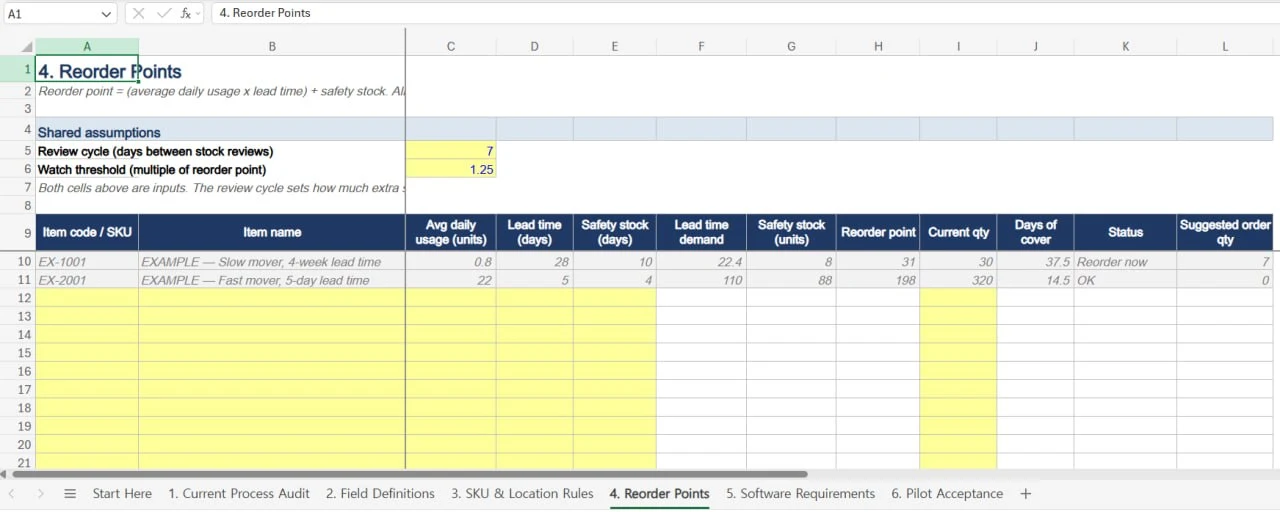
Tab 4 calculates this for up to 30 SKUs and flags each as Reorder now, Watch, or OK. Two worked examples from the worksheet show why this cannot be eyeballed:
| Slow-moving part | Fast-moving consumable | |
|---|---|---|
| Average daily usage | 0.8 units | 22 units |
| Supplier lead time | 28 days | 5 days |
| Safety stock cover | 10 days | 4 days |
| Lead time demand | 22.4 units | 110 units |
| Safety stock | 8 units | 88 units |
| Reorder point | 31 units | 198 units |
| Stock on hand | 30 units | 320 units |
| Days of cover | 37.5 days | 14.5 days |
| Status | Reorder now | OK |
Note what happens there. The slow-moving part has 37.5 days of stock and needs ordering today. The fast-moving consumable has 14.5 days and is comfortable. Days of cover — the figure most people check instinctively — points the wrong way in both cases, because a 28-day lead time consumes most of that cover before a delivery can arrive.
This is the practical argument for calculating reorder points rather than setting round numbers. It is also the specification you hand to a software trial: whatever tool you choose has to store a per-item threshold and surface it without anyone remembering to look.
Where lead times are unreliable, raise the safety stock days for that specific item rather than inflating its average daily usage. Inflating usage corrupts the reorder point and the suggested order quantity at the same time; raising safety stock changes only the buffer, which is what you actually intended.
Turn the worksheet into a software requirements list
Now the requirements write themselves, because every one traces to a decision you already made. Sort each into Must, Should, or Nice — and write the trial test beside it before you look at any product page.
The test column is what stops a comparison from becoming a feature-checkbox exercise. “Supports custom fields” is a claim on a marketing page. “Holds all nine fields from Tab 2, including lead time as a number” is something you can verify in twenty minutes of a free trial.
Tab 5 scores up to three candidate tools and applies one elimination rule: a tool that misses even a single Must is out, regardless of how well it performs elsewhere. Separating Must from Should before you start looking is precisely what makes that rule survivable — do it afterwards and every requirement quietly becomes negotiable. If you want a weighted version that ranks the survivors, our software evaluation scorecard covers the scoring model.
One requirement is easy to forget and expensive to discover late: data export. Confirm during the trial that you can export everything you imported, in a format you could re-import elsewhere. A tool you cannot leave is a tool you have to keep paying for.
Set the pilot pass conditions before the trial starts
Write the acceptance criteria and their targets before the pilot begins. A criterion scored afterwards is always scored generously, because by then you have already invested a weekend in the migration.
Tab 6 ships with ten criteria worth keeping, including: the import completes without data loss, your SKU format survives it, the location structure is reproducible, reorder points can be stored per item, low stock is visible without anyone manually checking, and full export works and is re-importable.
Import twenty representative real rows rather than a perfectly curated sample. Include long item names, variant codes, blank optional fields, and items from more than one location. Then confirm that every location maps correctly. Inventory tools often represent sites, folders, bins, and warehouses differently, so location structure deserves a separate check.
The decision rule in Tab 6 is deliberately simple: every Must criterion has to pass. After that, adopt the tool if all remaining criteria pass, or if no more than two Should or Nice criteria fail and each has a documented workaround. Do not adopt it when a Must fails or when three or more lower-priority criteria fail. Make that judgement while the free trial is still running and switching costs remain low.
Where to go once the worksheet is filled in
- Compare tools against your Must list in the small business inventory tool comparison.
- If the worksheet suggests a spreadsheet still covers you, add thresholds with low stock alerts in Google Sheets.
- To run the whole catalog from that spreadsheet — stock, value, aging, and cycle-count checks in one place — build the inventory dashboard in Google Sheets.
- If barcode scanning was a Must, test the workflow first using the barcode scanner and Excel inventory guide.
- If you have already settled on a tool, our Sortly inventory setup guide is the step-by-step implementation walkthrough.
Method, assumptions, and sources
The reorder point model used here is the standard time-based formula: (average daily usage × lead time in days) + safety stock. It assumes demand is reasonably steady and lead times are known. It does not model seasonality, supplier reliability distributions, or economic order quantity. For highly seasonal stock, recalculate average daily usage per season rather than across the year.
Both worked examples in this guide are illustrative figures used to demonstrate the calculation, not measurements from a specific business. Every number in the downloadable worksheet is either a placeholder or an input you supply. No vendor pricing, plan limit, or product capability is embedded anywhere in this article or in the worksheet, and no inventory product was tested to produce it.
- GS1 — Get a barcode / GTIN — the distinction between internal SKUs and globally unique trade item numbers
- GS1 — Company Prefix — how GTINs are allocated when selling through retailers or marketplaces
Disclaimer
This guide is for general informational purposes only and does not constitute professional accounting, tax, legal, or financial advice. Always consult a qualified professional for advice specific to your business situation.
Last reviewed: July 2026 by the PickrTech editorial team.