TL;DR: Restore time is protected data size divided by measured restore throughput, plus preparation and verification time, with a stated safety allowance applied to the transfer. Compare that total against your recovery time objective (RTO). The free worksheet below does the arithmetic and returns PASS, FAIL, or NO_DATA — it will not guess, because the headline speed on an internet plan is not the rate a restore achieves. It also estimates minimum viable operation separately, since resuming the most important work usually cannot wait for a full restore.
This is a data-recovery calculator — not a UPS or battery-runtime calculator.
The worksheet included with this guide is designed for small-business owners and IT generalists restoring from cloud, NAS, or offsite backup. It does not recommend providers. It helps you decide whether the backup design you already have can recover data quickly enough.
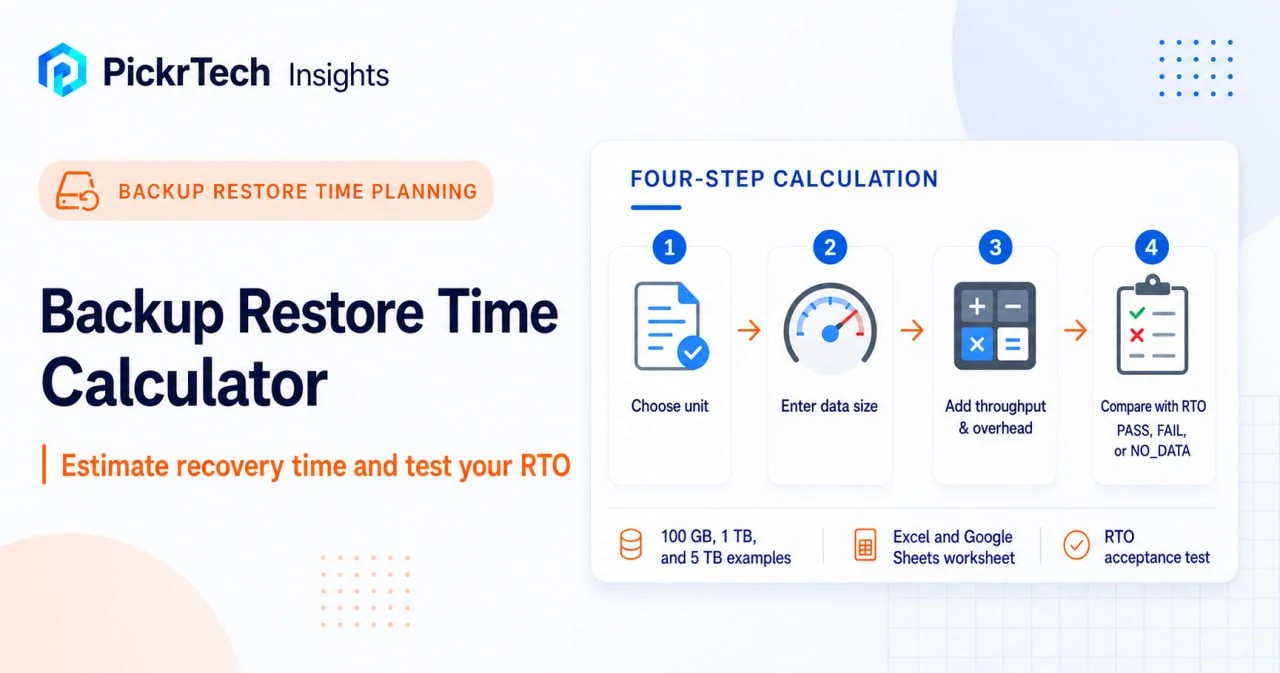
Estimate restore time from a measured transfer rate, then compare the result with your recovery time objective.
Get the worksheet
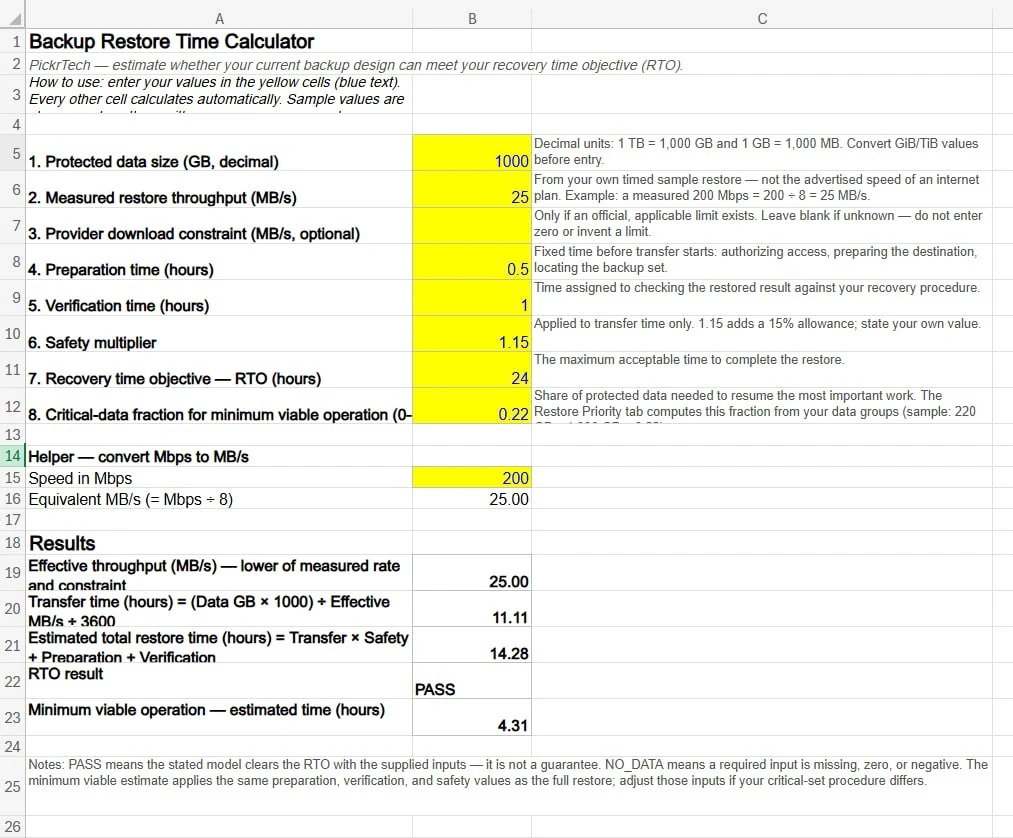
The workbook, backup-restore-time-calculator-v2.xlsx, contains four tabs. Calculator holds the eight inputs and returns PASS, FAIL, or NO_DATA against your RTO. Restore Priority models the data groups needed for minimum viable operation. Scenario Table reproduces the examples below and recalculates from editable assumptions. Acceptance Tests ships with the verification checks from the final section prebuilt.
The file opens in Excel, and its formulas use only basic arithmetic plus ABS, AND, IF, MIN, N, OR, ROUND, and SUMIF, so it also recalculates in Google Sheets. It ships with the sample values used in this article; replace them with your own measurements.
Restore-time examples you can use as a starting point
The table below uses decimal storage units, measured-throughput tiers of 50, 200, and 500 Mbps, a 1.15 safety multiplier, 30 minutes of preparation, and one hour of verification. These are illustrative editorial inputs, not provider benchmarks — replace them with your own measurements. The same table recalculates on the worksheet’s Scenario Table tab.
| Protected data | 50 Mbps | 200 Mbps | 500 Mbps |
|---|---|---|---|
| 100 GB | 6.61 hours | 2.78 hours | 2.01 hours |
| 1 TB | 52.61 hours | 14.28 hours | 6.61 hours |
| 5 TB | 257.06 hours | 65.39 hours | 27.06 hours |
For example, 1 TB at a measured 200 Mbps is 25 MB/s after dividing bits by eight. The pure transfer estimate is about 11.11 hours. Multiplying by 1.15 and adding 1.5 hours for preparation and verification produces 14.28 hours. That result is useful only when every assumption is visible.
Measure throughput before trusting the calculator
Do not enter the headline speed from an internet plan or network adapter as though it were restore throughput. The calculator needs the rate achieved by a controlled transfer from the real backup source to the intended restore destination.
- Choose a known-size sample that is safe to restore into an isolated destination.
- Record the sample size, source, destination, connection, start time, and finish time.
- Calculate achieved throughput as sample megabytes divided by elapsed seconds.
- Repeat the measurement under a second representative condition.
- Use the lower defensible result when the business needs a conservative estimate.
This guide does not assume any provider’s speed, and no one has measured your network path for you. That is why the worksheet returns NO_DATA, rather than an estimate, until a measured rate is entered.
How the calculator works
The workbook needs eight inputs: protected data size in GB, measured restore throughput in MB/s, an optional confirmed download constraint in MB/s, preparation hours, verification hours, a safety multiplier, an RTO in hours, and the fraction of data needed for minimum viable operation. The same model works as a build guide if you prefer to construct your own sheet.
1. Choose one unit convention
The worked examples use decimal units: 1 GB equals 1,000 MB and 1 TB equals 1,000 GB. If your storage interface reports GiB or TiB, either convert those values or label the worksheet accordingly. Mixing binary data size with a decimal formula creates a quiet but material error. A helper cell on the Calculator tab converts Mbps to MB/s by dividing by eight.
2. Set effective throughput
Use the measured restore rate unless you have an official, applicable download constraint that is lower. When both exist, the worksheet uses the lower value. When the constraint is unknown, leave it blank; do not enter zero or invent a provider limit.
3. Calculate transfer and operational time separately
Transfer hours = (Data GB × 1000) ÷ Effective MB/s ÷ 3600
Estimated hours = (Transfer hours × Safety multiplier) + Preparation hours + Verification hours
This separation matters because adding a percentage cannot represent every fixed activity. Preparation might include authorizing access and preparing a destination. Verification is the time assigned to checking the restored result. Enter values that match your recovery procedure rather than copying the examples.
4. Read the PASS, FAIL, or NO_DATA result
- PASS: the estimated hours are less than or equal to the stated RTO.
- FAIL: the estimate exceeds the RTO.
- NO_DATA: a required input such as measured throughput is missing, zero, or negative.
A PASS is not a guarantee. It means the stated model clears the objective with the supplied inputs. Preserve the assumptions beside the result so another person can reproduce the decision.
Calculate minimum viable operation before the full restore
A full restore may take longer than the time available to resume the most important work. On the Restore Priority tab, mark the data groups required for minimum viable operation. The worksheet sums only those groups, calculates their transfer time with the same measured rate, and shows that completion time separately from the full estimate.
Keep the priority model narrow: data group, business function, size, dependency, owner, completion estimate, and verification check. This article does not become a disaster-recovery checklist. If you still need to design the underlying backup process, start with the simple 3-2-1 backup plan.
What to do when the RTO result fails
First, check the inputs. Confirm units, sample duration, preparation time, verification time, and the critical-data fraction. If the estimate still fails, the calculator has done its job: it has shown that the current recovery design does not meet the stated objective. Use the offsite backup architecture comparison for the separate provider and architecture decision. Do not turn this worksheet into a product-ranking model.
Validate the estimate with a sample restore
- Choose a sample large enough to produce a stable timed rate.
- Predict its completion time with the worksheet before starting.
- Restore it to an isolated destination and record the actual duration.
- Verify the sample according to the applicable recovery procedure.
- Compare predicted and observed transfer time. Investigate the units or assumptions when the difference is operationally significant.
WordPress readers who need a complete isolated restore procedure can continue with the WordPress backup restore test guide. That page owns the WordPress verification workflow; this calculator only owns the time estimate.
Run the acceptance checks
The Acceptance Tests tab ships with these checks prebuilt. Four recalculate automatically; the rest take under a minute each.
- The RTO result returns NO_DATA when measured throughput is blank, zero, or negative.
- A blank provider constraint remains blank and is never treated as zero.
- The scenario table reconciles with the calculator formulas to two decimal places.
- Full restore and minimum viable operation are reported as separate estimates.
- PASS changes to FAIL as soon as the estimate exceeds the stated RTO.
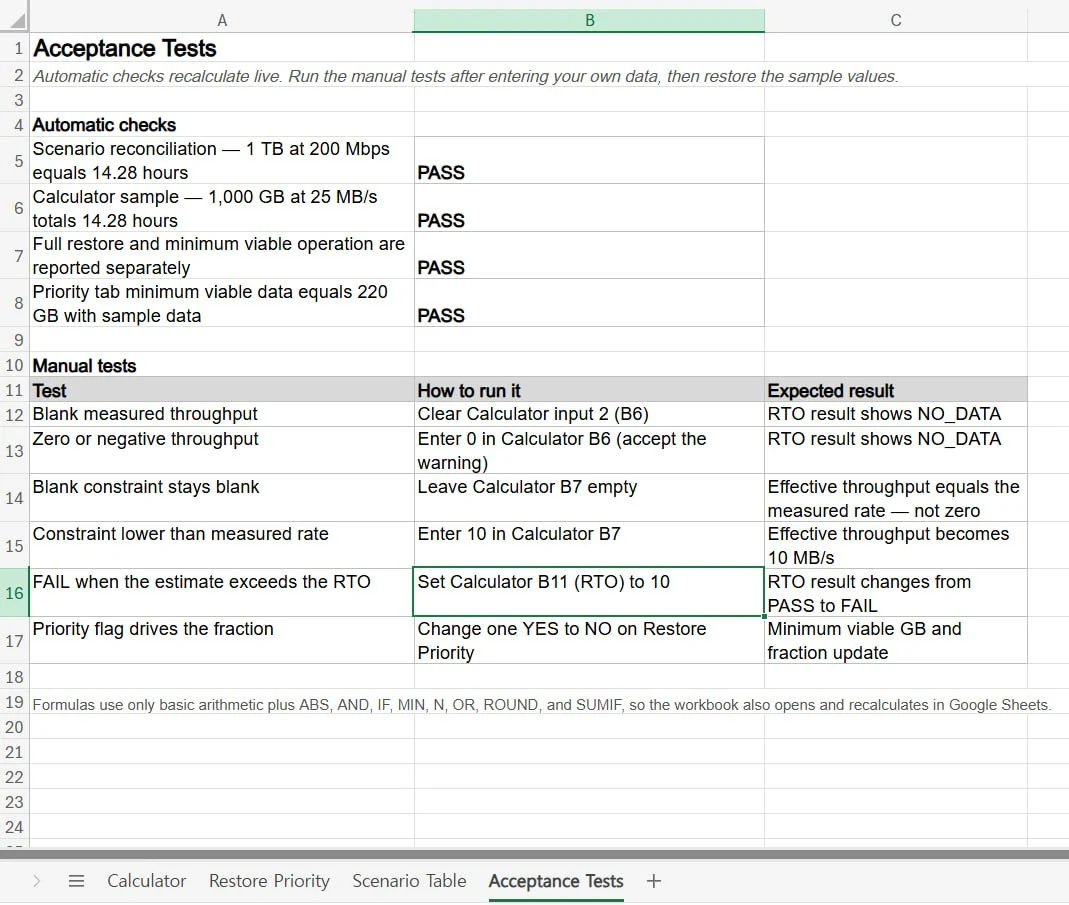
Rerun the checks whenever you edit formulas or add rows, and restore the sample values when you finish testing.
Sources and notes
The following references informed the methodology and terminology in this guide.
- NIST SP 800-34 Rev. 1 — contingency-planning and recovery-objective terminology.
- Microsoft Support: Create a simple formula in Excel — formula implementation reference.
- Google Docs Editors Help: Add formulas and functions — Google Sheets implementation reference.
The scenario values are original editorial calculations using the assumptions stated above. They are not provider benchmarks and not measured provider throughput. Any throughput you enter should come from your own timed transfer, as described in the measurement section.
Disclaimer
This calculator is a planning aid, not a recovery guarantee. Actual completion time depends on your data, source, destination, connection, processing, and verification procedure. Test restores in an isolated environment and use current official documentation for any provider-specific constraint.
Last reviewed: July 2026 by the PickrTech editorial team. Worksheet formulas and the scenario values in this guide were independently recalculated in July 2026.