TL;DR: Start from one of the three copy-paste board blueprints below — project delivery, content pipeline, or operations — copy it into your workspace, trim it to your team’s cadence, set an automation budget before adding Butler rules, then run a one-cycle acceptance test before you standardize it for the whole team. The free plan supports up to 10 collaborators, 10 open boards, and 250 automation runs per month; beyond any of those limits, close a board, reduce usage, or move to Standard ($5/user/month, billed annually).
This guide is for teams of roughly 5–20 who already use Trello and want a proven board structure they can copy and reuse — not a first-time setup walkthrough. If you are new to Trello, build one working board first with the Trello setup guide, then come back here to standardize it. Under five people, a three-list board or a shared sheet may be faster to maintain than a label-heavy, automated workflow.
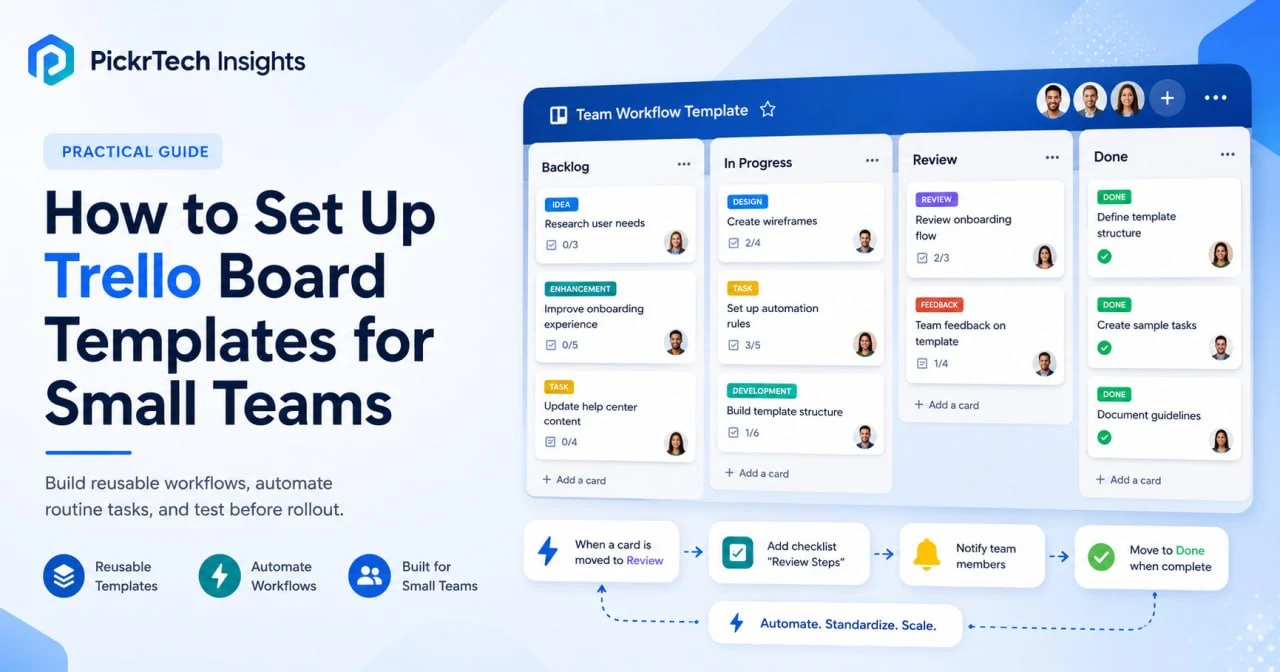
One board structure, reused across a small team’s projects.
Three reusable board blueprints you can copy today
Each blueprint below is a complete, self-contained board spec: the lists in order, a disciplined label system, the rules that keep the board readable, and a sample card. Copy the block into a new board’s description (or recreate the lists and labels from it), then move on to the deployment section. Two rules run through all three, because they are what separate a reusable board from a messy one: status is shown by list position, never by a label, and no card needs more than two labels to be found.
Blueprint 1 — Project delivery board (Backlog → Done)
Use this when work moves through defined stages toward a release: engineering, product, or any team that ships in reviewable increments. The “Ready” list is the important one — it forces scoping before work starts, which is where most small-team boards leak.
BOARD: Project delivery
LISTS (in order):
  Backlog → Ready → In Progress → In Review → Done
LABELS:
  Priority : Critical / High / Normal / Low   (max 1 per card)
  Type     : Frontend / Backend / Design / DevOps
  Owner    : use card members, NOT labels
RULES:
  - Status = list position (never a label)
  - Max 2 labels per card (priority + type)
  - A card in "In Progress" must have an assignee
  - Nothing enters "In Progress" until it has passed through "Ready"
SAMPLE CARD:
  Title    : Implement user authentication API
  Members  : Alice
  Labels   : High, Backend
  Due      : 2026-06-15
  Checklist:
    - JWT token generation
    - Refresh token endpoint
    - Unit tests
  Note: "Blocked on schema review from Bob — moved back to Ready"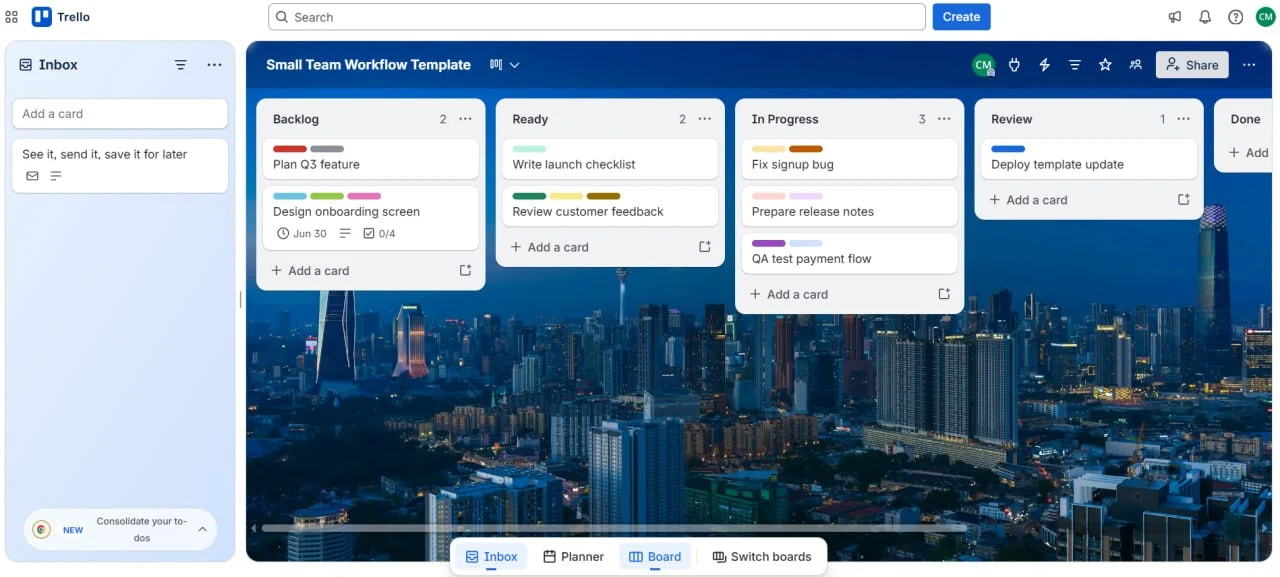
The project-delivery blueprint in use — status is read from the list a card sits in.
Blueprint 2 — Content pipeline board (Idea → Published)
Use this for an editorial or marketing calendar where a piece passes through fixed production stages and a scheduled publish date matters more than a priority ranking. Move sign-off into the list flow rather than tracking it with a label.
BOARD: Content pipeline
LISTS (in order):
  Idea → Outline → Draft → Review → Scheduled → Published
LABELS:
  Format   : Blog / Video / Social / Email / Webinar
  Priority : Urgent / High / Normal
  Owner    : use card members
RULES:
  - One format label per card
  - Editorial sign-off = move to "Scheduled" (not a label)
  - A card in "Scheduled" MUST have a due date = the publish date
SAMPLE CARD:
  Title    : "5 Trello automation tips for startups"
  Members  : Charlie
  Labels   : Blog, Normal
  Due      : 2026-06-20
  Checklist:
    - 1,500 words, target keyword "Trello automation"
    - 3 worked examples
    - 2 screenshots + 1 diagram
  Note: "First draft ready for review by Diana"
Blueprint 3 — Operations and support board (Request → Resolved)
Use this for inbound requests, tickets, or recurring operational tasks. The “Blocked” list only works if every card in it says what it is waiting on, so make that a hard convention rather than a suggestion.
BOARD: Operations & support
LISTS (in order):
  New request → Assigned → In progress → Blocked → Resolved
LABELS:
  SLA   : Critical / High / Normal / Low
  Type  : Support / Bug / Feature request
  Owner : use card members
RULES:
  - Set the SLA label at intake, never later
  - Any card in "Blocked" needs a comment naming what it waits on
  - Resolved cards auto-archive after 7 days (see automation below)
SAMPLE CARD:
  Title    : Acme Corp — bulk export (10k+ records)
  Members  : Elena
  Labels   : Feature request, High
  Due      : 2026-06-18
  Fields   : Contact john@acmecorp.com / Severity: High
  Note: "With engineering — awaiting timeline estimate"
Deploy a blueprint to your workspace
This section assumes you already have a Trello workspace; account creation and your very first board are covered separately in the setup guide. The goal here is narrower: turn one blueprint into a live, team-ready board without recreating everything by hand.
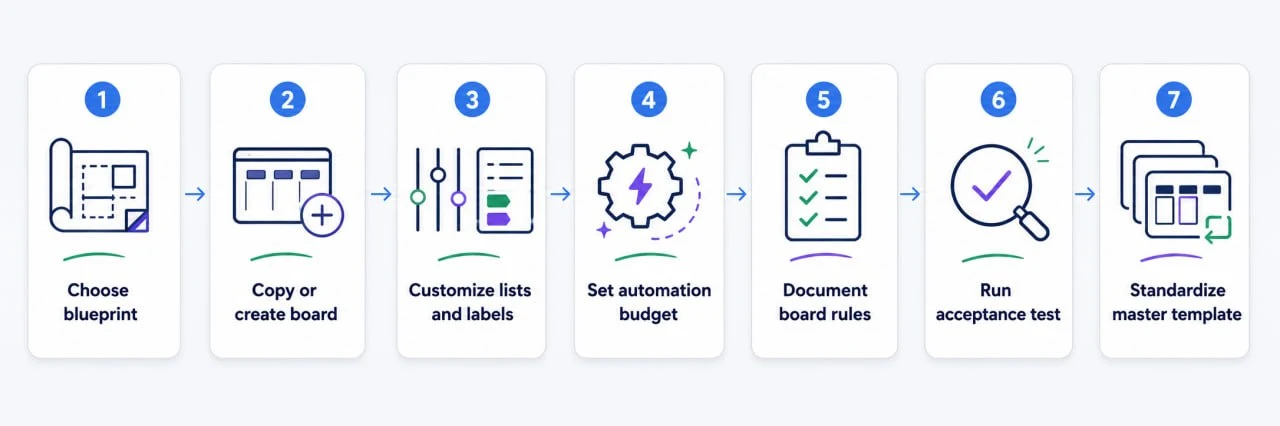
Turn one board blueprint into a tested, reusable master template in seven steps.
Copy the board — and know what a copy leaves behind
The fastest start is to copy an existing board that already has the structure you want: open it, click the three-dot menu (More), choose “Copy board”, name it, and pick a workspace. A copy is not a clone, though. Trello carries over the lists plus the cards and their descriptions, but not comments, card activity, card members, or archived cards — and the new board starts with no members except you (Atlassian Support — Copying boards). Since you only want the structure, archive or delete the copied cards after copying, keeping any card templates worth reusing.
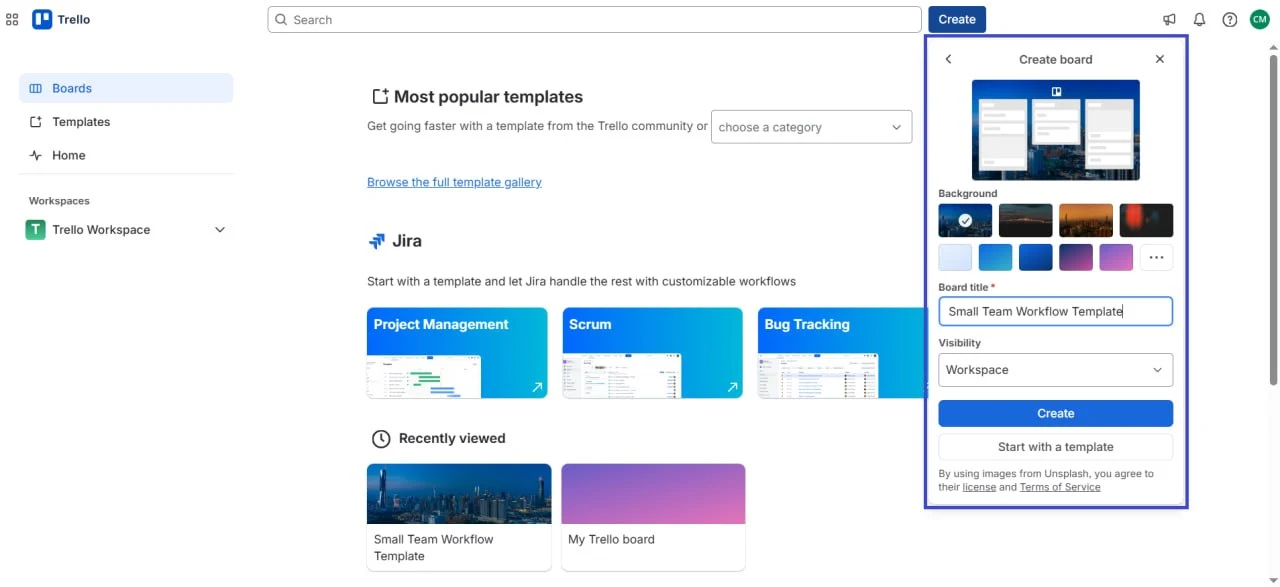
The Create board dialog, where you copy a board or start from a Trello template.
If you have nothing to copy, start blank and recreate the lists from the blueprint spec, or begin from a category in the Trello templates gallery and prune it down. One free-plan limit bites here: each free workspace supports up to 10 open boards. If you plan to keep a master template plus copies, count your existing boards before you start — hitting the cap mid-setup forces you to either close an old board or move to Standard for unlimited boards.
Customize lists and labels for your cadence
Rename the lists to your real stages and delete any label you won’t use — a cluttered label picker slows down every card. Keep the total to roughly 8–12 labels and honor the two-label discipline from the blueprints. On Trello Standard or higher you can also add Custom Fields (built in, no Power-Up) such as “Story points” or “Client name” for filtering and sorting. Custom Fields are unavailable on Free, so use labels for reusable categories while members and due dates handle ownership and timing.
Set an automation budget, not just automation rules
Trello’s automation engine (Butler) is built into every board, but it is metered per workspace: 250 command runs per month on the free plan, 1,000 on Standard, and unlimited on Premium (Trello pricing). A busy 10-person board with four rules can burn through 250 runs in the first two weeks of the month. Once the quota is exhausted, rules stop running until the monthly quota resets. Check Automation > Activity > Workspace activity to track both runs and operations, then start with just the one or two rules that save the most manual work:
- Auto-archive finished work: when a card lands in “Done” (or “Resolved”), archive it after 7 days. A scheduled automation uses one run each time it triggers, plus operations for the actions it performs.
- Auto-set due dates for timed work: when a card is moved into an active list (e.g., “Sprint” or “Scheduled”), set a due date. Useful for teams working in fixed cycles.
Document the conventions that keep the board honest
A reusable board only stays reusable if everyone fills cards the same way. Keep one conventions card at the top of a dedicated “Board rules” list (or use the board description) and state four things and nothing more:
- Card titles start with a verb: “Design homepage”, “Review PR #234”.
- When to make a card: a task or deliverable gets a card; a question or discussion goes in comments or Slack.
- Label and owner rules: every card has a priority label; a card in progress has an assignee.
- What each automation does: spell out anything that archives or reassigns cards, so nothing “disappears” without explanation.
Is the template ready to reuse? Run this acceptance test
Before you standardize a board — duplicate it for other projects, other clients, or the whole team — prove it works once. Create 5–10 cards representing a small real project, then move them through every list from start to finish: assign them, label them, add due dates, and let the automations fire.
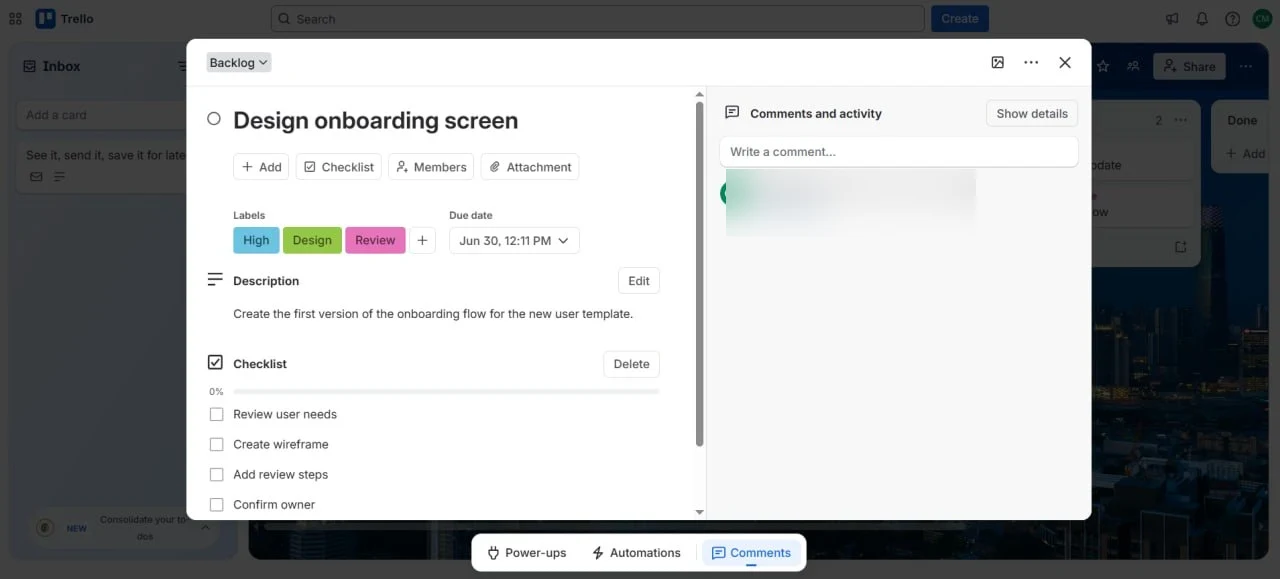
A fully filled-out card during the dry-run — labels, due date, checklist, and a note.
The board is ready to reuse only when every one of these is true:
- Every test card reached “Done” without needing a list that doesn’t exist, and none got stuck between two lists that mean almost the same thing.
- No card needed more than two labels to be found by filtering.
- List position alone tells you a card’s status — you never had to open a card to know where it stood.
- Every automation fired as expected, and nothing surprised you by archiving or reassigning a card you still needed.
- Someone who has never seen the board could tell, from the lists plus the board description or conventions card alone, where a new card goes and what “done” means.
The rule: if any check fails, fix the master board and run the dry-run again before you duplicate it. Only ever standardize a board that has passed a clean cycle — a flaw copied into ten boards is ten problems, not one.
Standardize one master template across teams and clients
Once a board passes the acceptance test, treat it as a master template. Keep it private (or in a shared workspace), and duplicate it whenever a new team, project, or client needs the same structure. Two things are worth knowing before you rely on this pattern.
First, copies are independent. Changes you make to the master do not flow into boards you already duplicated. If you improve the master later, you either apply the change to each live board by hand or re-duplicate from the updated master for new work — so change the structure rarely and deliberately.
Second, this pattern outgrows the free plan quickly. A master template plus boards for a handful of clients hits the 10-open-board workspace cap fast, so agencies running one board per client should budget for Standard ($5/user/month, billed annually) and its unlimited boards. Add a “Client name” Custom Field (Standard and up) or board-level labels to track ownership, and use a separate workspace per client when confidentiality matters.
What this workflow costs over 12 months
Here is what a representative 10-person team pays for a year of this setup. All figures are US list prices with annual billing, checked in July 2026.
| Setup | What you get | 12-month cost (10 people) |
|---|---|---|
| Trello Free | 10 open boards, 10 collaborators, 250 automation runs/month, 10MB attachments | $0 |
| Trello Standard ($5/user/mo) | Unlimited boards, Custom Fields, 1,000 automation runs/month, 250MB attachments | $600 |
| Trello Premium ($10/user/mo) | Standard plus Timeline/Calendar/Dashboard views and unlimited automation | $1,200 |
| Zapier Professional (optional, $19.99/mo) | Multi-step Zaps, 750 tasks/month, e.g. email-to-card pipelines | ~$240 |
| Slack integration for Trello | Card notifications in Slack channels | No added Trello charge; Slack plan costs may apply |
The practical read: a team of 10 or fewer that creates a moderate number of cards can run this whole guide for free. Three common limits force the upgrade to Standard: an 11th collaborator, an 11th open board, or automation needs beyond 250 runs a month. Premium’s Timeline and Dashboard views are useful but nothing in this guide requires them. Zapier only enters the picture if you want to pipe emails or form submissions into a board, and its free plan (100 tasks/month, two-step Zaps) already covers a simple “new email → new card” automation, so try free before paying.
How to adapt the templates for remote teams and spreadsheet migrations
Remote or hybrid teams: lean harder on the “Blocked” list and put a due date on every card so async work has a deadline. Use a Butler rule to assign cards by label so nothing waits on someone who is offline, and add the free Slack integration so updates reach the team without anyone living in Trello.
Teams moving off a spreadsheet: duplicate your existing columns as Trello lists for the first pass, then run the acceptance test using real work from your last two weeks so nothing important is lost. For email-driven tasks, use the board’s built-in email-to-board address, or a two-step Zap (which fits Zapier’s free plan) to turn incoming mail into cards. Keep a short overlap period until the team consistently updates Trello, then retire the old spreadsheet. If Trello turns out to be the wrong home for this data, moving from spreadsheets to Airtable is worth evaluating.
Common pitfalls that break a reusable board
Too many lists
Trying to capture every micro-stage as its own list produces 10+ columns nobody can scan, and cards stall in ambiguous ones. Start with 4–5 lists, run for two weeks, and add a list only when cards are visibly getting stuck between two existing ones. Past 7–8 lists the board no longer fits one screen and people stop reading it — split the workflow into separate boards instead.
Too many labels per card
When every card carries priority plus type plus owner plus status plus a blocker, filtering returns everything and means nothing. Cap it at two labels per card, let list position carry status, and reserve labels for cross-cutting filters like a client name or “Urgent”.
Blowing through the free automation quota
Four active rules on a busy board can exhaust the free plan’s 250 monthly Butler runs in two weeks, after which rules stop firing until the quota resets. Check Automation > Activity > Workspace activity; if you are past roughly 200 runs by mid-month, disable your least valuable rule or move to Standard’s 1,000-run ceiling.
Undocumented automation
A rule that silently archives or reassigns cards destroys trust the first time a card “vanishes”. For each rule, add a note to the conventions card describing what it does and how to override it — for example, “Any card moved to Done is archived after 7 days; move it back to In Progress within 7 days to keep it.”
Reusing a template that doesn’t match your pace
A two-week-sprint template forced onto a team doing rolling, continuous delivery feels slow and gets abandoned. After you copy any blueprint, spend ten minutes renaming lists and cutting stages that don’t apply, then run the acceptance test once before inviting everyone. And schedule a 15-minute board cleanup every two weeks — archive finished cards, close old projects, fix inconsistent labels — assigned to one rotating person, or the board becomes a graveyard.
Frequently asked questions
How many lists and labels are too many?
The limit is human, not technical: Trello publishes no hard cap, but past 7–8 lists the board stops fitting on one screen and people stop scanning it, and past a dozen labels nobody remembers what the colors mean. If a workflow genuinely needs more stages than that, split it into separate boards by project or phase rather than stretching one board.
One board for multiple projects, or one board per project?
Use one board per project when projects have different workflows, members, or timelines. Use one shared board when several small projects share the same workflow and team. A simple test: if you would need to filter by project more than once a week, give each project its own board; if projects are just different cards in the same flow, keep them together.
Does this scale to a 20+ person team?
Yes, with adjustments. Switch owner labels to team names (“@FrontendTeam”) and use card members — not labels — as the source of truth for ownership. Split into a board per team or feature, with a separate dashboard board tracking progress across them. At this size you are past the free plan’s 10-collaborator cap, so plan on Standard as the baseline; Premium’s Dashboard and Table views start earning their price around this headcount.
What if the team stops using the board?
That almost always means the board doesn’t match how the team actually works, or it demands too much manual upkeep. Run a short retro and ask what was slow or confusing. The common fixes are: simplify the lists, make labels and due dates optional rather than mandatory, add automation to cut manual card creation, and push updates to where the team already is (a Slack notification for new cards beats requiring everyone to open Trello daily).
Next steps
- Haven’t set up Trello yet? Build your first working board with the Trello setup guide, then return here to standardize it.
- Still choosing a tool? Compare project management software for small teams.
- If your real problem is staffing rather than board structure, compare resource management tools, or set up capacity planning in Asana for workload balancing across projects.
Sources and notes
- Atlassian Support — Custom Fields — used to verify Custom Fields availability on Standard and higher
- Atlassian Support — Automation quotas and limits — used to verify automation runs, operations, plan quotas, and the usage-log path
- Atlassian Support — Trello app for Slack — used to verify Slack notifications and Trello integration behavior
- Atlassian Support — Copying cards, lists, or boards — used to verify what a board copy carries over (cards and descriptions) and what it omits (comments, card activity, card members, archived cards)
- Trello pricing page — used to verify plan prices, collaborator/board caps, and automation run quotas (checked July 2026)
- Trello templates gallery — referenced for template categories and starting points
- Zapier pricing page — used to verify free-plan task limits and paid-plan pricing (checked July 2026)
Disclaimer
This guide is for general informational purposes only and does not constitute professional advice. Workflow steps, tool interfaces, prices, and feature availability were verified against each product’s official documentation as of July 2026 and may change without notice. Always test workflows in a non-production environment first.
Last reviewed: July 2026 by the PickrTech editorial team.