TL;DR: Moving from spreadsheets to a CRM is mostly a data-cleanup and verification project. Clean duplicates first, map your columns to CRM fields, run a 15–20 row pilot import before you touch the full file, then reconcile record counts and spot-check the results before telling anyone the CRM is live. Keep the original spreadsheet untouched until verification passes — it is your platform-independent fallback if verification fails. On HubSpot’s free tier the migration itself costs $0, as long as you stay under its 2-user and 1,000-contact caps.
Who should run this migration — and who should wait
Run this migration if leads, client notes, and deal progress live in more than one spreadsheet, or if two people have ever overwritten each other’s edits. That is the failure mode a CRM actually fixes. It is written for small business owners, sales leads, and operations managers who have already decided a CRM is worth the setup time.
Wait if you are a solo operator with fewer than 50 contacts and one-off transactions with no repeat business, or if updating your current sheet takes under five minutes a week. At that scale a CRM adds administrative overhead without removing any. Also skip this if you already run a dedicated CRM and are looking for optimization rather than migration.
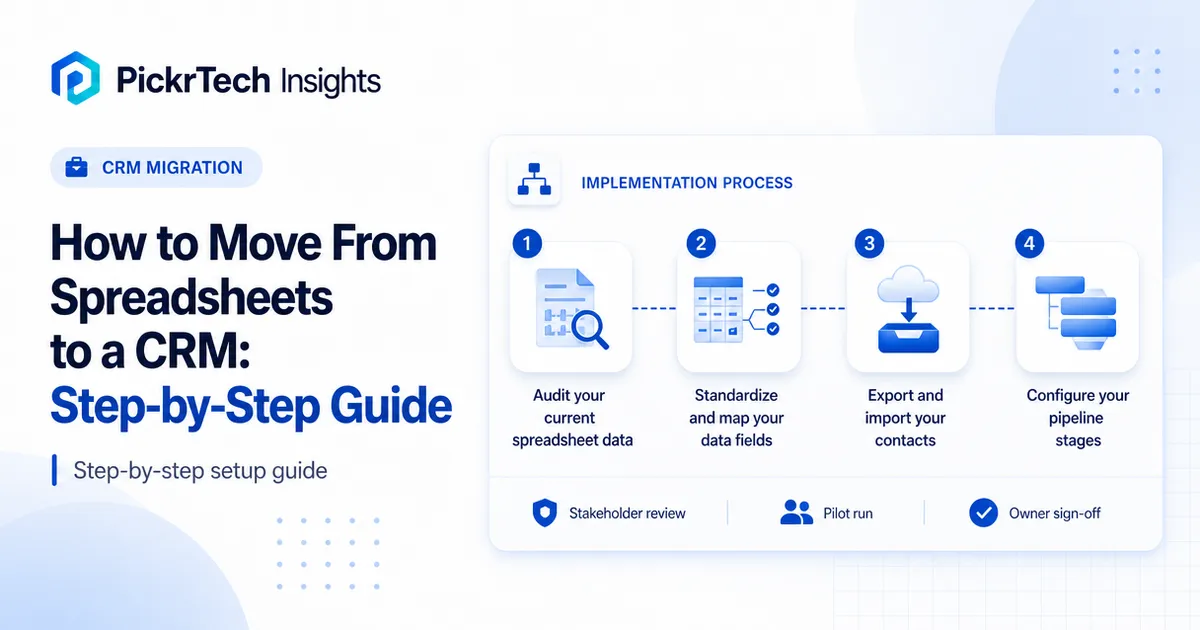
The six steps, in order
- Audit: Consolidate sheets and remove records that are not usable, while preserving opt-out status.
- Map: Standardize your column headers so the import mapping screen is easy to review.
- Pilot, then import: Test 15–20 messy rows first, fix what breaks, then upload the full file.
- Verify: Reconcile every row, spot-check fields, and read the error report properly.
- Configure: Cut the default pipeline down to the stages your team actually uses.
- Hand over: Invite the team, assign an owner to every record, and close the spreadsheet.
What you need before you start
- Admin access to every spreadsheet that currently holds contact data, and the ability to export CSV from each one
- A CRM account — this guide uses HubSpot CRM Free as the working example, but the sequence applies to any CRM with a CSV import tool
- One person who owns the import end to end, plus one salesperson who will test the pipeline before rollout
Check your plan ceilings first. HubSpot’s free tier covers this entire workflow, but accounts created after September 2024 are capped at 2 users and 1,000 contacts, with 1 deal pipeline and 2,000 marketing emails per month. If your cleaned file has more than 1,000 rows, or more than two people need edit access, decide on a paid tier before you import rather than after — see the cost table below.
Time: Roughly 60 to 120 minutes for a file under 1,000 rows. The pilot import is what makes the range wide — if it exposes structural problems in your source data, the cleanup happens before the clock restarts. Difficulty: Beginner.
Running the migration step by step
Step 1: Audit your current spreadsheet data
Open your master spreadsheet and clean it before you import. Remove test records, obvious duplicates, and records your retention policy requires you to delete. Do not discard unsubscribe or hard-bounce status: keep those email addresses in a separate suppression file and import them through the CRM’s opt-out process. For contacts with no activity in 12 months, decide whether to archive, suppress, or delete them based on business need and retention rules rather than age alone.
Then handle duplicates and fragmentation. Sort by email address or company name to surface obvious repeats. If you have multiple tabs or files — a “Leads 2023” tab, a “Current Clients” sheet, a separate list the marketing side maintains — consolidate them into one master sheet now, not during import. A row missing both a phone number and an email is not a usable contact record; delete it or flag it for manual research in a separate tab.
Expected outcome: One master sheet, valid records only, no obvious duplicates, with opt-out status preserved separately. Save a dated copy of this file before you change anything else — it is your fallback for the rest of the process.

Step 2: Standardize and map your data fields
Your headers do not need to match CRM property names exactly. HubSpot’s import tool maps spreadsheet columns to CRM properties during import and lets you review or correct every mapping before you commit. Standardizing beforehand is about making that review screen fast to scan, not about matching names character for character.
Standardize to: First Name, Last Name, Email, Phone Number, Company Name, Company Domain, Lifecycle Stage, Lead Source, Owner, and Notes. Lifecycle Stage is the column that does the most work after migration — it is what lets you filter the imported pile into something a salesperson can act on. Assign each contact one of Lead, Marketing Qualified Lead (MQL), Sales Qualified Lead (SQL), Opportunity, or Customer.
Collapse free-text shorthand into one column. Move internal notes such as “Met at Tuesday’s networking event” into a single Notes column. In HubSpot’s contacts-only quick import, map this column to a custom multiline text property. If you want each entry to appear as a note on the contact timeline, use an advanced import that creates Notes as an activity and associates them with contacts. Delete columns that no longer serve a defined workflow.
Expect three of those ten columns to need manual mapping. In a pilot import we ran in July 2026, HubSpot auto-matched First Name, Last Name, Email, Mobile Phone Number, Company Name, and Lifecycle Stage — but left Company Domain, Lead Source, and Notes sitting on “Choose or create a property.” Company Domain belongs to the company object rather than the contact record, and the other two are not default contact property names. None of this breaks the import. It just means budgeting a minute on the mapping screen instead of assuming every column lands on its own.
If your file has an Owner column, invite your team before you import. The CRM matches owner names against users who already exist in the account, so a file naming people who have not been invited yet will drop those values. Step 6 covers the invitations — you may want to run that step first and come back here.
Import contacts alone if your sheet only tracks people. If it also tracks company names, deal values, deal stages, and owners, prepare those as separate columns or separate files so contacts, companies, and deals can be associated during import rather than reconnected by hand afterward. A first migration with a simple sheet should start with contacts only — associations are much easier to add later than to unpick.
Expected outcome: A single sheet with standardized headers that a mapping screen can resolve with minimal manual correction.
Step 3: Run a pilot import, then the full file
Do not import the full file first. Copy 15 to 20 rows into a separate CSV and deliberately include your worst records: one contact with no email, one with an email that already appears elsewhere in the file, one with a non-standard phone format, and one with a lifecycle stage you are unsure about. Import that file and watch what happens.
If you would rather not build the pilot file yourself, download our 18-row pilot test file. It contains fake demo contacts only, with eight deliberate defects: a missing email, a duplicated address, a malformed address, an email carrying stray whitespace, two invalid lifecycle stage values, an owner who does not exist in the account, a company name containing a comma, and a phone number in a non-standard format. Import it into an account you are willing to clean up, then delete the records once you have seen how each defect is handled.
The mapping screen scans your file before you commit anything. Our pilot file returned a warning reading “21 errors found, of 18 rows scanned” while still on the mapping step — which is the entire argument for running a pilot. Every one of those problems was visible and fixable before a single record entered the CRM.
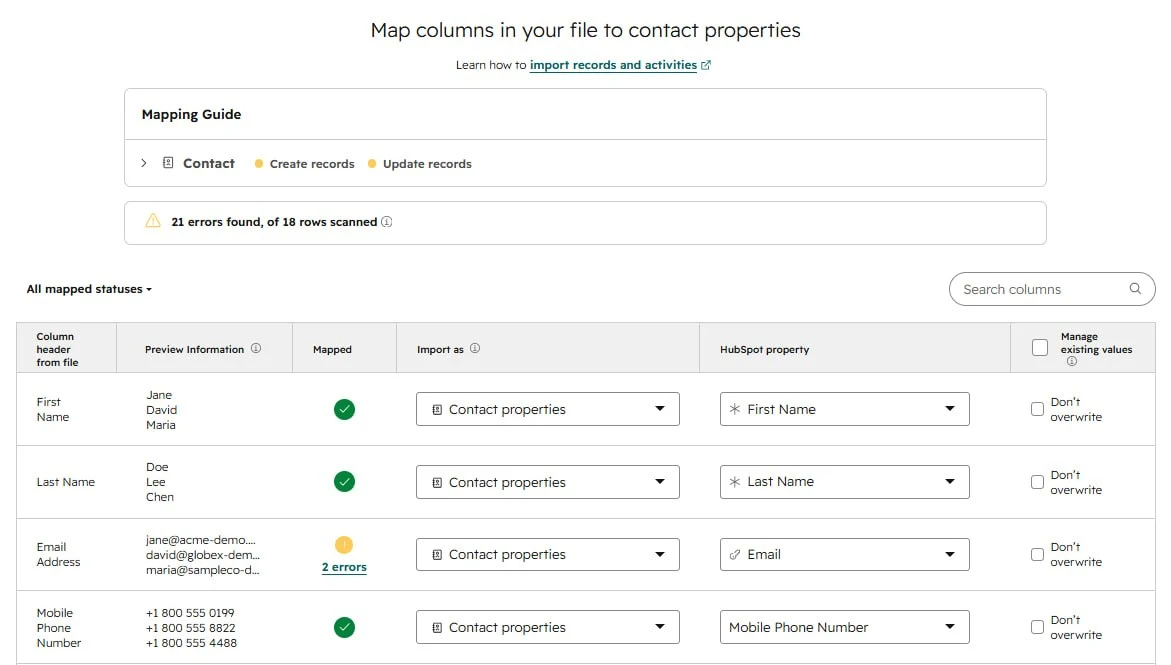
On the mapping screen itself, match each column to the correct property: Email, Phone Number, Company Name, Lifecycle Stage, Owner. Choose deliberately whether you are creating records, updating existing ones, or both. Every row needs at least one identifying field, and for deduplication that identifier should be email address or Record ID — never name fields, which collide constantly.
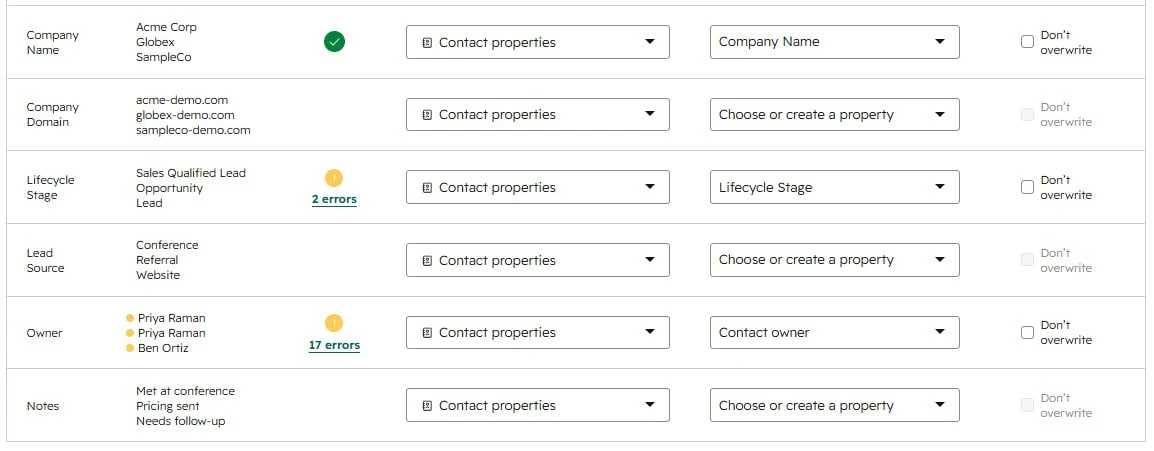
Fix the master file based on what the pilot broke, delete the pilot records from the CRM, then import the full file with the same mapping. If your file runs past a few thousand rows, split it by region or lifecycle stage and import in batches of 1,000–2,000 — not because of upload limits, but because a partially failed 10,000-row import produces an error report that is genuinely painful to triage.
Expected outcome: The full contact list is in the CRM, imported with a mapping you have already seen succeed on real data.
Step 4: Verify the import before anyone starts working in the CRM
An import that reports success is not the same as an import that landed correctly. Run these four checks before you tell the team the CRM is live — they take about ten minutes and they are the difference between finding a problem now and finding it in three weeks when someone cannot locate a client.
- Reconcile every row. The cleaned file’s row count should equal the combined total of new records, existing records updated or deduplicated, and rejected rows. Comparing source rows with “new records” alone will not reconcile when an import merges a duplicate or updates an existing contact.
- Spot-check ten records. Pick them across different lifecycle stages, not the first ten. Confirm email, phone, company, and lifecycle stage each landed in the right field rather than shifted one column across.
- Read the error report line by line. Correct the failed rows in a separate file and re-upload them rather than retyping them into the interface.
- Filter for duplicates and blanks. Search two or three contacts you know appeared in multiple source sheets. If both copies exist, your deduplication identifier did not work and you should fix it before adding any activity data on top.
“Value not imported” and “row not imported” are different failures, and the distinction matters. Our 18-row pilot produced 16 new contacts. One row was rejected outright because its email address was malformed, and one row merged into an existing contact because the same email already appeared in the file — so two rows never became separate records. The remaining errors were partial: two invalid lifecycle stage values and fifteen unrecognized owner names were dropped, but those contacts were still created. A contact can still count as imported when several of its properties are blank, which is exactly why check 2 exists.
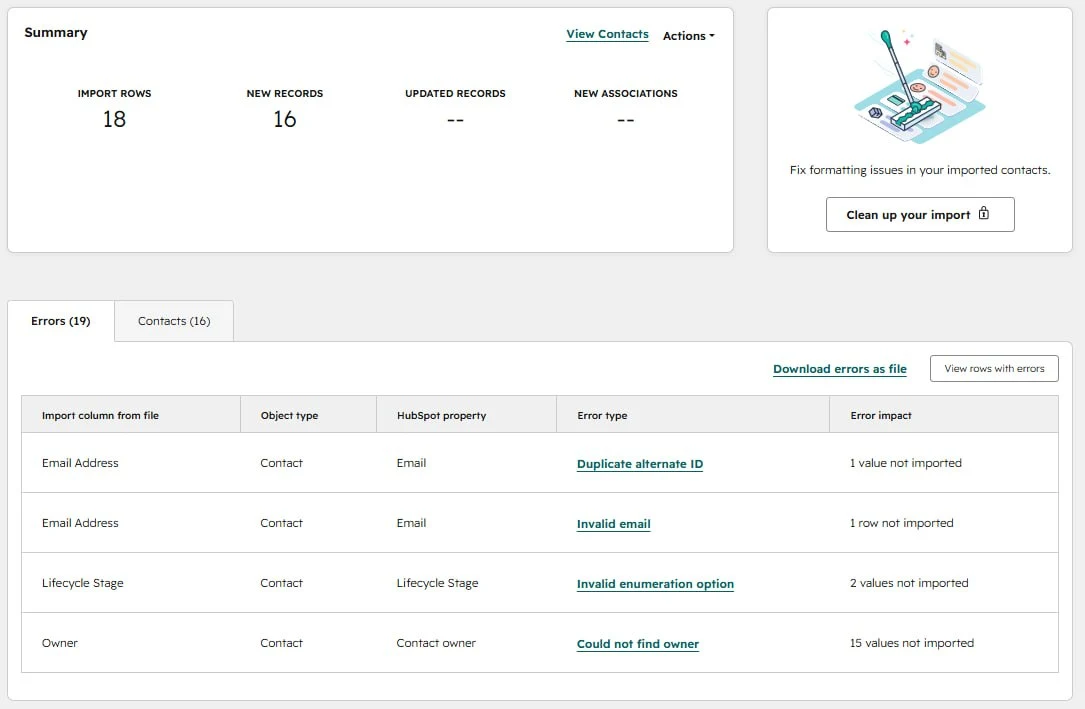
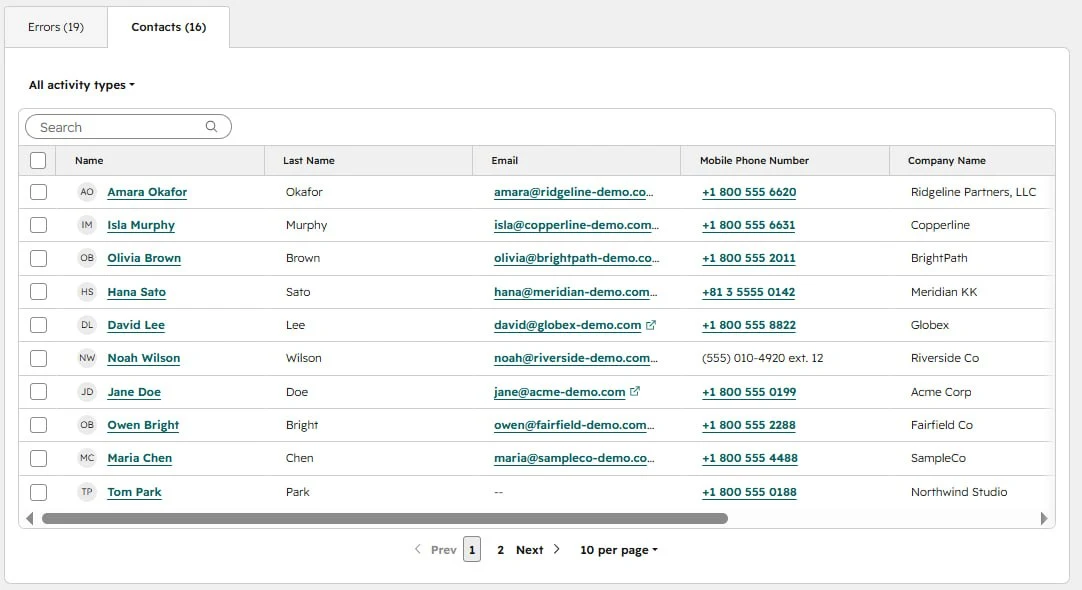
Do not delete or overwrite the source spreadsheet until all four checks pass. In HubSpot, past import details let users with the required delete permissions select and delete records created by that import. Eligible Starter, Professional, and Enterprise subscriptions also provide a 14-day Restore CRM Changes tool that can roll back changes from a selected import. Neither option replaces the dated source file, especially when existing records were updated, so keep that file for at least a full sales cycle after go-live.
Expected outcome: Row counts reconcile, sampled fields are correct, and every line in the error report has either been fixed or consciously accepted.
Step 5: Configure your pipeline stages
Cut the default pipeline down rather than building one from scratch. HubSpot’s default Sales Pipeline ships with Appointment Scheduled, Qualified To Buy, Presentation Scheduled, Decision Maker Bought In, Contract Sent, Closed Won, and Closed Lost. On the free tier you get one deal pipeline, but admins can rename, add, and remove its stages. Creating a second deal pipeline for a genuinely different sales process requires Starter, which supports up to two deal pipelines per account.
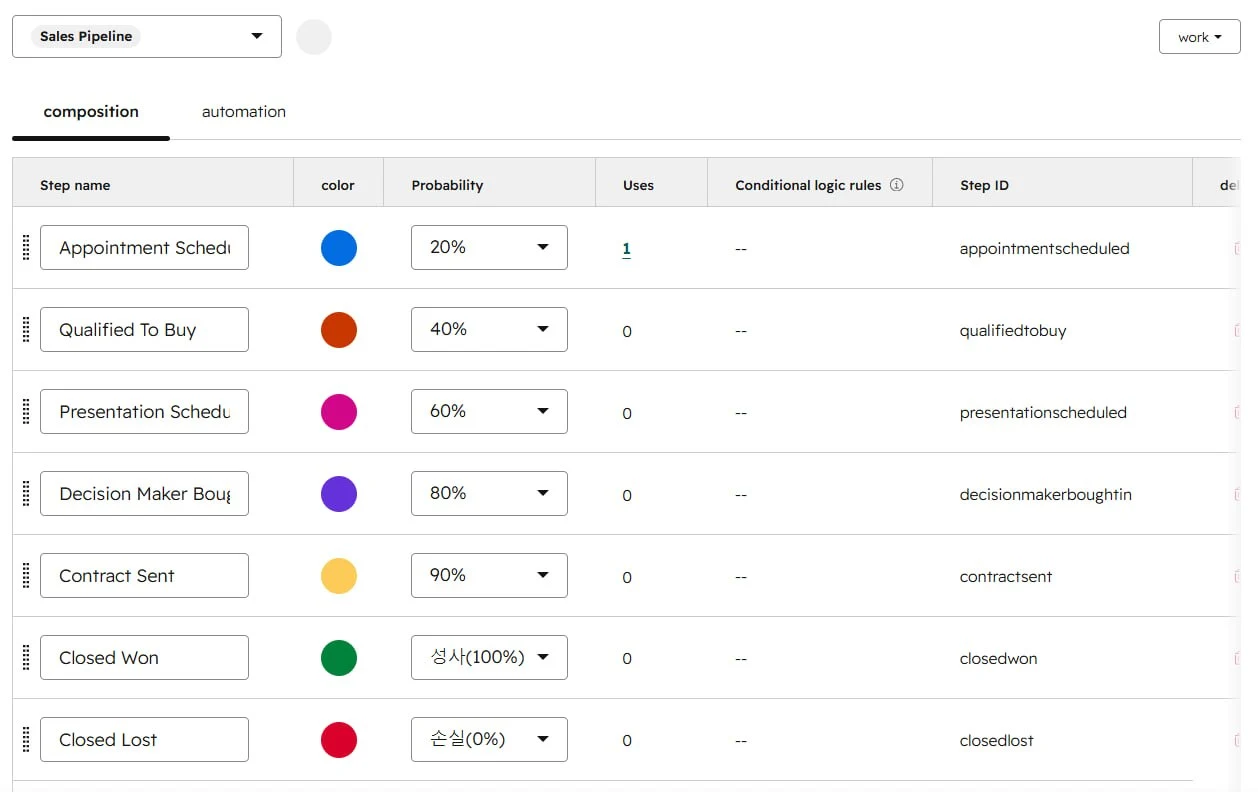
For most small teams, five stages plus a loss outcome is enough:
- Lead Qualified: Contact is verified and fits your target audience.
- Demo Scheduled: A meeting or discovery call is booked.
- Proposal Sent: Pricing or a formal proposal has been delivered.
- Decision Stage: The prospect is reviewing terms and negotiating.
- Closed Won: The contract is signed.
Keep Closed Lost as a separate outcome for deals that are disqualified, postponed indefinitely, or clearly dead. Resist micro-stages like “waiting for email reply” or “left voicemail” — those are activities, not stages, and every one you add makes forecasting less readable. The test is simple: if moving a deal into a stage does not change what happens next, it is not a stage.
One thing worth separating: a lifecycle stage is not a deal stage. Our pilot file included a contact marked “Closed Won” in the Lifecycle Stage column, and HubSpot rejected the value — lifecycle stages describe how far a person has moved toward becoming a customer, while deal stages describe where a deal sits in the pipeline. Mixing them is one of the two most common invalid values in a first import.
Expected outcome: A pipeline short enough that a salesperson can place any live deal into a stage without hesitating.
Step 6: Assign owners and hand the workflow over
Invite your colleagues by work email, assign each user either an editing seat or a View-Only Seat, and then configure CRM permissions for the role. HubSpot’s free tools allow up to two users. On paid Starter subscriptions, View-Only Seats are free and unlimited, but they cannot edit records or log emails; each person who actively works in the CRM needs a paid Core Seat. A third person needing edit access therefore moves the team onto a paid plan.
Invitations have to happen before the import if your file names owners. HubSpot matches owner values against users who already exist in the account. If no matching user exists, the import reports a “Could not find owner” value-level error and creates the contact with a blank owner field — fifteen of eighteen rows in our pilot had this result. The overall record count can still look successful, so review the Errors tab rather than relying on the summary alone.
Then assign an owner to every record. Use bulk edit or a filtered view rather than clicking through contacts individually, and finish by filtering for unassigned records to confirm the count is zero. Unowned leads are the single most common way a migration quietly fails — the data is present, nobody is responsible for it, and within a month the team has drifted back to a side spreadsheet.
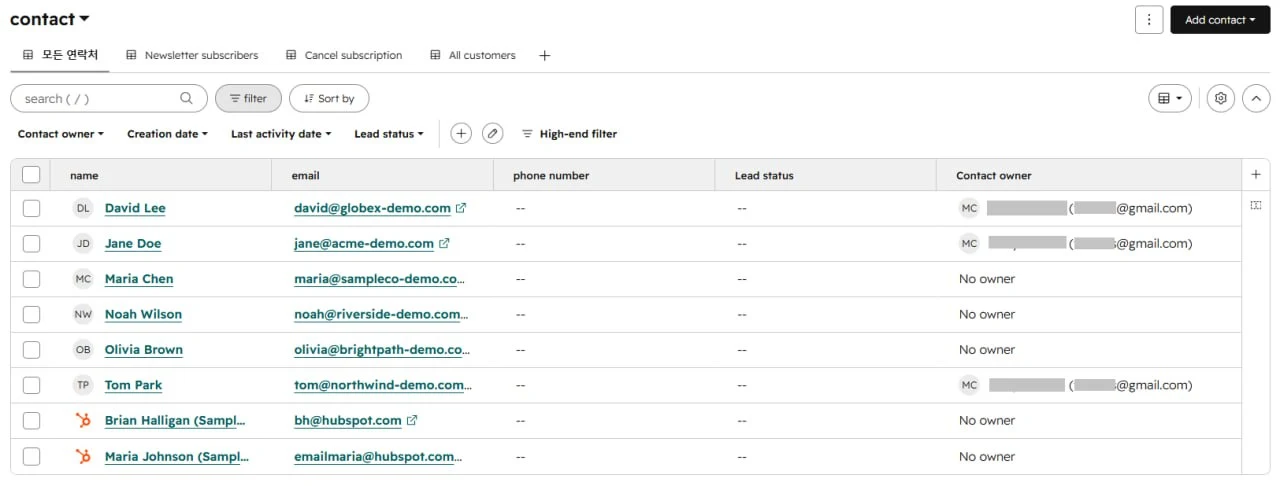
Adoption is a decision, not a hope. Set an explicit date after which the CRM is the only place call notes, email logs, and deal updates are recorded, and archive the old spreadsheet somewhere read-only so it cannot be edited by habit. Making the pipeline stages match how the team already works is what keeps this from feeling like added admin. If booking follow-up calls is the next friction point, comparing scheduling tools is a reasonable next move once the CRM is stable.
Expected outcome: Active users, zero unassigned records, and an agreed cutover date after which the spreadsheet is read-only.
What the migration costs
The import feature does not carry a separate migration fee, but access to the platform may be free, trial-only, or paid. US prices checked July 2026; annual prices are monthly equivalents billed annually unless stated otherwise. Promotional prices can change at checkout.
| Plan | Price | Ceilings that matter for this workflow |
|---|---|---|
| HubSpot CRM Free | $0 | Up to 2 users, 1,000 contacts for newer accounts, 1 deal pipeline, and 2,000 marketing emails per month with HubSpot branding |
| HubSpot Starter | Currently promoted at $7/seat/month for new customers on annual billing; $20/seat on a monthly commitment | Up to 2 deal pipelines, HubSpot branding removal, and free unlimited View-Only Seats; editing users require paid Core Seats |
| Pipedrive Lite | $14/seat/month billed annually ($24 monthly) | No permanent free plan; 14-day trial only. Full email sync and automation start on Growth at $39/seat/month billed annually ($49 monthly) |
| Airtable Free | $0 | 1,000 records per base, up to 5 editors, and 100 automation runs per month |
| Airtable Team | $20/seat/month billed annually ($24 monthly) | Raises the ceiling to 50,000 records per base |
For a two-person team under HubSpot Free’s limits, the realistic budget is $0. On Starter, one editing user plus two View-Only users costs the equivalent of $7 per month under the current new-customer annual promotion, or $20 on a monthly commitment. If all three people need editing access, the equivalent becomes $21 per month at the promotional annual rate or $60 month to month. Because the $7 rate is promotional, confirm the current checkout price before committing.
Three mistakes that cause most migration cleanup
| Pitfall | Why it happens | How to avoid it |
|---|---|---|
| Duplicate records after import | Separate team spreadsheets were merged without deduplication, or the import matched on name fields instead of a unique identifier. | Match on email address or Record ID, and confirm the behavior on the pilot import before running the full file. |
| Contacts that import with fields missing | Partial errors do not reduce the record count, so the import looks successful while individual values were omitted without preventing the contact record from being created. | Read the error report for “values not imported” alongside “rows not imported,” then spot-check ten records by hand. |
| Records with no owner | The Owner column referenced people who had not been invited to the account yet, or nobody was assigned after import. | Invite the team before importing, then filter for unassigned records and drive the count to zero before go-live. |
Three situations that change this workflow
Your source data lives in several disconnected sheets
Consolidate before importing, never during. If marketing keeps one sheet, sales keeps another, and customer service keeps a third, build a temporary master sheet and merge on email address using VLOOKUP or XLOOKUP. Conflicting values — two different phone numbers for the same person — have to be resolved manually, because no import tool will make that judgment for you. Only the finalized master sheet goes into the CRM.
You need the CRM to talk to accounting software
Skip the manual CSV route for the ongoing sync. A one-time import still makes sense for historical records, but if closed deals need to reach QuickBooks or a similar system, configure a native integration or an automation tool rather than repeating exports. The goal is that marking a deal Closed Won triggers the billing handoff without anyone re-entering the customer.
You are migrating more than 10,000 rows
Batch it, and treat the pilot as mandatory rather than optional. The constraint is error triage, not upload capacity: one large import that partially fails leaves you reconciling an error report against a file you can no longer read by eye. Split by region or lifecycle stage, import 1,000–2,000 records at a time, and run the Step 4 verification after each batch rather than at the end.
Two worksheets to use during the migration
Starter column structure for your import file
Use these headers in Row 1 of your master sheet, or download the template as a CSV and paste your own data over the sample rows. The download carries two columns the table below omits for width — Company Domain and Owner — both of which come from the Step 2 list. Adjust property names on the mapping screen to match whichever CRM you are importing into.
| First Name | Last Name | Email Address | Mobile Phone Number | Company Name | Lifecycle Stage | Lead Source | Notes |
|---|---|---|---|---|---|---|---|
| Jane | Doe | jane@acme-demo.com | +1 800 555 0199 | Acme Corp | Sales Qualified Lead | Conference | Met at conference |
| David | Lee | david@globex-demo.com | +1 800 555 8822 | Globex | Opportunity | Referral | Pricing sent |
| Maria | Chen | maria@sampleco-demo.com | +1 800 555 4488 | SampleCo | Lead | Website | Needs follow-up |
| Tom | Park | tom@northwind-demo.com | +1 800 555 0188 | Northwind Studio | Marketing Qualified Lead | Webinar | Sample import contact |
| Olivia | Brown | olivia@brightpath-demo.com | +1 800 555 2011 | BrightPath | Customer | Partner | Renewal contact |
| Noah | Wilson | noah@riverside-demo.com | +1 800 555 4920 | Riverside Co | Lead | Website | New inbound contact |
The sample rows are formatted the way a clean import file should look: one lifecycle stage per contact, a real email on every row, and internal shorthand collapsed into a single notes column. Delete them before importing your own data.
Stage definitions your team can point to
The five stages from Step 5 only hold if everyone agrees on when a deal moves. Fill this in during rollout, so each stage has an exit condition rather than a feeling. Disagreement here is the most common reason a pipeline stops reflecting reality within a quarter.
| Stage | Deal enters when… | Deal exits when… |
|---|---|---|
| Lead Qualified | Contact is verified and fits your target audience | A discovery call or demo is booked on the calendar |
| Demo Scheduled | A meeting or discovery call has been booked | Pricing or a formal proposal is delivered |
| Proposal Sent | Pricing or a formal proposal has been delivered | The prospect responds with questions, terms, or a negotiation request |
| Decision Stage | The prospect is actively reviewing terms and negotiating | A contract is signed (Closed Won) or the deal is disqualified (Closed Lost) |
| Closed Won | The contract is signed | Handoff to onboarding or fulfillment is complete |
Where to go after the migration
- If double-booked calls are the next problem, our scheduling setup guide covers calendar connections, buffers, and booking limits.
- If campaign handoff is next, the email marketing by use case comparison maps platforms to newsletter, nurture, and ecommerce workflows.
- If you are still deciding between CRMs, our free trial evaluation checklist and software evaluation scorecard give you a repeatable way to test before committing.
Sources and notes
- PickrTech pilot import, July 2026. The mapping, error, and results screenshots in Steps 3 and 4 come from a single 18-row test import into a HubSpot CRM Free account, using the pilot file linked above. All contact data in that file is fabricated. Import behavior described in this guide reflects that one test; other CRMs and other HubSpot tiers may behave differently.
- HubSpot Knowledge Base — CSV import file requirements — used to verify import file formatting, supported file types, header-row requirements, and import limits.
- HubSpot Deduplication Guide — used to verify duplicate-prevention guidance using email address, company domain name, Record ID, and custom unique IDs.
- HubSpot Import Records for Multiple Objects — used to verify when contacts, companies, and deals should be imported together and associated during migration.
- HubSpot — Import opted-out contacts — used to verify that unsubscribe and hard-bounce status should be preserved through an opt-out import rather than discarded during cleanup.
- HubSpot — View and analyze past imports and Restore CRM changes — used to verify deletion of records created by an import and the 14-day restore option available on eligible paid subscriptions.
- HubSpot — Assign and manage seats — used to verify that View-Only Seats are free and unlimited on paid subscriptions but cannot edit records or log emails.
- HubSpot — Set up and manage object pipelines — used to distinguish deal pipelines from service workflows and verify that creating an additional pipeline requires a paid subscription.
- HubSpot Free CRM / Pricing — used to verify current free CRM access, the 2-user and 1,000-contact limits for newer accounts, the free deal pipeline, the 2,000 marketing emails/month cap, and current promotional Starter pricing.
- Pipedrive Pricing — used to verify the current Lite, Growth, Premium, and Ultimate plan structure, per-seat pricing, the 14-day free trial, the absence of a permanent free tier, and the exclusion of full email sync from Lite.
- Airtable Pricing — used to verify current Free, Team, Business, and Enterprise Scale plan structure, seat-based billing, and per-base record and automation limits.
Disclaimer
This guide is for general informational purposes only and does not constitute professional sales, legal, financial, or data-compliance advice. CRM pricing, plan limits, import behavior, and feature availability were verified against each product’s official documentation as of July 2026 and may change without notice. Promotional pricing may end or vary at checkout. Consult a qualified professional for advice specific to your business situation.
Last reviewed: July 2026 by the PickrTech editorial team.