This article contains affiliate links to UpdraftPlus. If you purchase through those links, PickrTech may earn a commission at no additional cost to you. This does not affect our editorial evaluation.
TL;DR: Cloud backup should be your baseline because it survives the loss of the hosting server. In our test, downloading the 261.9 MB media archive from Google Drive took 63 seconds; at the same measured rate, the full 332.5 MB set would take about 80 seconds. A local copy is still worth keeping for faster rollbacks, but you have to switch it on deliberately: UpdraftPlus deletes the server copy after a successful remote upload when that setting is enabled.
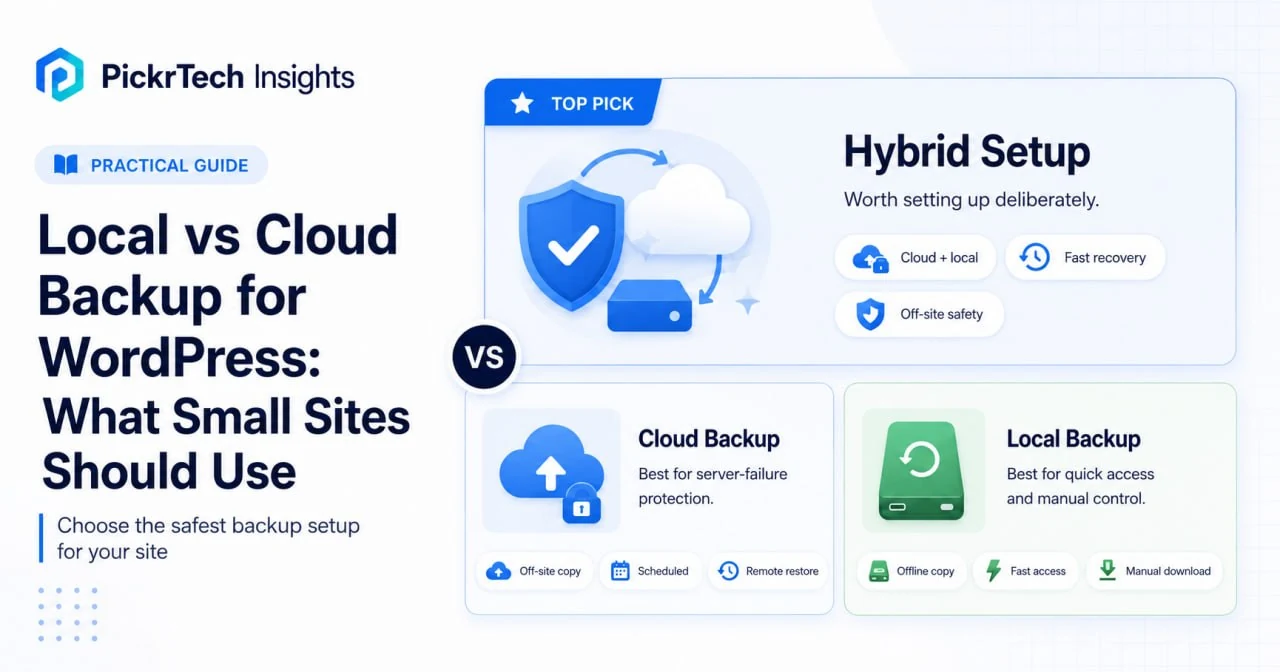
Choosing where your WordPress backups live is not a choice between plugins. Most backup tools package your files and export your database the same way. What you are choosing is the destination — where the finished archive sits once the plugin has built it (WordPress Documentation – Backups).
Local means the archive stays on your hosting server, or gets downloaded to your own computer. Cloud means the plugin ships it to a remote service such as Google Drive, Dropbox, or Amazon S3. The trade-off is usually described as safety versus speed, and the speed side of that trade-off is almost never quantified. So we measured it on this site.
What actually breaks, and which copy survives it
Start from the failure, not from the storage option. Different accidents destroy different copies, and that is what decides the answer.
| What went wrong | Copy on the server | Copy on your computer | Cloud copy |
|---|---|---|---|
| Plugin update broke the site | Works | Works | Works |
| Theme edit wrecked the layout | Works | Works | Works |
| Content deleted by mistake | Works | Works | Works |
| Site compromised, files altered | Suspect — the archive may already contain the compromise | Works if it predates the breach | Works if it predates the breach |
| Host hardware failure | Gone | Works | Works |
| Hosting account suspended | Unreachable | Works | Works |
| Your laptop is stolen or fails | Works | Gone | Works |
| Cloud account locked, backup deleted, or provider unavailable | Works | Works | Unavailable |
Read down the columns and the conclusion becomes clear. A cloud copy survives every server- and laptop-side failure listed here, but it still has failure modes of its own, including accidental deletion, lost account access, and provider outages. That is why remote storage should be the baseline rather than your only copy. It supplies the off-site copy required by the 3-2-1 rule while a second independent copy protects against failures inside the cloud account itself (CISA – Secure Your Data).
Host-provided backups do not fill this gap either. You usually cannot download them on demand, retention is often only a few days, and if the account is suspended you lose access to the backups along with the site. Treat them as a bonus, not as your off-site copy.
How long the cloud retrieval step took
At our measured download rate, retrieving this full 332.5 MB backup set would add about 80 seconds before restoration begins. That is the cloud-retrieval overhead, not the total restore time: UpdraftPlus still has to process the archives and run the restoration afterward.
Restoring from the cloud has one extra step that a local restore does not: the plugin has to pull the archive back down to your server before anything else can happen. Everything after that — unpacking the zips, importing the database — is the same either way. So the honest question is not whether cloud is slower, but by how much.
We ran a full backup on this site (pickrtech.com, UpdraftPlus 1.26.5, nginx, PHP 8.3, MySQL 8.0) on 18 July 2026 and read the numbers out of the plugin’s own log. One backup set breaks down like this:
| Component | On disk | In the archive |
|---|---|---|
| Plugins | 171.1 MB | 53.3 MB |
| Themes | 8.6 MB | 2.6 MB |
| Uploads (media) | 312.4 MB | 261.9 MB |
| Other content files | 12.4 MB | 4.9 MB |
| Database (69 tables) | — | 9.8 MB |
| Full set | 332.5 MB |
The compression column is worth a second look. Plugin code shrank by a factor of 3.2. The media folder barely moved — 312.4 MB became 261.9 MB, a factor of 1.19. WebP, JPEG, and PNG files are already compressed, so zip has almost nothing left to squeeze. The practical consequence: every image you add grows your backup by roughly its own size. Text-heavy sites stay small almost indefinitely; image-heavy ones do not.
Transfer times, both directions, same server and same Google Drive account:
- Server to Drive: the whole 332.5 MB set uploaded in about 33 seconds. The 261.9 MB media archive alone went up in 17.5 seconds — roughly 15 MB/s.
- Drive back to the server: we timed the same 261.9 MB archive at 63 seconds — roughly 4.2 MB/s. Applying that rate to the full set gives the 80-second figure above.
Note the asymmetry: retrieval ran 3.6 times slower than upload over the same connection. UpdraftPlus scales its upload chunks aggressively as it goes — the log shows it climbing from 1 MB to 64 MB per chunk — and the download path has no equivalent. Do not assume a fast backup implies a fast restore.
Put that projected 80-second retrieval against the rest of the recovery workflow. Building the archives took 55 seconds on the same machine, and processing, unpacking, and database restoration still follow after download. We did not time a complete restore in this test, so the 80-second figure should be read as cloud-retrieval overhead rather than total recovery time.
One site is not a benchmark, and your host and connection will differ. But the method is reproducible: run a backup, open the log, and read your own numbers off the Created ... zip and upload lines.
The hybrid setup you probably don’t have
Turning on cloud backup does not give you both copies. It replaces one with the other.
By default, UpdraftPlus builds the archive on your server, ships it to the remote destination, and then deletes the local file to reclaim disk space. Our log records it plainly: within seconds of each successful upload, the matching server copy was removed. All five files, one after another.
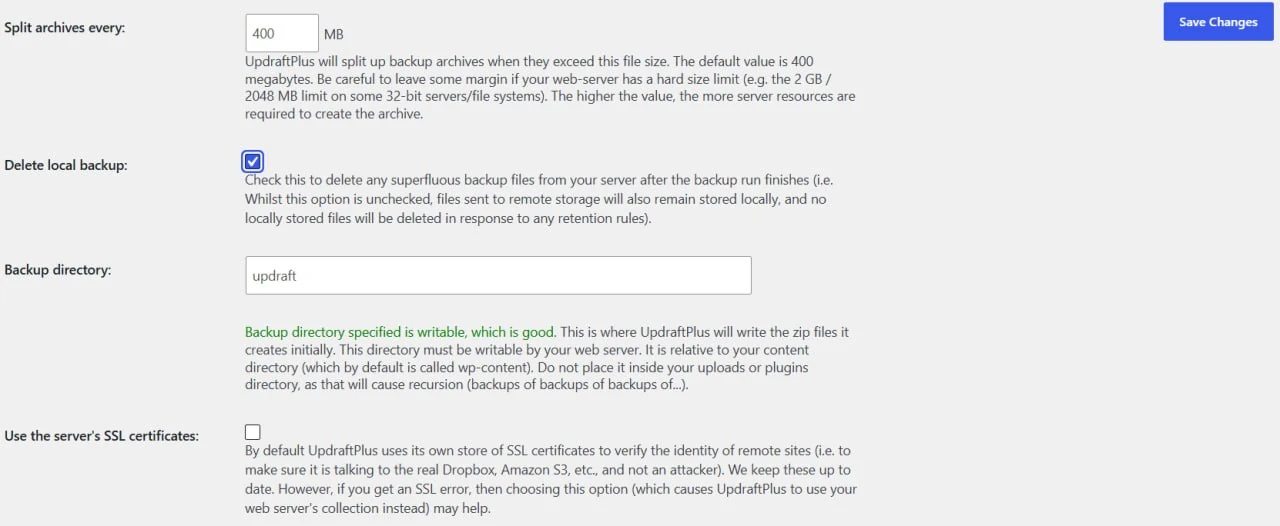
If you want to keep both copies, change it once:
- In WordPress admin, go to Settings → UpdraftPlus Backups.
- Open the Settings tab.
- Scroll to the bottom and click Show expert settings.
- Untick Delete local backup.
- Click Save Changes.
From then on, each set exists in two places and you have a real hybrid: the local copy for fast rollbacks, the cloud copy for the failures that take the server with them. The cost is disk space — on this site, 332.5 MB per retained set against 44 GB free, so keeping two sets uses about 1.5% of the available space.
That last part is the catch worth watching. Local archives consume the disk quota your hosting plan allocates, and an unattended daily schedule with no retention limit will eventually fill it — at which point the “Disk Quota Exceeded” error can take your live site down. Set a retention count and the plugin prunes for you; ours is set to two, and the log confirms it deleting the third-oldest set on every run.
For the full configuration walkthrough, including schedules and destination setup, see our UpdraftPlus setup guide.
What each route costs
For a site this size, nothing. A free Google Drive account and the free UpdraftPlus plugin cover it completely. US prices below were checked in July 2026.
| Setup | Cost (US, July 2026) | Good for |
|---|---|---|
| UpdraftPlus free + Google Drive free tier | $0 — 15GB, shared with Gmail and Google Photos | The default for most small sites |
| UpdraftPlus free + Dropbox free tier | $0 — but only 2GB of storage | Very small, low-media sites |
| UpdraftPlus free + Amazon S3 | About $0.023/GB-month for S3 Standard in US East, plus request and retrieval charges; eligible new customers can receive up to $200 in AWS credits | Owners comfortable with AWS setup and usage-based billing |
| Google One 100GB | $1.99/month | When the free Drive tier fills up |
| UpdraftPlus Premium | From $70/year (2 sites) | OneDrive/Azure destinations, multi-destination uploads, incremental backups, backups before updates |
Two details decide most setups. First, destinations are gated: the free version reaches Google Drive, Dropbox, Amazon S3, Rackspace, FTP, DreamObjects, OpenStack Swift, and email, while OneDrive, Azure, Backblaze, Google Cloud, pCloud, SFTP, and WebDAV all require Premium (UpdraftPlus – Free vs Premium). Second, the free version lets you select only one destination at a time — mirroring the same backup to two clouds is a Premium feature.
If S3 is your destination, one trap deserves attention. The old 5GB-free-for-12-months allowance applies only to eligible accounts created before July 15, 2025. New customers can receive $100 at sign-up and earn up to $100 more through onboarding activities. An AWS Free Plan ends when its credits are exhausted or six months after sign-up, whichever happens first. AWS then closes the account and retains its data for 90 days before permanent deletion unless the account is upgraded. Choose the Paid Plan at sign-up, or upgrade before the Free Plan ends, so an expired account never takes your archives with it (AWS Free Tier FAQs).
Free storage is also shared storage, which matters more than the headline number suggests. Our Drive account was already holding 2.2 GB of unrelated Gmail and Photos data before the first backup landed, leaving 13.1 GB of the nominal 15 GB actually available. Check what is already in the account before assuming the full tier is yours.
When your archive gets big enough to change the answer
Around 1 GB, cloud-only recovery stops feeling instant. Below that, the retrieval step is short enough that it barely registers against the rest of a restore.
Holding our measured retrieval rate of roughly 4.2 MB/s steady:
| Full archive size | Time to pull it back to the server |
|---|---|
| 332 MB (this site today) | About 1 minute 20 seconds |
| 1 GB | About 4 minutes |
| 1.25 GB | About 5 minutes |
| 2.5 GB | About 10 minutes |
How fast you get there depends almost entirely on media. Comparing two backup runs four days apart, our media archive grew 5.7 MB — roughly 1.5 MB a day at the current publishing pace. At that rate this site reaches the five-minute mark in about two years. A store adding product photography weekly would get there far sooner.
Storage capacity moves on the same schedule. One retained set costs about 333 MB of Drive space. Two sets is trivial. Daily backups kept for 30 days would need close to 10 GB — three-quarters of what was actually free in our account — and would keep climbing as the media folder grows. Retention count, not the free tier headline, is what determines whether you outgrow it.
There is also a ceiling that has nothing to do with storage. Plugin-based backups run inside PHP, and large sites eventually hit execution timeouts, upload size caps on shared hosting, or memory limits while archiving huge media libraries. Worth noting: chunked uploads are not where that breaks. Sending a 262 MB archive to Drive held steady at about 14.5 MB of memory throughout. If you do hit those walls, hosting-level server snapshots are the better tool, and the local-versus-cloud question becomes your host’s problem rather than your plugin’s.
What went wrong when we checked our own site
Writing this article meant running these backups ourselves, and the exercise turned up three problems on pickrtech.com that we would not otherwise have found. They are worth reporting because they are the kind of failure that produces no symptoms at all.
There was no cloud copy. The site had been backing up on schedule for months, entirely to local storage. Every log line read No remote despatch: user chose no remote backup service. The backups were running, they were succeeding, and not one of them existed anywhere except on the server they were meant to protect.
Connecting Google Drive failed silently the first two times. Selecting the destination and saving the settings is not the same as completing Google’s authorisation step. The destination showed as configured while every upload returned a 403 and the archives stayed put. What saved it was UpdraftPlus queuing the transfers rather than discarding them — twelve minutes later, once authorisation went through, the already-built archives uploaded on their own and the job completed. An authentication failure suspends delivery; it does not destroy the backup. If you are working through this, our UpdraftPlus error guide covers the diagnosis.
The failure notification never arrived. Every run ended with wp_mail_failed: Could not instantiate mail function. The report email was configured and had been failing quietly the whole time — which is how a site ends up with months of local-only backups without anyone noticing. Mail delivery still needs to be repaired and verified with a test message; until then, the backup log rather than email is the only reliable alert channel for this site.
None of this is exotic. A configured destination, a scheduled job, and a green success message can all be present while the thing you actually wanted is missing. That is the argument for testing, not for a different plugin.
Deciding for your site
Two questions settle it. How much downtime can you absorb while a site is being restored, and how much recent work are you willing to lose?
The first question sets your schedule floor and tells you whether the retrieval step matters. Based on our measured rate, cloud retrieval costs about 80 seconds for this 332.5 MB set and about four minutes at 1 GB — so unless you are already large, downtime tolerance is not a reason to skip off-site storage. The second question sets your frequency. A brochure site that changes monthly can back up weekly. A site taking orders cannot; losing a day of orders is a different kind of loss than losing a day of drafts.
From there:
- Rarely-updated brochure site. Weekly cloud backup, two sets retained, free tier. Skip the local copy — you would be trading disk space for a minute you will not miss.
- Active blog or small business site. Same baseline, plus the local copy switched on. You update often enough to break something, and rollbacks are frequent enough that having the archive already on the server is genuinely convenient.
- Store or membership site. Daily at minimum, both copies, and check your retained-set count against your free storage before you rely on it. Order and customer data changes constantly, and a week-old database is not a recovery.
Whichever you pick, one thing has to happen before it counts: confirm the archive includes both your files and your database, and then restore it somewhere safe to prove it works. A complete WordPress backup is two things — the files and the database that holds your posts, settings, and users. Restoring only one can leave the site incomplete or inconsistent (WordPress Developer Resources – Database Backups).
Our backup testing guide walks through doing that on an isolated copy. If you have not chosen a plugin yet, start with the backup plugin comparison; if your concern is business data beyond WordPress, the offsite backup comparison covers wider storage and recovery options.
For examples throughout this guide, UpdraftPlus is the reference point because it is what runs on this site and produced the measurements above. The same decision framework applies to any plugin that backs up both files and database.
Sources and notes
- WordPress Documentation – Backups — used to verify WordPress backup components and strategy.
- WordPress Developer Resources – Backing Up Your Database — used to verify database backup requirements.
- CISA – Secure Your Data — used to verify the 3-2-1 backup rule.
- UpdraftPlus – Free vs Premium — used to verify storage destinations, single-destination limits, remote-storage failure modes, and features requiring Premium.
- UpdraftPlus – Pricing — used to verify Premium plan pricing.
- Google Drive Help – Buy more Google storage — used to verify that a free Google Account includes up to 15 GB shared across Drive, Gmail, and Google Photos.
- Google Photos Help – Activity and storage — used to verify the US Google One 100 GB price of $1.99 per month.
- Dropbox Help – Storage space — used to verify the 2 GB storage allowance for Dropbox Basic.
- Amazon S3 Pricing — used to verify region- and storage-class-dependent S3 charges, including storage, request, and retrieval costs.
- AWS Free Tier FAQs — used to verify credit-based Free Tier eligibility, Free Plan expiry conditions, and the 90-day data retention window.
- Archive sizes, upload times, storage quota, and growth rate were read from UpdraftPlus backup logs on pickrtech.com dated 14 and 18 July 2026 (UpdraftPlus 1.26.5, WordPress 7.0.2, PHP 8.3.6, nginx 1.24, MySQL 8.0). Download time was measured manually for the 261.9 MB media archive only; full-set retrieval figures are calculated from that rate.
Disclaimer
This guide is for general informational purposes only and does not constitute professional technical, security, hosting, or data recovery advice. Measurements reported here come from a single site and will vary with your host, connection, and content. Backup tools, storage destinations, pricing, and feature availability were reviewed as of July 2026 and may change without notice. Always verify current settings and documentation for your own WordPress site, hosting provider, and storage account before relying on a backup workflow.
Last reviewed: July 2026 by the PickrTech editorial team.