This article contains affiliate links to UpdraftPlus. If you purchase through those links, PickrTech may earn a commission at no additional cost to you. This does not affect our editorial evaluation.
Quick answer: UpdraftPlus is the pick for budget-conscious WordPress site owners: the free tier includes scheduled backups plus Google Drive, Dropbox, and Amazon S3 storage at $0, and Premium runs $70/year for two sites — or $95/year for ten. The catch is a recovery one: it schedules through WP-Cron (which only fires when someone loads a page, so backups can run late on a quiet site) and it restores through the WordPress dashboard (which can time out when a large site is being restored on a budget host). If neither of those constraints applies to you — or you’re willing to add a 10-minute external cron job — it’s the cheapest credible option. If you can’t afford to troubleshoot a restore mid-emergency, a managed service like BlogVault reduces that risk for a per-site fee.
Backup decision path: Use this comparison to choose a WordPress backup plugin. If UpdraftPlus looks like the best fit, read the UpdraftPlus review, then follow the UpdraftPlus setup guide. After setup, confirm recovery with the WordPress backup testing guide.
Choosing a backup plugin isn’t really a feature contest — it’s a recovery decision. The number that matters isn’t how many cloud destinations a plugin lists; it’s whether you can get a working site back after a hack, a bad update, or a host failure, on the hosting you actually pay for. That reframes the whole comparison. A plugin that restores cleanly on WP Engine may time out on a $3-per-month shared host. A fully managed service reduces scheduling and restore headaches but bills per site, which scales badly across client work. This guide compares five leading backup plugins around the two things that decide an emergency: whether the backup is fresh when disaster strikes, and whether the restore actually completes in your environment — then layers cost on top.
All prices in this article are US list prices checked against each vendor’s official pricing page in July 2026. Where a vendor advertises introductory pricing, we say so and note the renewal behavior. This is a documentation-based evaluation: conclusions come from vendor documentation, pricing pages, and published behavior, not from a controlled restore lab. Where restore outcomes are discussed, they are reasoned from each plugin’s documented restore model and typical hosting limits, and are marked as such.
What actually decides which backup plugin works for you
Your hosting environment, not your feature preferences, determines which backup plugin will hold up in a recovery. Four constraints do most of the deciding. Read them as a filter: whichever one is most true of your situation usually points at the right tool before you compare a single feature.
1. PHP execution limits set a ceiling on dashboard restores. A full-site restore has to finish inside your host’s execution and memory limits. Budget shared hosting often caps PHP execution at 30–60 seconds and memory at 128–256MB — enough for incremental backups, not always enough to rebuild a large database through the WordPress admin. When a dashboard-based restore (UpdraftPlus, WPvivid) exceeds that ceiling, you’re pushed into raising limits in wp-config.php, or extracting the archive over FTP and restoring from the command line — technical work during the exact minutes you can least afford it. A service that runs the restore on its own servers (BlogVault) or from its own cloud (Jetpack) is less exposed to that ceiling. Knowing your hosting tier before you choose is the whole point of this article.
2. WP-Cron decides whether your newest backup is stale. Many plugins schedule through WP-Cron, which fires only when a page on your site is loaded. Scheduled tasks are not lost — WordPress queues them and runs them at the next page load — but on a low-traffic site that next load can come hours or days after the scheduled time, and aggressive page caching can suppress the trigger even on busier sites. The practical result is the same either way: the newest backup you have when disaster strikes may be days old. A system cron improves timing predictability, but freshness and success still depend on the plugin, host, remote storage, and network. Managed services that don’t rely on WP-Cron for scheduling avoid this specific traffic-dependent delay.
3. Migration frequency changes what you’re actually buying. If you regularly clone sites between development and production, or move client sites between hosts, a migration-focused plugin like Duplicator Pro — with search-and-replace tools that safely update serialized data on a domain change — earns its place. If you just want set-and-forget daily backups, that same migration machinery is complexity you’ll pay for and never use.
4. Per-site cost scaling is where the real money is. Managed services bill per site; plugin licenses sell in site bundles. At one site the difference is trivial. At ten sites it’s the entire decision: a plugin license can cover the whole fleet for the price of one or two managed-service seats, while a managed service can run $600 or more. The 12-month cost section puts real numbers on this.
The five plugins side by side: restore model, storage, and price
The restore model — where the restore actually runs — is the column that matters most, because it’s what determines whether recovery survives your hosting limits.
| Plugin | Free tier | Paid from (July 2026) | Restore model | Where it fits |
|---|---|---|---|---|
| UpdraftPlus | Yes — scheduled backups + Google Drive, Dropbox, S3 | $70/yr (2 sites) · $95/yr (10 sites) | Client-side, in the WP dashboard; needs external cron on quiet hosts | Budget owners who can handle a little server work |
| BlogVault | No confirmed ongoing free backup tier — evaluate through the currently available trial | $99/yr daily · $499/yr real-time (WooCommerce plan) | Managed, server-side; runs off your host | Hands-off owners; restore-timeout-prone hosts |
| Duplicator Pro | Yes — manual backups and basic migration | $69/yr introductory Basic; paid tiers renew at full list price* | Archive-based backups with paid Recovery Points, one-click restore, installer, and import workflows | Migration-heavy workflows that also need scheduled backups |
| WPvivid Backup | Yes — backups, migration, staging, cloud storage | $49/yr (2 sites) · $69/yr (10 sites) | Client-side, in the WP dashboard | Free migration + cheapest multi-site license |
| Jetpack VaultPress Backup | No | $4.95/mo yr 1, then $9.95/mo (10GB, billed yearly) | Real-time from Jetpack’s cloud; point-in-time restores | Existing Jetpack users; single stores |
*Duplicator displays introductory first-year pricing that may change. Its current full list prices are $79 for Basic, $199 for Plus, $399 for Pro, and $599 for Elite. Confirm the live first-year amount and renewal terms at checkout.
Two of these five restore client-side, through the WordPress dashboard (UpdraftPlus, WPvivid), which is exactly where execution and memory limits bite on a large restore. One restores server-side, off your host (BlogVault), trading dashboard-timeout risk for a service connection you set up once. One restores from a separate cloud in real time (Jetpack), and one is really a migration tool whose recovery runs through archives and Recovery Points rather than a dashboard rebuild (Duplicator Pro). Note one marketing trap worth reading past: real-time backups sit behind BlogVault’s $499/year WooCommerce plan, while Jetpack includes real-time on its base plan.
Which plugin survives your recovery scenario
This is the matrix a feature table hides. It reasons from each plugin’s documented restore model against the hosting limits most small sites actually run on. Assumptions are explicit so you can adjust them: “restore” means a full site restore including the database; “budget shared host” means roughly a 30–60 second PHP execution cap and 128–256MB memory; site sizes are small brochure (under ~500MB), active business/blog (~0.5–2GB), and large store/multisite (over ~2GB or many subsites). These are documented-behavior expectations, not lab-measured results — always prove recovery on your own site and host with the backup testing guide before you rely on any of them.
| Your situation | Client-side dashboard restore (UpdraftPlus, WPvivid) | Managed server-side (BlogVault) | Cloud real-time (Jetpack VaultPress) |
|---|---|---|---|
| Small brochure site, budget shared host | Usually completes; the database is small enough to rebuild inside the execution cap. | Works, but you’re paying for headroom you don’t need yet. | Works; overkill unless you value the activity log. |
| Active business site (~0.5–2GB), budget shared host | Restore may stall on the database step; expect to raise PHP limits or restore over FTP/WP-CLI. Plan for it. | Runs off-host, so it’s less exposed to the dashboard PHP limits; recovery still depends on valid access, connectivity, and the host accepting the restored files and database. This is the case that most justifies the per-site fee. | Restores from the cloud rather than the dashboard path; strong if you’re already in Jetpack, though recovery still depends on connectivity and valid access. |
| Large WooCommerce store (over ~2GB), budget shared host | Dashboard restore is the likely failure point; treat command-line restore as the real plan, not the fallback. | Preferred — server-side restore is less exposed to the dashboard PHP ceiling; recovery still depends on valid access and the target host accepting the restored files and database. | Strong for a single store (real-time order capture), but no multisite. |
| Multisite network | Supported by UpdraftPlus (paid) and WPvivid (Pro), but subject to the same dashboard limits at scale. | Supported on Business ($299) and above. | Not supported at all — rule it out here. |
| Any size, managed host with raised limits | Generally fine; the execution ceiling that breaks budget hosts isn’t in play. | Fine; buys convenience and staging rather than solving a limit. | Fine; buys real-time granularity. |
Duplicator Pro sits outside this grid because its recovery path is archive- and Recovery Point-based rather than a dashboard reconstruction like UpdraftPlus or WPvivid. Paid plans can provide a Recovery Point and recovery URL for rollback, while installer and import workflows remain available for migrations or full redeployment. Its main constrained-host risk is often package creation rather than only the restore itself, so test both archive creation and recovery on the hosting environment you actually use.
The pattern across the matrix is simple. On a managed host, restore model barely matters and you should choose on cost and workflow. On a budget shared host, restore model is the decision: the bigger your site, the more a client-side dashboard restore becomes a liability, and the more a server-side or cloud restore is worth paying for.
The five plugins in depth
UpdraftPlus: cheapest credible option if you’ll own the cron and restore work
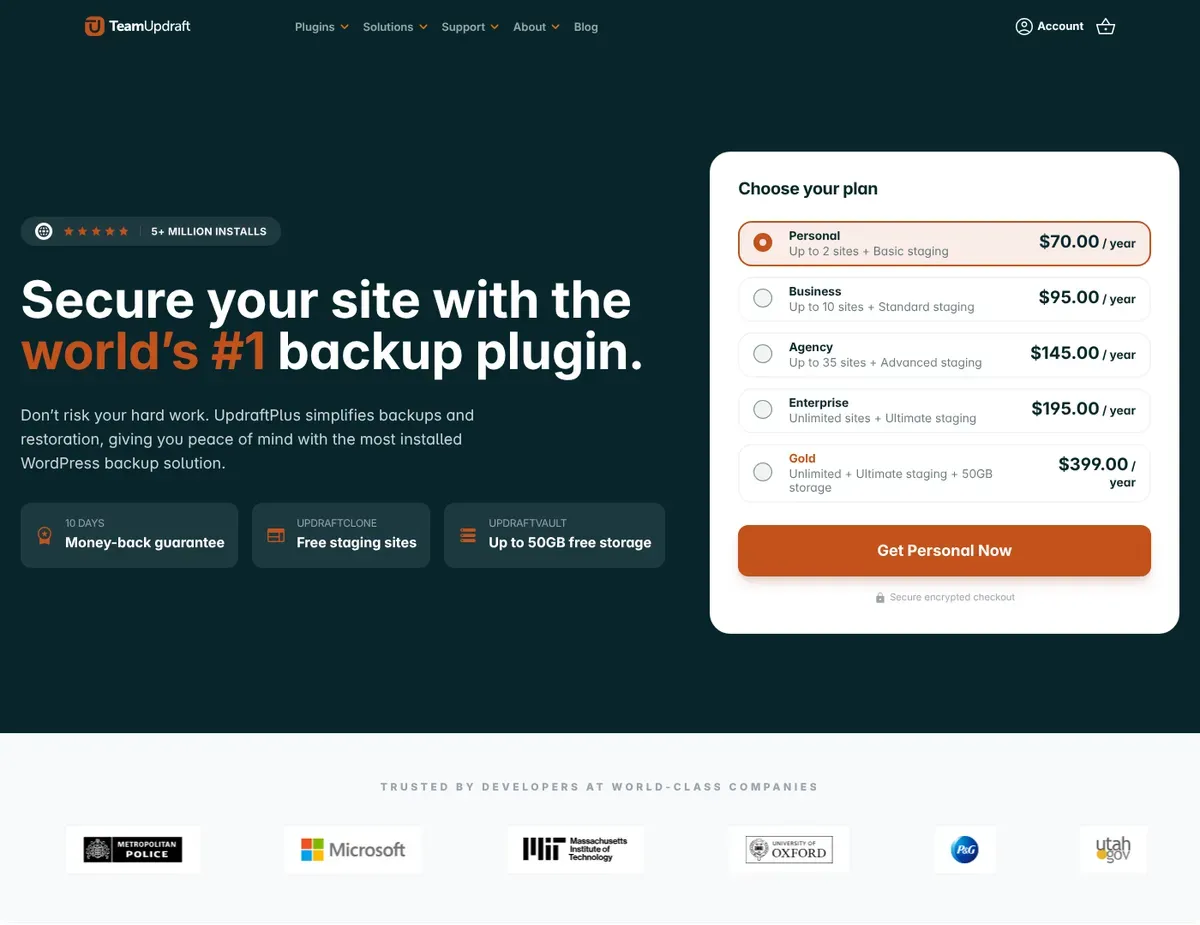
UpdraftPlus powers over 3 million WordPress sites because it solves the core problem cheaply: you need offsite backups, you don’t want to pay per site, and you want it working today. [1] The free tier allows scheduled backups and remote storage with no subscription, integrating directly with Google Drive, Dropbox, Amazon S3, and FTP so backups move offsite as soon as they complete. SFTP, OneDrive, and Backblaze B2 are among the destinations reserved for Premium. [2]
When you outgrow free, Premium is priced by site count rather than feature gates — every tier gets the full set: incremental backups, backup-before-update, migration/cloning, time-of-day scheduling, retention rules, and 1GB of UpdraftVault storage. Personal is $70/year for 2 sites, Business $95/year for 10, Agency $145/year for 35, Enterprise $195/year for unlimited sites, and Gold $399/year adds bundled storage and staging. [3] That Business tier is the quiet standout: $9.50 per site per year undercuts every managed service here by an order of magnitude.
Both of its limitations are recovery limitations, which is why they matter more than the price. Scheduling runs through WP-Cron, so on a low-traffic site a backup set for 2 a.m. waits in the queue until the next visitor arrives — meaning the fix (an external system cron via cPanel or SSH) is a one-time task that keeps your backups from quietly drifting stale. And restoring a large multisite or WooCommerce store through the dashboard can hit the PHP ceilings described above; on hosts with 30–60 second caps you may need to extract the backup via FTP and restore from the command line. Our troubleshooting guide covers the common failure modes. In short: UpdraftPlus is the right call when you’re comfortable owning cron configuration and the occasional command-line restore — and the wrong call for a non-technical owner who can’t.
⚠ Before you rely on the free tier: if your site gets little daily traffic, add an external cron job the same day you install the plugin — otherwise scheduled backups only fire when someone visits, so your latest backup can quietly fall days behind and you won’t find out until you need it. Full plan details are on the official UpdraftPlus pricing page.
If that trade sounds fine, see UpdraftPlus Premium options.
BlogVault: reduces exposure to dashboard restore timeouts at a per-site fee
BlogVault’s whole proposition is that it moves the risky work off your server. It performs fully managed server-side backups that bypass WordPress cron, so backups complete even if your live site is down or gets no traffic. To restore, you pick a timestamp and click — no database-table selection, no FTP, no command line — which is precisely why it reduces dependence on the dashboard restore path where PHP timeouts occur. A one-click staging environment is linked to your backups, so you can test updates or migrations before touching the live site.
Know exactly which plan buys which backup frequency, because they differ sharply. Personal at $99/year gives daily backups, 30-day retention, and a 20GB site-size limit. Business at $299/year steps up to twice-daily backups, 90-day retention, 50GB, and multisite support. Real-time backups — the feature BlogVault’s marketing leads with — live exclusively on the WooCommerce plan at $499/year, which also brings 365-day retention and 100GB. [4] Multi-site bundles cut the per-site rate, which is roughly how a 10-site agency lands near $600/year on daily backups (confirm current bundle pricing before you budget on it). BlogVault’s public materials do not provide enough consistent evidence to present an ongoing weekly free backup tier as a confirmed plan. Treat the available free access as an evaluation period and use $99/year as the verified entry point for ongoing daily backups unless the live account screen shows otherwise. [5]
BlogVault connects through its WordPress plugin and performs backup and restore processing on BlogVault’s servers. Some migration, restore, or support workflows may still require additional site or server access, so organizations with strict third-party access policies should confirm the supported connection method and complete their normal security review before purchase. Do not assume that SFTP or SSH access is mandatory for every installation. BlogVault is the stronger fit when you want to reduce dependence on WordPress-dashboard restores and would rather pay per site than manage more of the recovery process yourself.
⚠ Don’t assume real-time backups come standard: the $99 Personal plan backs up once a day. If you run a store where losing a day of orders is unacceptable, budget for the $499 WooCommerce plan from the start — the plan matrix is on the official BlogVault pricing page.
Duplicator Pro: a migration engine you can also recover from
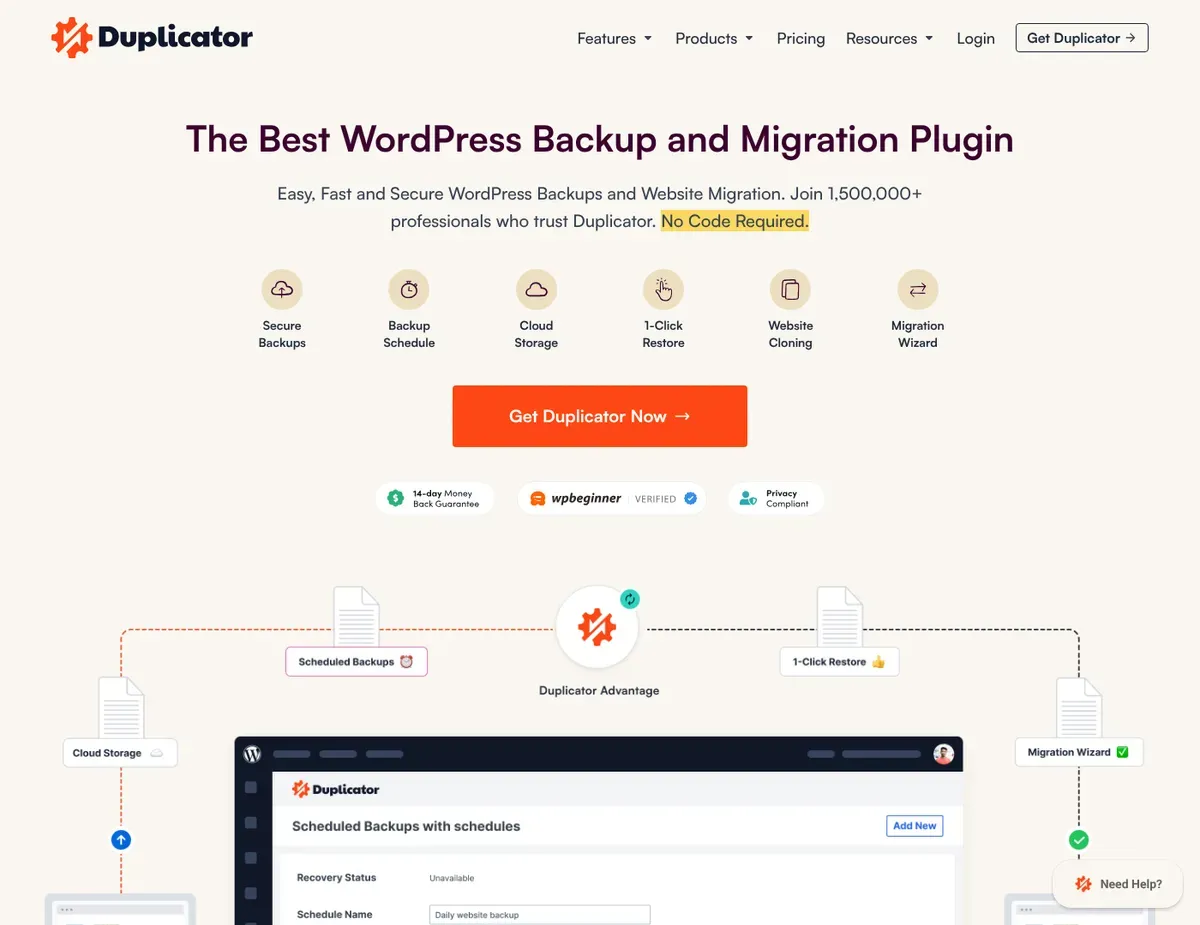
Duplicator Pro is built for developers and agencies who live in their WordPress migrations — cloning a WooCommerce store to a local machine, moving a client site between hosts, testing a major update on staging before it goes live. It creates portable, self-contained archive files with built-in search-and-replace tools that safely update serialized data when you change domains or switch HTTP to HTTPS. That serialization handling is the real distinction: most manual WordPress migrations break because serialized data contains domain references that don’t survive a move.
Duplicator currently displays introductory first-year pricing, with Basic starting at $69/year. The current full list prices are $79/year for Basic, $199/year for Plus, $399/year for Pro, and $599/year for Elite. Promotional amounts can change, so confirm the live first-year total at checkout rather than relying on an unverified middle-tier discount. Paid plans include scheduled backups, cloud-storage integrations, and Recovery Points, while the free Duplicator plugin focuses on manual backups and migration. [6]
Duplicator Pro can run scheduled backups and limit the number of backups retained at each storage destination, so it can serve as an automated backup tool. Its strongest differentiation is still migration and recovery packaging rather than a fully managed off-host restore service. Building large archives can hit execution, disk-space, or memory limits on constrained shared hosting, especially when a site contains several gigabytes of media. A real server cron can make scheduled execution more predictable than WP-Cron, but it is not required to configure normal backup schedules or storage retention.
⚠ Watch the renewal math: the prices above are first-year introductory rates, and Duplicator renews at full list price — roughly double on some tiers. Check the renewal figure at checkout on the official Duplicator pricing page before you build client billing around year-one numbers.
WPvivid Backup: the cheapest way to get backups and migration together
WPvivid bridges free and paid without forcing a subscription. The free tier includes scheduled backups, full-site restore, one-click migration to another host, staging, and — unusually — the full slate of cloud destinations: Google Drive, Dropbox, OneDrive, Amazon S3, FTP, and SFTP all work without an upgrade. For owners who want to test backups and migrations before paying for anything, that’s a genuinely low-risk entry point rather than a crippled trial.
The free tier’s real limits are frequency and control: one backup schedule, no more often than every 12 hours, with incremental backups and multisite support reserved for Pro. Pro pricing is the cheapest here — Starter $49/year for 2 sites, Freelancer $69/year for 10, Small Business $99/year for 50, Ultimate $149/year for unlimited sites, with lifetime licenses also available. [7] For a freelancer covering ten client sites, $69/year is hard to argue with — it’s the same fleet coverage as UpdraftPlus Business for less, with migration included, though UpdraftPlus has the far longer reliability track record.
⚠ If you run a store, mind the 12-hour floor: the free tier can’t back up more often than twice a day, so a busy WooCommerce site could lose up to half a day of orders between snapshots. Hourly-class scheduling means upgrading — compare tiers on the official WPvivid pricing page.
Jetpack VaultPress Backup: real-time restore points if you already live in Jetpack
For site owners already invested in Jetpack, VaultPress Backup delivers real-time, activity-logged backups and rapid point-in-time restores without WP-Cron scheduling and without the dashboard restore path where timeouts occur. Backups are captured as changes occur, so restore points are measured in minutes rather than days, and the integrated activity log shows exactly when a compromise or unwanted change happened — turning the backup system into a forensic tool during a security investigation. Restores run from Jetpack’s cloud, so they can work even when your site is down, though recovery still depends on connectivity and valid access.
Pricing is straightforward but has a first-year hook: $4.95/month billed yearly for year one, then $9.95/month — $59.40 the first year, $119.40/year after. The plan includes 10GB of storage with retention configurable from 7 days up to 1 year. [8] Storage add-ons come in 10GB, 100GB, and 1TB blocks, billed monthly even on annual base plans; when you hit the storage cap, Jetpack deletes the oldest backups only while it can preserve the selected minimum retention. If that minimum still exceeds the available storage, new backups stop until you reduce usage or purchase more storage. [9] Two structural constraints matter more than price: backups live only in Jetpack’s cloud (no Google Drive or Dropbox destinations — you can download copies manually), and WordPress multisite is not supported at all, which rules it out for network installs regardless of budget.
⚠ Size your site before buying: Jetpack estimates storage roughly as the size of the most recent daily backup multiplied by the number of daily backups retained. A 1GB site with 30-day retention would therefore require roughly 30GB, well above the included 10GB. Check the storage estimate on the official VaultPress Backup page before committing, or include the required storage add-on in your renewal cost.
What 12 months actually costs
Feature lists hide the number that decides most fleets: what you’ll pay over a year for the sites you actually run. Here are two representative setups at July 2026 US list prices. Introductory rates are marked; where renewal differs, we show it.
| 12-month cost | Solo owner, 1 site | Freelancer, 10 client sites | Notes |
|---|---|---|---|
| UpdraftPlus | $0 free · $70 Premium (Personal) | $95 (Business, 10 sites) | Full feature set on every tier |
| WPvivid | $0 free · $49 Pro (Starter) | $69 (Freelancer, 10 sites) | Lifetime licenses available |
| Duplicator Pro | $69 Basic introductory → $79/yr full list price | Use the current verified checkout price for the required site tier; Pro is $399/yr at full list price | Introductory discounts vary; confirm the live first-year total |
| BlogVault | $99 (Personal, daily) · $499 (real-time) | ≈$600 (multi-site bundles, est.) | Real-time only on WooCommerce plan; confirm bundle pricing |
| Jetpack VaultPress Backup | $59.40 yr 1 → $119.40/yr renewal | $594 yr 1 → $1,194/yr renewal | Per-site billing; no multisite support |
The pattern is still clear. For a single site, the choice is mainly about recovery architecture rather than price. At ten sites, UpdraftPlus and WPvivid remain inexpensive bundle licenses, while managed services scale through per-site billing. Duplicator’s total depends on the required site tier and the introductory offer available at checkout, so compare its current first-year total with its full renewal price before using it in client billing.
Match the plugin to your situation
The deep dives above cover what each tool is; these are the fast picks once you know your own constraint.
- Tight budget, or testing a new site → UpdraftPlus. The free tier includes Google Drive, Dropbox, and S3 with no subscription, and you can test full restores before disaster strikes. On low-traffic shared hosting, add a system cron so backups don’t run late. Premium starts at $70/year when you want incremental backups and pre-update snapshots.
- Non-technical owner who needs hands-off recovery → BlogVault. Server-side scheduling, restore, and staging with minimal server configuration on your side, so you can restore a broken site without managing FTP or command-line troubleshooting yourself. Reasonable insurance for a single high-value site at $99/year (or $499 for real-time store coverage); just know it scales linearly per site.
- Frequent migrations or dev workflows → Duplicator Pro. Serialization handling and portable archives handle the corruption that breaks most manual migrations, and its 20-site tier is reasonable for agency dev work (confirm the live checkout price and full renewal). Pair it with a simpler daily-backup tool if you also need fire-and-forget snapshots.
- Agency managing many client sites → WPvivid or UpdraftPlus. WPvivid at $69/year for 10 sites (or $149/year unlimited) is the best cost-to-functionality ratio; UpdraftPlus Business at $95/year for 10 is the more battle-tested alternative. Either beats ≈$600/year on BlogVault or $1,194/year renewal on Jetpack for the same fleet — provided you’ll own cron configuration and occasional restore troubleshooting across client hosts.
After you choose: set up and prove recovery
Picking the plugin is step one; a backup you’ve never restored is a guess, not a safety net. Two things decide whether your choice actually protects you. First, configure the schedule and an offsite destination correctly — on a quiet site that means adding a system cron so backups don’t drift late, and completing the cloud OAuth so files truly leave your host. Second, run one full restore to a staging copy before you need it: that single test is what shows whether your backup is restorable and whether your plugin handles your site size without timing out. The UpdraftPlus setup guide walks through configuration for the most common pick, and the backup testing guide covers the isolated restore that turns a backup into recovery.
Frequently asked questions about WordPress backup plugins
Which backup plugin is the best fit for hosts with tight PHP limits?
BlogVault is the strongest fit in this comparison for hosts with restrictive PHP execution limits, because its managed server-side restore reduces dependence on the normal WordPress dashboard restore path, where those limits bite. UpdraftPlus and WPvivid restore through the WordPress dashboard and can hit execution or memory limits on large sites.
That architecture reduces exposure to host-level PHP constraints, but no restore system guarantees success. Test restores with your own site, host, and backup size before relying on any service.
Which backup tool is best for cloning a WooCommerce store to local development?
Duplicator Pro. Its search-and-replace engine is built to update serialized product metadata, attributes, and order references when domains or HTTP/HTTPS settings change — the exact place manual migrations break. You can iterate on the local clone without touching the live store.
How do you stop WP-Cron from running WordPress backups late on shared hosting?
Configure a system cron or host scheduler to invoke WordPress cron at fixed intervals. This removes the traffic-dependent delay, but backup success still depends on the plugin, hosting limits, remote storage, and network conditions.
How do you switch WordPress backup services without losing existing backup history?
Most backup services do not automatically import another plugin’s proprietary backup history. Before switching, download at least one recent full backup from the old tool and keep the old service active until the new tool completes a fresh backup. Confirm with the new vendor whether it can import the old archive format, then run a restore test from the new backup before deactivating the previous service.
The bottom line: which backup plugin should you pick?
UpdraftPlus is our pick for budget-conscious site owners on shared hosting: a genuine free tier with real cloud storage, a $70–$95/year Premium that undercuts every managed rival, and a track record across 3+ million installations. Its WP-Cron scheduling and dashboard restore are the price of that value — fair if you’re willing to add a cron job and, on a large site, keep a command-line restore in your back pocket.
The alternatives each win a narrower brief. BlogVault if you’re reducing your exposure to restore risk — server-side restores and staging from $99/year. Duplicator Pro if migrations are your daily reality and serialization corruption is your enemy. WPvivid if you’re an agency squeezing maximum fleet coverage from $69–$149/year. Jetpack VaultPress Backup if you already live in Jetpack and want real-time restore points with an activity log — and you’re not on multisite.
Strip away the features and the decision is two questions: how much technical work will you do during a recovery (cron configuration, FTP or command-line restores), and how much will you pay per site to avoid it? Answer those against your hosting and your fleet size, and the right plugin is usually obvious.
Next steps
- For help choosing between local and cloud storage, see our local backup vs cloud backup guide.
- If you are still deciding where backups should live after they are created, read this offsite backup guide to compare remote storage approaches for small business recovery planning.
- If you are leaning toward UpdraftPlus, read the UpdraftPlus review.
- If you already chose UpdraftPlus, follow the setup guide.
- If your backups already run, verify recovery with the backup testing guide.
Sources
- ↑ UpdraftPlus — WordPress.org repository (active installations) — https://wordpress.org/plugins/updraftplus/
- ↑ UpdraftPlus — Free vs Premium — https://teamupdraft.com/updraftplus/free-vs-premium/
- ↑ UpdraftPlus — Premium pricing — https://teamupdraft.com/updraftplus/pricing/
- ↑ BlogVault — Pricing — https://blogvault.net/pricing/
- ↑ BlogVault Backup & Staging — WordPress.org plugin page (backup, restore, staging, and migration description) — https://wordpress.org/plugins/blogvault-real-time-backup/
- ↑ Duplicator — Pricing — https://duplicator.com/pricing/
- ↑ WPvivid — Backup & Migration pricing — https://wpvivid.com/pricing/backup-migration
- ↑ Jetpack — VaultPress Backup — https://jetpack.com/upgrade/backup/
- ↑ Jetpack — VaultPress Backup storage and retention — https://jetpack.com/support/backup/jetpack-vaultpress-backup-storage-and-retention/
Disclaimer
This article is an independent, documentation-based analysis using vendor documentation, official pricing pages, and support resources, with all prices checked in July 2026. Restore-outcome statements are reasoned from each plugin’s documented restore model and typical hosting limits rather than from a controlled restore lab, and should be validated on your own site and host. Vendor offerings change between releases, so confirm current plan terms at the linked official pages before purchasing.
Last reviewed: July 2026 by the PickrTech editorial team.