This review helps you decide whether UpdraftPlus is the right WordPress backup plugin for your site. If you are still weighing options, start with the WordPress backup plugin comparison. If you have already chosen UpdraftPlus, jump to the setup guide and then verify your recovery path with the backup testing guide.
This article contains affiliate links to UpdraftPlus. If you purchase through those links, PickrTech may earn a commission at no additional cost to you. This does not affect our editorial evaluation.
TL;DR: UpdraftPlus remains one of the most trusted WordPress backup plugins, with a genuinely capable free tier and broad cloud storage support. Premium starts at $70/year for two sites and unlocks multisite support, incremental backups, direct migration, and database encryption. The trade-off: a dated interface and a few features you might assume are free but aren’t. This review breaks down who it’s actually built for.
Is UpdraftPlus worth using for WordPress backups?
For most standard WordPress sites, the free version provides everything needed for reliable scheduled backups and restores. Premium ($70/year for up to 2 sites) is worth it in three specific cases: you run a multisite network, you migrate sites between hosts or staging environments regularly, or your site is large enough that full backups strain your server and you need incremental backups instead.
All prices in this article are US list prices, checked in July 2026 against each vendor’s official pricing page. The free version is available from the WordPress plugin directory; Premium plans are on the UpdraftPlus official site.
How we evaluated UpdraftPlus
This review is written from the perspective of a small business owner and site administrator — not a backend developer. The goal is to determine whether UpdraftPlus solves practical operational problems without creating new ones. We focused on four questions:
- Can a non-developer configure and trust this plugin with their livelihood?
- How reliable is the restore process when a site inevitably breaks?
- What are the actual hidden costs and friction points after installation?
- At what point does the free version become a liability?
The evaluation draws on official documentation, the WordPress plugin repository, aggregated user feedback, and hands-on testing in a controlled environment. To verify your own setup works, follow our guide to test a WordPress backup.
What UpdraftPlus does for WordPress backups
UpdraftPlus is listed in the official WordPress Plugin Directory with over 3 million active installations, making it one of the most widely adopted backup solutions in the WordPress ecosystem.[1] It schedules full site backups — database, plugins, themes, and uploads — and sends them to remote storage such as Google Drive, Dropbox, Amazon S3, or Rackspace Cloud Files. The plugin has a well-earned reputation for simply working in the background without demanding constant attention.
This popularity matters in practice. A large user base means bugs surface quickly, documentation is extensive, and community support forums stay active — all things you’ll be glad of at 2 a.m. when a restore isn’t going to plan.
Who UpdraftPlus is actually built for
UpdraftPlus is designed to be approachable for WordPress users who are not server administrators. It caters primarily to people who want a “set it and forget it” solution: establish a schedule once, then trust that a copy of the site sits safely in a remote location.
Small business teams benefit most from this approach. If you run an ecommerce storefront, a local service website, or a content blog that generates revenue, UpdraftPlus provides the safety net to recover quickly from a catastrophic failure, a bad plugin update, or a compromised admin account.
The solo site owner vs. the agency
A solo owner typically manages one to three sites and needs a daily or weekly backup schedule to a single cloud provider. The free version handles this workload without issue.
Agencies are a different story. They move sites between staging and production constantly, manage dozens of client installs, and need centralized management plus priority support. For them, Premium’s direct site-to-site migration and the multi-site license tiers ($95/year for 10 sites, $145/year for 35) are operational necessities rather than optional upgrades.
What UpdraftPlus does well
The core backup and restore functionality is where UpdraftPlus earns its reputation. Scheduling is straightforward, and you can set intervals for database and file backups independently — back up the database daily while running full file backups weekly, which saves both storage space and server load.
Another quietly useful detail: UpdraftPlus retains its own settings through a restoration, so your scheduled backups resume immediately after a recovery without reconfiguration. Competing free plugins often overlook this.
Migration and cloning
Premium’s migration tooling lets you connect two sites once, then push a site between them in a couple of clicks — no manual database exports, FTP transfers, or config-file editing. It handles the serialized-data replacement that trips up manual migrations, and in TeamUpdraft’s own words it is built to succeed “even when storage is low, memory is limited and databases are large.”
For agencies and freelancers who build sites on their own hosting before handing them to clients, this feature alone can justify the license cost. It removes both the time and the error surface of manual migrations.
Where the plugin creates friction
UpdraftPlus is not without its shortcomings. The interface, while functional, hasn’t seen a real modernization in years. New users often find the settings page overwhelming: options are densely packed and the terminology assumes some WordPress architecture knowledge. Tasks like excluding specific database tables sit right next to beginner options with little guidance separating them. Newer competitors offer faster, more guided setup experiences.
Multisite is a Premium feature — full stop
The vendor’s own free vs Premium breakdown is unambiguous: WordPress Multisite compatibility is Premium-only.[3] There is no free path to a network backup or to restoring an individual subsite. This regularly surprises users who expected the free version to at least handle an all-or-nothing multisite backup — it doesn’t, and if you run a network, budget for Premium from day one. If you haven’t configured the plugin yet, see our UpdraftPlus setup guide.
How UpdraftPlus works in day-to-day backup management
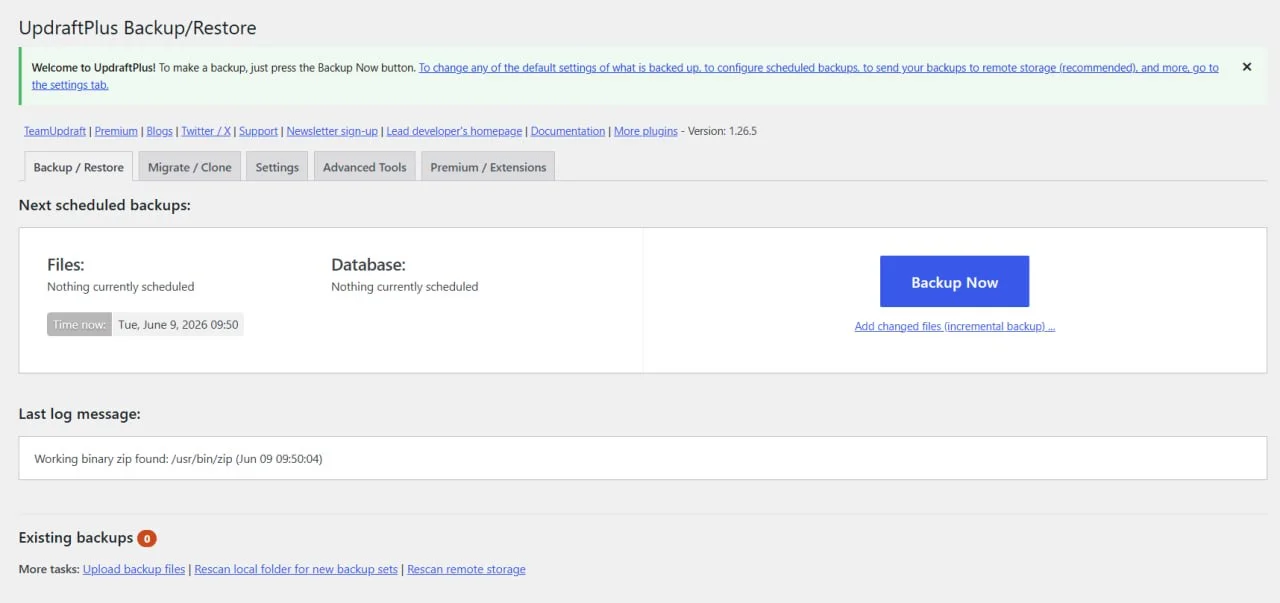
UpdraftPlus initial setup screen — the first screen users see before starting a manual backup or configuring storage.
Setup involves three steps: install the plugin, connect your cloud storage provider via OAuth, and configure a schedule. The major providers use a guided OAuth flow, so Google Drive and Dropbox can be connected without entering FTP credentials.
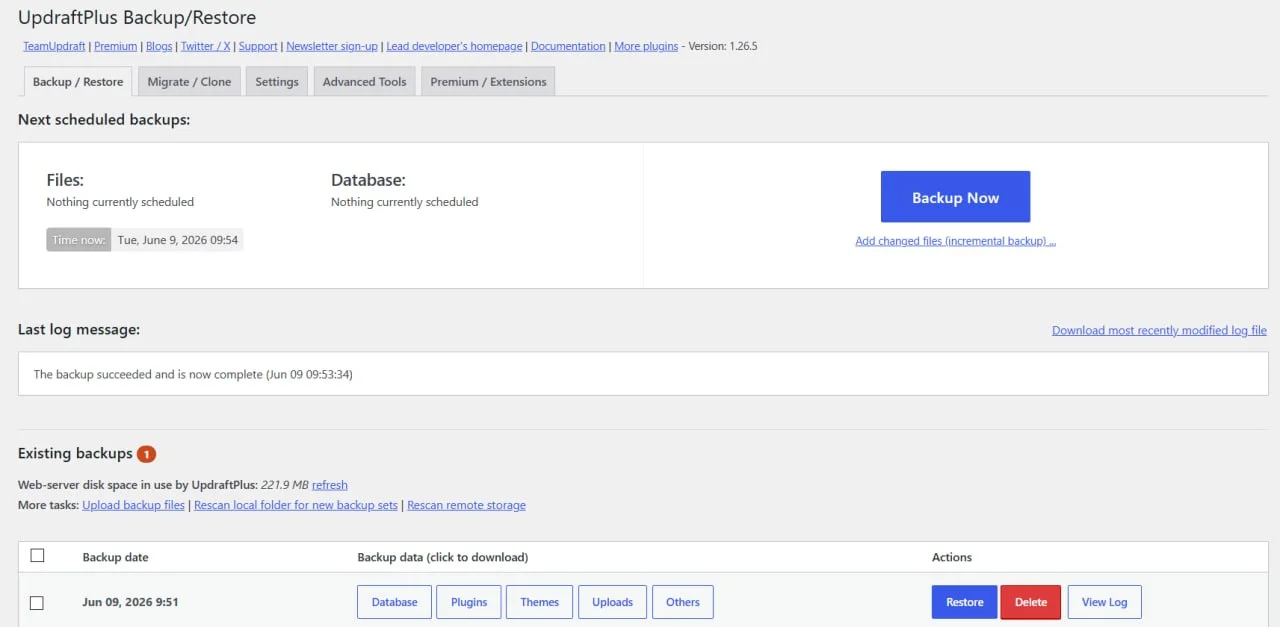
The Backup/Restore dashboard displays existing backups, scheduled tasks, and one-click restore options.
Configuring remote storage and schedules
The scheduler offers predefined intervals (every 2, 4, 8 or 12 hours, daily, weekly, fortnightly, monthly) and lets you cap how many backup copies to retain. Keeping the last four backups is a sensible default that stops your cloud storage filling up with stale archives. One free-tier limit worth knowing: you can’t pin backups to a specific time of day — scheduling for, say, 3 a.m. off-peak hours is a Premium feature.
How much cloud storage you’ll need depends entirely on your content. A text-focused blog might produce 50–200MB per backup, while an ecommerce site with a large media library can exceed 5GB. Multiply that figure by your retention count when sizing the cloud account — most providers’ free tiers comfortably cover smaller sites.
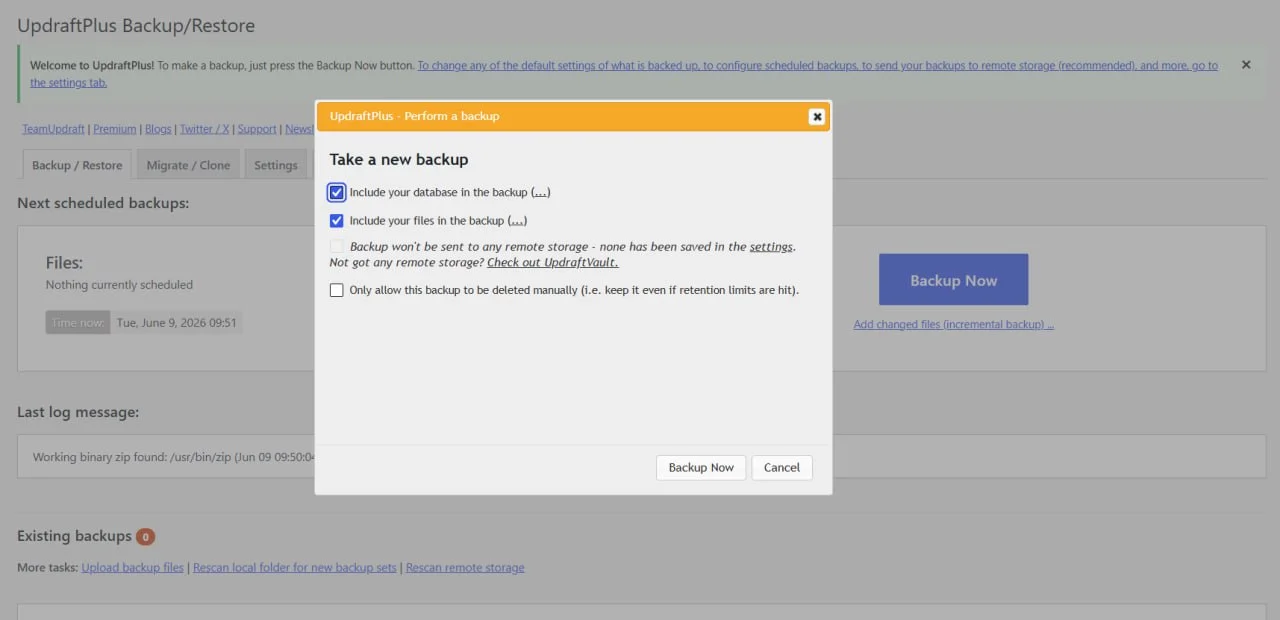
The backup modal lets users choose whether to include the database, files, or both in each backup.
Once configured, day-to-day management is minimal. The plugin runs silently in the background, and you can enable email reporting to confirm whether backups succeed. Premium adds more detailed reports and recipient controls. Checking the logs periodically is still good practice, but most users can leave the routine process alone.
One operational limitation: large sites with extensive media libraries can hit timeout issues during backup, depending on your host’s PHP execution limits. Large, media-heavy sites should verify that their hosting can sustain long-running backup processes — or consider Premium’s incremental backups, which only capture changes since the last run.
Restore confidence and operational reliability
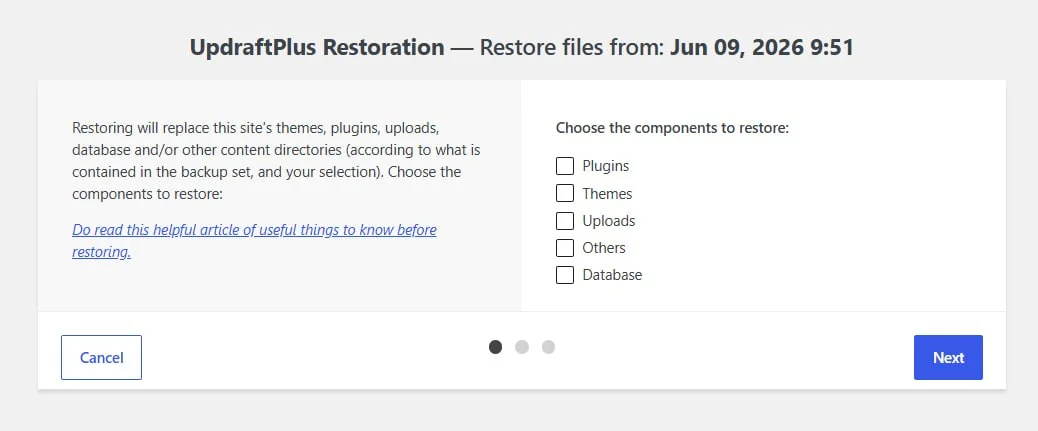
UpdraftPlus restore dialog — select which components (plugins, themes, uploads, database) to restore from a backup.
A backup system is only as good as its restore process, and this is where UpdraftPlus builds trust. The standard restore runs directly through the WordPress admin: pick a backup date, tick the components you want back (database, plugins, themes, uploads), and go.
When the WordPress admin is entirely inaccessible, you can still recover by extracting the backup archives manually via your hosting control panel or FTP. It’s not one-click, but it means a dead dashboard doesn’t mean a dead site.
Encryption: know what you’re getting
This is a point where many reviews — and older versions of this one — get the details wrong, so let’s be precise. Database encryption in UpdraftPlus is a Premium feature. The official free vs Premium comparison lists it plainly: Free — no, Premium — yes.[2] If you’re on the free version, your backup archives leave the server unencrypted, and your only real protection is access control on the cloud account where they land.
With Premium, encrypting the database backup is worthwhile for any site holding customer data — if someone gets hold of the archive, they can’t read user records. But encryption introduces an operational responsibility of its own.
Before you rely on UpdraftPlus, know these three things. First, if you enable database encryption and lose the passphrase, that backup is permanently unrecoverable — there is no master key or vendor backdoor, so store the phrase in a password manager your team can actually reach during an outage. Second, free-version backups are stored unencrypted, so treat the cloud account holding them as sensitive infrastructure: strong password, two-factor authentication. Third, Premium subscriptions renew automatically on an annual cycle, and the refund window is 10 days — confirm the renewal amount in your account before it bills and set a calendar reminder if you might not renew.
UpdraftPlus pricing and 12-month cost
UpdraftPlus Premium comes in five tiers, and unlike many plugins, every tier includes the full feature set — you’re paying for site count, staging capacity, and bundled storage, not for features held hostage.[4]
| Plan | Price (per year) | Sites | What’s different |
|---|---|---|---|
| Personal | $70 | Up to 2 | Full feature set, 1GB UpdraftVault storage, basic staging |
| Business | $95 | Up to 10 | Standard staging — under $10 per site |
| Agency | $145 | Up to 35 | Advanced staging — roughly $4 per site |
| Enterprise | $195 | Unlimited | Ultimate staging |
| Gold | $399 | Unlimited | 50GB UpdraftVault storage, UpdraftCentral management |
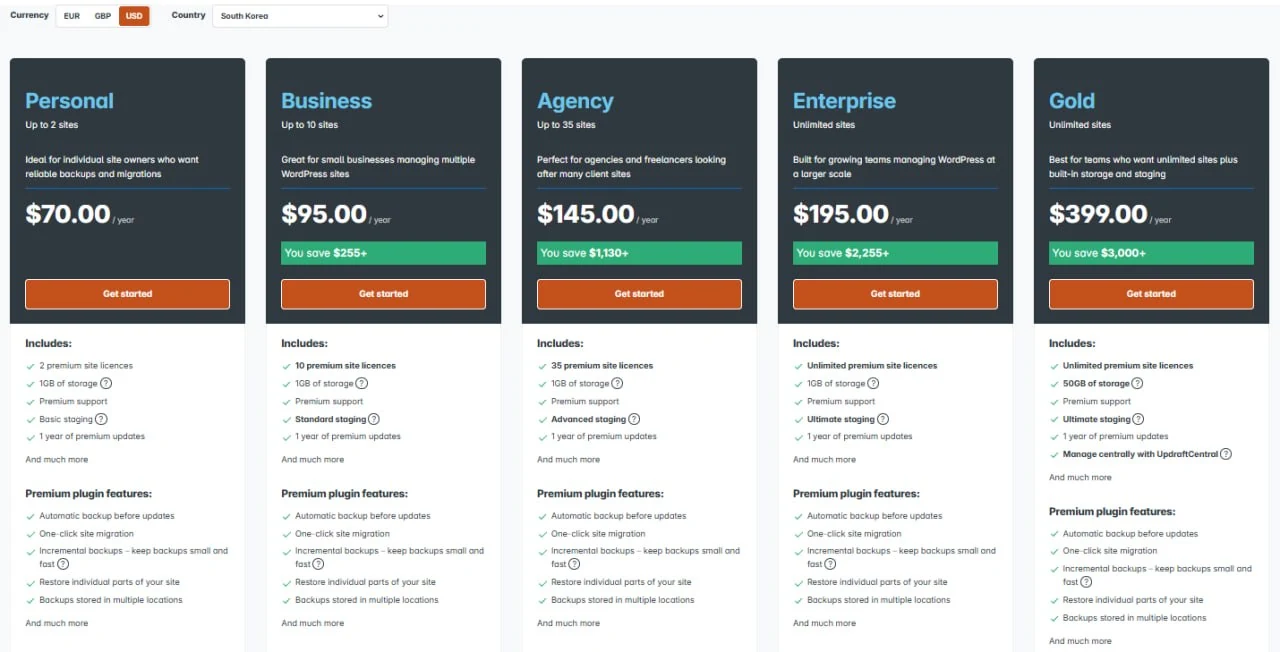
The current TeamUpdraft pricing page listing all five UpdraftPlus Premium tiers.
Two policy details matter more than the sticker prices. Every purchase carries a 10-day money-back guarantee — not the 30 days some older reviews cite — and subscriptions auto-renew annually. Because renewal amounts and promotions can change, confirm the exact amount in your TeamUpdraft account before renewal rather than assuming that a discount applies.
What 12 months actually costs
Here is the first-year math for three representative setups, assuming you use your existing Google Drive or Dropbox storage rather than paying for UpdraftVault beyond the bundled 1GB:
| Who you are | Realistic setup | 12-month cost |
|---|---|---|
| Solo blogger, 1 site | Free version + free Google Drive tier, weekly backups | $0 |
| Small business, 1–2 sites needing encryption or migration | Premium Personal | $70 |
| Freelancer with client sites (up to 10) | Premium Business | $95 (≈ $9.50/site) |
| Agency (up to 35 sites) | Premium Agency | $145 (≈ $4.14/site) |
For context, BlogVault’s Personal single-site plan costs $99/year — $29 more than UpdraftPlus Personal — and it covers one site. UpdraftPlus’s per-site cost falls further on its Business and Agency tiers because the backups run on your own infrastructure and storage.
Free vs Premium: when the upgrade actually matters
| Situation | Free version is usually enough | Premium version is worth considering |
|---|---|---|
| Simple blog with weekly backup needs | Daily/weekly scheduling to one cloud provider is sufficient | Not necessary |
| Small business site with daily database changes | Daily database and weekly file backups cover most scenarios | If you need incremental backups or backup-before-update protection |
| Multisite network | ✕ Not supported at all in the free version | Required — multisite compatibility is Premium-only |
| Agency building and migrating client sites | ✕ Manual backup-and-restore migration is slow and error-prone | Direct site-to-site migration saves real billable hours |
| Site holding sensitive customer data | ✕ Backups are stored unencrypted | Required for database encryption |
| Large, frequently updated site | Full backups work but strain server resources | Incremental backups cut storage use and server load |
When UpdraftPlus makes sense — and when it doesn’t
UpdraftPlus is the right choice for site owners who prioritize reliability and broad cloud storage support over a polished interface. It fits people who want a free solution that genuinely works, without artificial limits on backup frequency, and it’s especially frictionless if you already live in the Google Drive, Dropbox, or Amazon S3 ecosystems — OAuth setup takes minutes and there are no FTP credentials to babysit.
Who should skip this plugin
If dense settings pages put you off, or you want a guided, modern workflow, newer competitors do that better. Likewise, developers who need real-time, continuous backups — for example, a busy WooCommerce store where losing even an hour of orders is unacceptable — will find UpdraftPlus’s scheduled-backup model too coarse. It captures snapshots, not every change as it happens.
Alternative backup tools worth considering
| Product | Best for | Price range (per year) | Key differentiator |
|---|---|---|---|
| BlogVault | Real-time backups and a modern, managed experience | $99–$499 (1 site) | Backups run on BlogVault’s servers, not yours; built-in staging |
| Duplicator Pro | Agencies focused on migration and cloning | $79–$599 list (2–100 sites); steep intro discounts common | Portable archive + installer model; staging and multisite from the Pro tier |
| BackWPup | Budget-conscious users needing solid free backups | Free / $49–$199 | Free restore after manual upload; direct cloud restore, Google Drive, and OneDrive are Pro-only |
BlogVault[5] offloads backup processing to its own infrastructure, which is a real advantage on cheap shared hosting — but you pay per site, and its $99/year single-site plan costs slightly more than UpdraftPlus Business, which covers up to 10 sites for $95. Duplicator Pro[6] remains the specialist for one-shot migrations, though staging and multisite support only arrive at its $399 Pro tier. BackWPup[7] is a capable free alternative with restore support after a manual backup upload, but its free tier lacks encryption; direct cloud restore, Google Drive, and OneDrive require Pro.
The bottom line
For standard blogs, small business pages, and brochure sites, the free version is genuinely all most owners need: install it, connect a cloud provider, set a schedule, and get back to running your business. Premium earns its $70–$145/year only when a concrete trigger applies — a multisite network, routine client migrations, database encryption, or a site large enough to need incremental backups — and at agency scale the per-site cost drops to about $4. Premium details are on the official UpdraftPlus website.
Next steps
- Compare storage approaches in our local vs cloud backup for WordPress guide.
- Weigh UpdraftPlus against other plugins in the WordPress backup plugin comparison.
- Configure your first backup with the UpdraftPlus setup guide.
- If backups fail or cloud storage disconnects, use the UpdraftPlus errors guide.
Sources and notes
- WordPress Plugin Directory: UpdraftPlus — active installation count and compatibility data. ↩
- UpdraftPlus Free vs Premium — official feature comparison; database encryption listed as Premium-only. ↩
- UpdraftPlus Free vs Premium — WordPress Multisite row — multisite compatibility marked Premium-only. ↩
- UpdraftPlus Premium Pricing (TeamUpdraft) — tier prices, 10-day money-back guarantee, auto-renewal terms. ↩
- BlogVault Pricing — single-site plan pricing. ↩
- Duplicator Pro Pricing — tier list prices, site counts, and introductory discount terms. ↩
- BackWPup Pricing — Pro plan pricing and refund terms. ↩
Disclaimer
This review is based on official documentation, the WordPress plugin repository, aggregated user feedback, and hands-on testing in a controlled environment. All prices are US list prices checked in July 2026 against official vendor pages; pricing and features can change, so confirm on the vendor’s site before purchasing.
Last reviewed: July 2026 by the PickrTech editorial team.