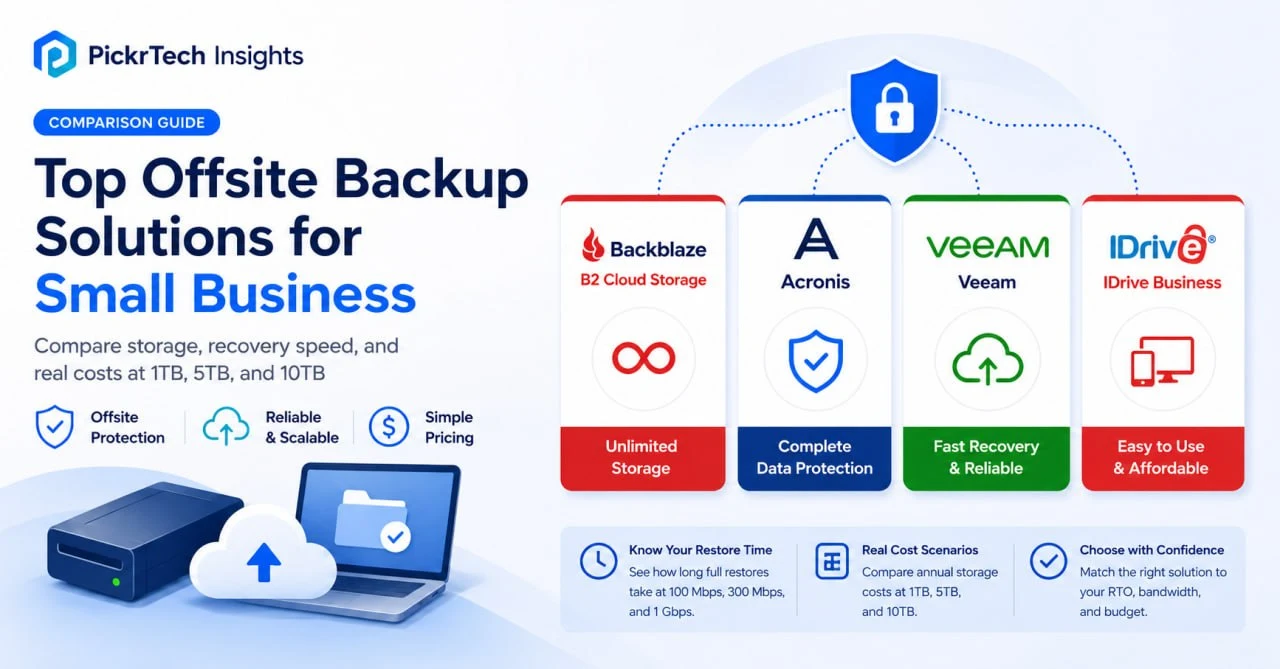
The four offsite backup options compared in this guide: Backblaze B2, Acronis Cyber Protect, Veeam Backup & Replication Community Edition, and IDrive Business
TL;DR: The offsite backup decision is really a recovery decision, and recovery is governed by two numbers: what a year of storage costs and how long a full restore takes over your connection. Acronis Cyber Protect is the safest pick for a small business that wants one system covering endpoints, servers, recovery, and ransomware defense without stitching tools together. Choose Backblaze B2 ($6.95/TB/month) if low-cost storage is the priority and you’ll pair it with your own backup software, Veeam Backup & Replication Community Edition (free for up to 10 workloads) if you run virtualized infrastructure, and IDrive Business — which starts at 500 GB for about $168 in the first year when billed annually, then $239.88/year at the current standard annual rate, with unlimited users and support for multiple computers, servers, and NAS devices — if you want flat multi-device pricing.
Every price, plan limit, and feature gate below was checked against the vendors’ official pricing pages and documentation in July 2026. Because promotional rates and licensing terms change often, confirm the current figure before you commit — the exact IDrive tier price and Acronis add-on storage rate in particular.
Where this guide fits: Use it when you need offsite backup for business files, employee devices, NAS storage, or servers. Offsite backup tools protect company data outside your office; WordPress backup plugins protect a website’s files and database — many businesses need both, but they are different jobs. If your main asset is a WordPress site, start with the plugin comparison instead. If you already have backups in place, validate them with our backup testing guide or the 3-2-1 backup plan guide.
How these four tools were evaluated
This is a documentation-based evaluation, not a hands-on lab test: every capability claim comes from official documentation, current pricing pages, and published plan limits, cross-checked in July 2026. Rather than rank the four tools on a feature grid, this guide judges each one on how it behaves when a server fails, a NAS needs rollback, or a lean team has to recover without a full-time infrastructure specialist. The reader profile in mind is a business managing 1–10 TB across Windows servers, NAS devices, and some cloud apps, on a $50–$500/month budget, with little or no dedicated IT staff. The four tools deliberately solve different problems: storage you pair with any backup client (Backblaze B2), an all-in-one backup-plus-security bundle (Acronis Cyber Protect), an enterprise backup engine with a genuinely free tier (Veeam Community Edition), and flat multi-device packages (IDrive Business).
What recovery actually costs and how long it takes at 1 TB, 5 TB, and 10 TB
Storage price is the number vendors advertise. Recovery time is the number that decides whether a failure costs you an afternoon or a fortnight — and it is pure arithmetic you can reproduce: transfer time ≈ data size ÷ effective connection speed. The table below assumes a sustained transfer at roughly 80% of line rate to account for real-world overhead.
Estimated time to pull a full restore back over the internet (≈80% efficiency)
| Data to restore | At 100 Mbps | At 300 Mbps | At 1 Gbps |
|---|---|---|---|
| 1 TB | ~28 hours (over a day) | ~9 hours | ~3 hours |
| 5 TB | ~6 days | ~2 days | ~14 hours |
| 10 TB | ~12 days | ~4 days | ~28 hours |
That is the single most important line in this guide. At 100 Mbps, restoring 5–10 TB over the internet is roughly a six-to-twelve-day transfer before validation, cutover, and other recovery work. This is why the recovery architecture, not the storage price, separates these tools: Veeam’s Instant Recovery boots a workload directly from the backup so you are not waiting on that download at all; IDrive Express and Backblaze’s disk options ship physical drives to sidestep the pipe; Acronis leans on a local cache or NAS target for the same reason. Any multi-terabyte plan that relies solely on cloud download restore should be checked against the business’s actual bandwidth and recovery-time objective; on slower links or tight RTOs, a local recovery path or shipped media becomes essential.
To replace these broad bandwidth assumptions with your own measured throughput, preparation time, verification time, and RTO, use our backup restore time calculator.
Now consider annual storage cost at the same three sizes. Backblaze B2 is priced directly by stored data. The Veeam CE + B2 figures below are storage-cost illustrations for supported machine and VM backup workflows; they must not be read as a universal $0-software path for NAS or other unstructured data. Veeam’s current licensing documentation states that unstructured-data backup to object storage requires a paid license. IDrive is priced by storage-pool tier with multiple computers, servers, and NAS devices under one Business account. Acronis is priced by device licensing plus cloud capacity, so it does not map cleanly to a simple per-terabyte cell.
Approximate annual offsite storage cost by data size (list rates, July 2026)
| Data offsite | Backblaze B2 | Veeam CE + B2 | IDrive Business |
|---|---|---|---|
| 1 TB | ~$83/yr | ~$83/yr | 1.25 TB tier — ~$599.88/yr |
| 5 TB | ~$417/yr | ~$417/yr | ~$1,799.88/yr (5 TB tier) |
| 10 TB | ~$834/yr | ~$834/yr | 12.5 TB tier — ~$3,599.88/yr |
Backblaze B2 = storage only. Veeam CE + B2 = supported VM/machine workflows (not NAS/unstructured data). IDrive Business = unlimited users and devices.
The IDrive figures above are standard annual rates. First-year promotional pricing is currently advertised at about 30% off for new signups. For rough budgeting, that puts the 1.25 TB, 5 TB, and 12.5 TB tiers at about $420, $1,260, and $2,520 for the first year. Confirm the final checkout amount before purchase, and budget on the standard annual rate for long-term planning.
Acronis scales differently. Current subscriptions start at $85/year per device. A subscription includes 250 GB of cloud storage per licensed server and 50 GB per licensed workstation, and that included storage is tied to the licensed workload rather than pooled freely across the account. Additional Acronis Cloud Storage is sold by capacity. Because device edition and storage capacity both affect the total, price the exact server and workstation mix in the current Acronis store before budgeting.[3] The part that does not change is the buying model: with Acronis, you are paying for an integrated backup, recovery, and security platform rather than storage capacity alone.
Reading the matrix. If storage price were the only axis, B2 wins outright. But recovery time reweights everything. On faster links or smaller data sets, a download restore is tolerable and the cheapest predictable storage (B2, or Veeam+B2 for supported workloads if you can drive it) is the rational choice. As data grows or bandwidth tightens, the tool that can recover without a full download — Veeam’s Instant Recovery for virtualized shops, or a bundle with a local cache like Acronis — earns its higher cost. IDrive sits in between: a flat bill and unlimited devices, with Express disk shipping as its answer to the bandwidth wall.
Storage you assemble versus a system that arrives complete
The sharpest divide in this roundup is not price — it is whether you are buying a component or a system. Backblaze B2 is object storage: it includes no backup application, no backup-job scheduling, and no guided recovery wizard. B2 keeps file versions at the storage layer, while your chosen backup software determines the backup schedule, retention workflow, and recovery process. Acronis and IDrive arrive complete — software, storage, and (for Acronis) security in one console. Veeam is the interesting middle: a complete, powerful engine that is free, but one that assumes you can architect backup chains, repositories, and immutability yourself. Keep that buy-versus-assemble question in mind as you read the four sections below; it decides more than the sticker price does.
| Product | Pricing (July 2026) | Recovery approach | Ransomware protection | Where it wins |
|---|---|---|---|---|
| Backblaze B2 Cloud Storage | $6.95/TB/month; egress free up to 3× stored data, then $0.01/GB | Download restore; speed set by your paired software and bandwidth | Object Lock, set per bucket in the web console or via backup software | Lowest predictable storage behind existing backup tools |
| Acronis Cyber Protect | From ~$85/yr per device; cloud storage included per workload, extra capacity sold separately | Universal Restore to dissimilar hardware; cloud restores are bandwidth-bound | Anti-ransomware agent built in | All-in-one backup + security in one agent |
| Veeam Backup & Replication Community Edition | Free for up to 10 workloads (NAS shares consume 1 per 500 GB) | Instant Recovery boots supported VMs from backup in minutes | Immutability via hardened repository or Object Lock storage | Fastest recovery for virtualized shops, at $0 |
| IDrive Business | From $239.88/yr (500 GB) standard rate; unlimited users and devices, ~30% off year one | Download restore; IDrive Express disk shipping for large jobs | AES-256 encryption + 30-version rollback | Many devices under one flat account |
Backblaze B2 Cloud Storage
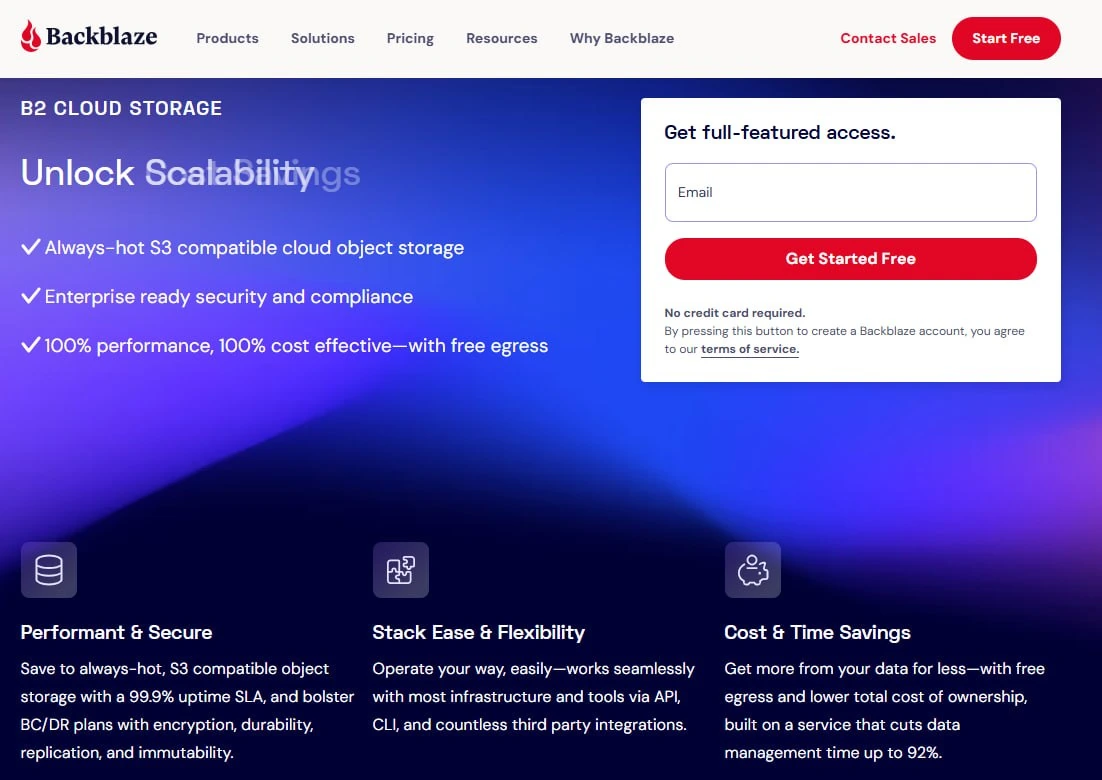
Backblaze B2’s product page highlights S3-compatible storage, security, and free egress; Object Lock configuration is handled separately in bucket settings.
Backblaze B2 is not a backup product, and that is the point. It is S3-compatible object storage that your Synology or QNAP NAS, a third-party client like MSP360 Backup or Veeam Agent, or even a custom script uploads to directly. If your NAS already handles local backups and you just need a transparent, low-cost offsite mirror, B2 solves that one problem very well.
The bill is refreshingly simple to predict: $6.95 per TB per month, with egress free up to three times your average stored data and $0.01/GB after that — plus a 10 GB free tier for testing. [1] There are no per-device licenses and no bandwidth overage tiers to decode. Server-side encryption with user-managed keys costs nothing extra, Backblaze says B2 is designed for 11 nines of durability (multi-region replication is available as a separate resilience option), and the S3-compatible API keeps you free to swap backup clients later without migrating storage.
Ransomware protection is better than its storage-only reputation suggests. Object Lock — write-once, delete-never immutability — can be enabled per bucket directly in the web console, with a retention period of 1 to 3,000 days set in the same screen; no command line required. [2] Backup tools that integrate with B2, Veeam included, will configure the lock for you when you tell them how long backups should stay immutable. The real limitation is that B2 is still storage rather than a complete backup application: it provides no backup-job scheduling or guided recovery workflow. B2 itself keeps file versions by default and lets you manage older versions with lifecycle rules, so your backup client’s retention policy still needs to be designed around the bucket’s versioning and lifecycle settings. That is a genuine skills bar — just not one at the storage layer. Non-technical owners expecting a complete product with scheduling and recovery wizards should look at Acronis or IDrive instead.
⚠ Caution: Object Lock in compliance mode is genuinely irreversible — once a retention period is set, nobody can shorten it or delete the data early, not even Backblaze support. That is exactly what makes it ransomware-proof, and exactly why a typo in the retention field can lock terabytes you will pay for until the clock runs out. Double-check the duration before saving; billing details are on Backblaze’s official pricing page.
The contrast with Acronis is the whole buy-versus-assemble decision in miniature: Acronis hands you software, storage, and security in one console; B2 hands you a bucket and total freedom over what fills it.
Acronis Cyber Protect
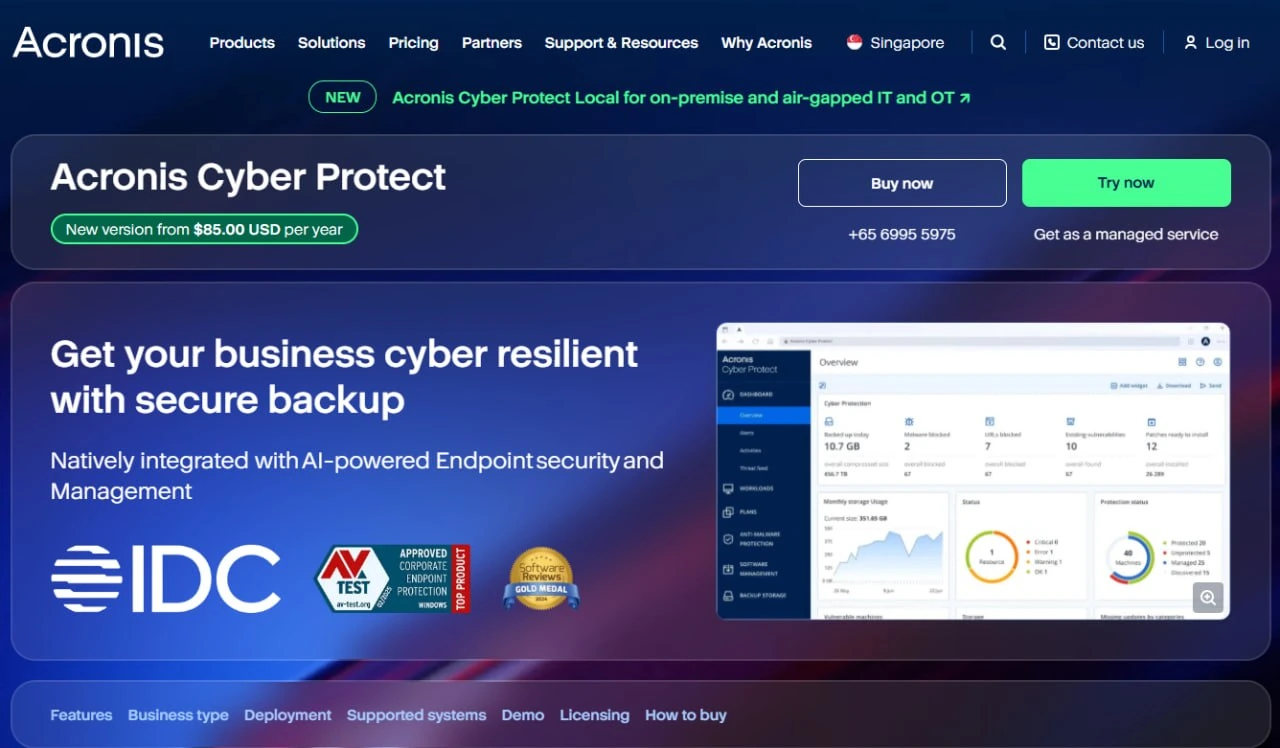
Acronis Cyber Protect’s product page presents backup and security in one platform, with an embedded preview of the management dashboard.
If your team wants a single agent managing backup, anti-malware, anti-ransomware, and vulnerability scanning from one dashboard, Acronis Cyber Protect delivers exactly that. Full-disk imaging with Universal Restore means a complete server recovery to dissimilar hardware — no matching CPU, motherboard, or drivers — which matters most in the emergency where the original hardware is obsolete or simply gone. One lightweight agent covers backup and security, so there is no separate endpoint product to manage per workstation. Microsoft 365 and Google Workspace backup is available as per-seat licenses (sold in five-seat packs on the Backup Advanced edition) that include unlimited cloud-to-cloud storage for the protected mailboxes and drives. [3]
One naming trap to avoid while price-checking: Acronis also sells True Image (formerly Cyber Protect Home Office), a cheaper consumer backup product for personal computers. The prices in this guide are for the business product, Acronis Cyber Protect — make sure you are on the business purchasing page before comparing figures.
The costs and conflicts are where fit gets decided. Licensing starts around $85/year per device, with server editions priced higher; each license includes some Acronis cloud storage (50 GB per workstation, 250 GB per server), tied to the licensed workload, and capacity beyond that is bought separately. For a shop pushing a couple of terabytes offsite, the added storage can rival the license cost, which is where flat-rate alternatives start looking cheaper. The other friction point is real: Acronis’s own FAQ states that third-party antivirus must be disabled or uninstalled to enable fully functional Acronis antimalware, so its security module and an existing platform like CrowdStrike or SentinelOne cannot both run real-time protection on the same machine. You can keep your EDR and run Acronis for backup only with its protection switched off — but then the security half of the bundle sits unused. And physics still applies to recovery: a 200 GB image over a 50 Mbps connection takes 8–12 hours to pull from the cloud, so a local cache or NAS target is worth configuring for anything time-critical.
⚠ Caution: Decide who owns real-time protection before you buy. Acronis’s own FAQ says third-party antivirus must be disabled or uninstalled to enable its full antimalware protection — so if CrowdStrike or SentinelOne is staying, plan to run Acronis as backup-only and accept that the security half of the bundle sits unused. The vendor’s guidance is in the official Acronis Cyber Protect FAQ.
Against Veeam’s free Community Edition, what you buy from Acronis is the missing security layer and the included storage; what you give up is the $0 backup engine and the freedom to point it at the cheapest bucket you can find.
Veeam Backup & Replication Community Edition
First, the name, because Veeam’s catalog trips people up: the free tool you want is Veeam Backup & Replication Community Edition — the full backup engine, free for up to 10 workloads — not the similarly named management console Veeam sells to service providers. Community Edition covers VMware, Hyper-V, and Proxmox VMs alongside physical Windows and Linux servers, workstations, and NAS shares. [4] One accounting detail changes the math. Under current Veeam Universal Licensing, a VM or a physical server consumes 1 of your 10 workloads, a workstation agent consumes a third of one, and NAS file shares consume 1 workload per 500 GB of protected data, rounded down. [5] (The older per-instance weighting that counted a physical server as three no longer applies under Universal Licensing — but confirm your own mix in the console’s Licensing view, since the NAS rule is easy to underestimate.)
The headline capability is Instant Recovery: supported virtual workloads boot directly from the compressed, deduplicated backup file rather than waiting for a full restore to production storage, which Veeam documents as minutes rather than hours. [6] Actual times depend on repository performance, host resources, and workload size — and you still migrate the temporarily recovered VM back to production afterward — but for a virtualized shop, no other option here gets a dead server answering requests faster. That is the recovery-time advantage the matrix above rewards: Instant Recovery sidesteps the download wall entirely. Deduplication and compression also shrink offsite storage and transfer time versus plain file copies.
The cost of free is expertise. Veeam assumes you are comfortable with backup chains, retention cycles, and repository configuration. Community Edition can send supported machine and VM backups to S3-compatible object storage like Backblaze B2, AWS, or Azure, but that is a manual repository setup, not a point-and-click wizard — and getting immutability means either a hardened Linux repository or an Object Lock-enabled bucket, each an afternoon of deliberate configuration for a first-timer. (Backing up unstructured NAS data to object storage falls under Veeam’s paid licensing, not Community Edition.) Budget 2–4 hours of planning and setup before the first offsite backup runs. Non-technical owners should pair Veeam with a consultant for initial deployment or pick a different tool.
⚠ Caution: Count workloads, not machines, before assuming Community Edition covers you for free — and watch the NAS line especially: file shares consume 1 workload per 500 GB of protected data, so a single 4 TB share eats 8 of your 10 workloads before any server or workstation is covered. The current limits are on Veeam’s official Community Edition page.
Paired with Backblaze B2 for supported VM and machine workloads, this is the power-user combination of the roundup: a $0 enterprise engine writing to $6.95/TB storage. IDrive occupies the opposite corner — everything bundled, nothing to architect, and a bill that reflects the convenience.
IDrive Business
IDrive’s features page highlights Multiple Device Backup, Cloud Drive, and IDrive for Office.
IDrive flips the usual backup pricing question. Instead of asking how many devices you have, it asks how much storage you need: Business plans start at 500 GB for $239.88/year at the standard annual rate (about $168 the first year), and scale up through TB tiers, with unlimited users, computers, servers, and NAS devices on every tier, and roughly 30% off the first year. [7] For a shop with a dozen machines and modest data, that flat model undercuts every per-device competitor here. The integrated client handles disk imaging, file-level backup, and folder sync from one interface on Windows, macOS, and Linux, and IDrive Express — physical disk shipping — takes the pain out of multi-terabyte initial backups and large restores on slow connections.
Snapshots and versioning provide rollback against ransomware or accidental deletion, with a ceiling worth understanding: 30 versions per file. For daily backups that is a month of history; for a database backed up hourly, the entire window is gone in about 30 hours of continuous change. Two more trade-offs shape the fit. Microsoft 365 and Google Workspace protection is not in the base plan — it is a separate per-seat cloud-to-cloud product — and every device draws from one shared storage pool, so a single misconfigured job (someone backs up an uncompressed video archive) can consume the team’s quota and push the account into overage billing. IDrive states that certain paid accounts can continue backing up beyond the plan limit for uninterrupted backups, with Business overuse charges of $0.50/GB/month, so treat the quota dashboard as a weekly habit and upgrade tiers before overage becomes expensive. Businesses needing native SaaS backup in the base plan, hourly database retention beyond 30 versions, or compliance certifications beyond AES-256 will feel these limits.
⚠ Caution: Budget on IDrive’s renewal price, not the sticker. The ~30% first-year discount is standard, and the jump back to full rate at renewal catches teams off guard. Confirm the exact current tier price for your storage size on IDrive’s official pricing page before committing, since the published tiers and promotions shift through the year.
The comparison with B2 is capacity philosophy: B2 grows elastically at $6.95 per TB with no ceiling, while IDrive sells you a fixed pool with the backup software thrown in. Which is cheaper depends entirely on whether you already own backup software worth keeping.
Which tool fits each situation
Budget-conscious shop with an existing NAS. Go with Backblaze B2. Synology and QNAP integrate natively, so backup runs straight from the NAS with no extra software, and 2 TB of offsite mirror costs about $14/month. The caveat: B2 is only the storage layer — your NAS handles scheduling and versioning, so confirm your device supports S3-compatible targets before signing up.
No IT staff and no existing endpoint security. Reach for Acronis Cyber Protect. One agent covers backup, anti-ransomware, and vulnerability scanning. Budget the storage line separately from the licenses, confirm the current capacity rate, and make sure the agent will not collide with any security tooling you are keeping.
Virtualized environment wanting enterprise reliability at $0. Stick with Veeam Community Edition if you run Hyper-V or VMware and someone on the team speaks backup architecture. Instant Recovery gets a failed VM answering requests in minutes rather than after a full restore — the recovery-time win the matrix rewards most as data grows. Do the workload math, allow 2–4 hours for repository and offsite setup, and pair it with B2 for the offsite layer.
Many devices, one flat bill. Consider IDrive Business when device count is high and per-device pricing elsewhere would sting: unlimited machines share one storage pool. Watch the pool quota weekly, accept the 30-version ceiling, and budget the per-seat add-on if Microsoft 365 backup is a requirement.
Setting up an offsite backup and proving it can restore
- Map the architecture and offsite target. List every device that needs backup — servers, workstations, NAS, cloud apps — and total the data. For Veeam, run the workload math before assuming the free tier fits. Document bandwidth: below roughly 10 Mbps upload, prioritize disk shipping or a local-first strategy to avoid months of initial transfer, and re-read the restore-time table above for your data size.
- Create the vendor account and offsite credentials. For B2, create an application key and note the bucket name and credentials. For Acronis, note the license key. For Veeam, configure the object-storage or cloud repository credentials. For IDrive, download the client and sign in. Store all of these in a password manager — they are what stands between you and your data in an emergency.
- Deploy on your highest-priority device first. Usually the file server holding customer data. Acronis and IDrive are download-install-sign-in. For B2, install your client (MSP360 Backup, Veeam Agent, or the NAS-integrated tool) and point it at the bucket. For Veeam, install the agent or configure hypervisor-level jobs. Select business-critical data conservatively and schedule outside business hours.
- Verify the first backup landed offsite. After 15–30 minutes, check the logs and confirm data size in the vendor console. If uploads fail, the usual suspects are firewall rules blocking unknown cloud targets and mistyped credentials. A green first backup is proof the offsite path works.
- Roll out, set retention, and schedule a real restore drill. Customize retention by role — 30 days of dailies for database servers, 7 for workstations. On IDrive, watch the shared quota weekly during month one; on usage-billed platforms, set billing alerts. Then put a restore drill on the calendar within 30 days: a bare-metal restore to a spare machine or VM, confirming the full image boots on dissimilar hardware and timing how long it takes against the estimates above. That single test catches configuration errors before you need the backup for real.
Frequently asked questions about offsite backup for small businesses
How much offsite storage does a small business typically need?
Plan for 1.5× to 2× your active data size to accommodate versioning and retention — if active files total 5 TB, allocate 7.5–10 TB offsite. Include database backups, email archives, customer records, and accounting data; exclude media libraries, caches, and temp folders unless they are revenue-critical. Start at the tier matching your actual volume, then adjust after three months of real growth data. Overestimating beats discovering mid-year that backups are failing silently against a full quota.
Can a small business use more than one offsite backup provider?
Yes, and for truly critical data it is wise, but it adds cost and admin work. Pick one primary (B2 for cost, Acronis for simplicity) and a secondary target for disaster recovery. Veeam and Acronis natively support multiple targets; B2 needs separate jobs to different buckets. The overhead is manageable for 1–3 TB of customer databases and financial records; for full-system redundancy it gets expensive fast. Most small businesses do better with one solid offsite provider plus a local NAS than with two clouds.
What happens if an offsite backup provider has an outage?
Your local backups keep working — you just cannot upload changes or retrieve cloud data until the provider recovers. That is why local and offsite backup are complementary rather than redundant: local covers provider outages and fast file recovery without bandwidth limits; offsite covers hardware failure, theft, and fire. To protect against the worst-case scenario of a provider shutting down entirely, run a test restore from the offsite copy at least quarterly and keep at least one recovery path outside any single vendor’s ecosystem.
Which tool restores a failed server fastest?
For virtualized environments, Veeam’s Instant Recovery — booting the workload directly from the backup file — is usually the fastest path, on the order of minutes under suitable conditions rather than a guaranteed fixed window. For physical servers, recovery time is dominated by image size, bandwidth, target hardware, and whether the bare-metal path has been tested in advance; the restore-time table above shows why anything over a few terabytes may need a faster path than cloud download, depending on your bandwidth and recovery-time objective. The only way to know your real recovery window is to run a test restore with your own data on your own hardware, using the restore-testing workflow as a model.
The pick, and your next move
Acronis Cyber Protect earns the pick for the readers this guide is written for: small businesses without dedicated IT staff that need endpoints, servers, and ransomware defense handled by one system. Universal Restore to dissimilar hardware, per-seat Microsoft 365 backup, and built-in anti-ransomware genuinely eliminate other vendors. It is typically the most expensive option here once device licenses and added cloud storage are combined, but it is the only option here that combines backup, recovery, endpoint protection, and ransomware defense in one platform.
The other three win their specialties decisively. Backblaze B2 is the cheapest honest storage in the roundup and pairs with whatever workflow you already run. Veeam Community Edition is the best pure value — a free enterprise engine with minutes-scale Instant Recovery — for the virtualized shop with someone to drive it. IDrive Business turns a pile of devices into one flat bill, as long as you respect the shared pool and the 30-version ceiling.
Your next step depends on what you already own. NAS in place → test B2 integration this week. Hyper-V or VMware humming → install Veeam Community Edition and point it at a B2 bucket. Starting from nothing → price Acronis against IDrive using the cost tables above, and run the restore-time numbers for your connection speed before you decide. Whichever way you go, run a restore drill within 30 days — that single test catches configuration errors before you need the backup in an emergency. For a simpler starting framework, begin with our 3-2-1 backup plan guide; if your highest-priority asset is a WordPress site, our UpdraftPlus setup guide walks through cloud backup configuration step by step.
Sources
- ↑ Backblaze B2 — Cloud storage pricing — https://www.backblaze.com/cloud-storage/pricing
- ↑ Backblaze Docs — Enable Object Lock on a bucket — https://www.backblaze.com/docs/cloud-storage-enable-object-lock-or-a-legal-hold-on-an-existing-bucket
- ↑ Acronis — Cyber Protect purchasing options — https://www.acronis.com/en/products/cyber-protect/purchasing/
- ↑ Veeam — Backup & Replication Community Edition — https://www.veeam.com/products/free/backup-recovery.html
- ↑ Veeam Help Center — Instance/workload consumption for file (NAS) and object storage backup — https://helpcenter.veeam.com/docs/vbr/userguide/nas_licensing.html
- ↑ Veeam Help Center — Instant Recovery documentation — https://helpcenter.veeam.com/docs/backup/vsphere/instant_recovery.html
- ↑ IDrive — Pricing plans — https://www.idrive.com/pricing
- Acronis — Cyber Protect 15 FAQ (third-party antivirus compatibility) — https://care.acronis.com/s/article/65658-Acronis-Cyber-Protect-15-FAQ
Disclaimer
This guide is for general informational purposes only and does not constitute professional accounting, tax, legal, or financial advice. Pricing, features, and plan details were checked against each product’s official website in July 2026 and may change without notice; restore-time figures are reproducible estimates based on stated bandwidth assumptions, not guarantees. Always confirm current pricing and test recovery for your own environment.
Last reviewed: July 2026 by the PickrTech editorial team.