Multi-project timeline view showing team member availability as
This article may contain affiliate links. We may earn a commission when you sign up through our links — at no extra cost to you. Our recommendations are based on independent evaluation and are not influenced by commissions.
TL;DR: Float is the top pick for project managers and resource planners managing 20–500+ person teams across concurrent projects. It combines real-time capacity visualization with billable utilization tracking while staying lightweight—you won’t be forced into a broader work OS you don’t need. The catch: you’ll need an external tool for cost forecasting and skill-based resource matching. [1]
How we evaluated these tools
Resource management platforms exist to solve a specific problem: project managers and resource planners need to forecast team capacity, allocate people across concurrent projects, track billable utilization rates against client contracts, and adjust schedules when scope or staffing changes. Organizations using these tools range from 20 to 500+ headcount, with varying budget sensitivity per seat per month and technical skill levels from non-technical planners to PMI-certified program managers. [2]
Your tool also needs to integrate with your existing PM stack—Jira, Asana, Monday.com—support single sign-on for enterprise identity providers like Okta and Azure AD, and feed data into reporting and BI tools for executive dashboards.
We evaluated each platform across five core dimensions:
- Capacity planning for multi-project allocation across 20–500+ headcount — Resource managers need to see remaining capacity per person per week and spot overallocation before it becomes a burnout risk or project delay.
- Billable utilization tracking against client contracts — Agencies and consultancies must track which hours are billable to clients versus internal, supporting burn-rate analysis against contract profitability.
- PM stack integrations for Jira, Asana, and Monday.com — Teams running hybrid tool stacks need task data to flow into scheduling views without manual copying.
- Drag-and-drop scheduling with conflict and overallocation warnings — The fastest scheduling workflows allow visual allocation adjustments with real-time alerts when someone is double-booked or over capacity.
- SSO compatibility with Okta and Azure AD — Enterprise organizations require secure identity management to enforce access policies and audit trails.
Our evaluation draws from official product pages, public pricing documentation, vendor feature comparisons, and structured analysis of publicly available information. Pricing and feature availability change regularly after publication, so verify current details at each vendor’s website before final purchase. Last reviewed: 2026-05-03
What matters when choosing resource management tools
Resource management tools sit at the intersection of scheduling, forecasting, and team visibility. The right choice depends on whether your team prioritizes visual scheduling ease, financial accuracy, or consolidation with project management—not all tools excel equally at all three.
Capacity planning accuracy and visual feedback. Your resource planners need to see remaining hours per person per week and identify overallocation before timesheets arrive. Some tools show utilization as a bar chart or percentage; others highlight overbooking in red with drag handles to rebalance. If your team makes allocation decisions weekly or daily, visual responsiveness matters more than a static monthly forecast.
Billable versus non-billable tracking for margin visibility. Agencies and professional services firms must separate billable hours (charged to clients) from internal time (training, admin, bench). Without this split, you cannot accurately calculate project margins or burn rates against contract value. Tools lacking this distinction force you to export data and recalculate in spreadsheets. [3]
Integration depth with your existing PM and financial systems. If your team already uses Jira for task management and Monday.com for workflow, a resource tool that pulls task data natively saves hours of weekly reconciliation. Similarly, integration with time-tracking tools like Harvest or Toggl matters if you need to compare planned versus actual utilization.
Onboarding overhead and configuration time to first value. Some tools deliver value in hours; others require days of setup. For teams under 50 people, a lightweight scheduling layer may be sufficient. For teams of 100+, a more feature-rich platform justifies longer onboarding if it prevents bottlenecks later.
These criteria distinguish tools that fit your workflow from options that create more overhead than they solve.
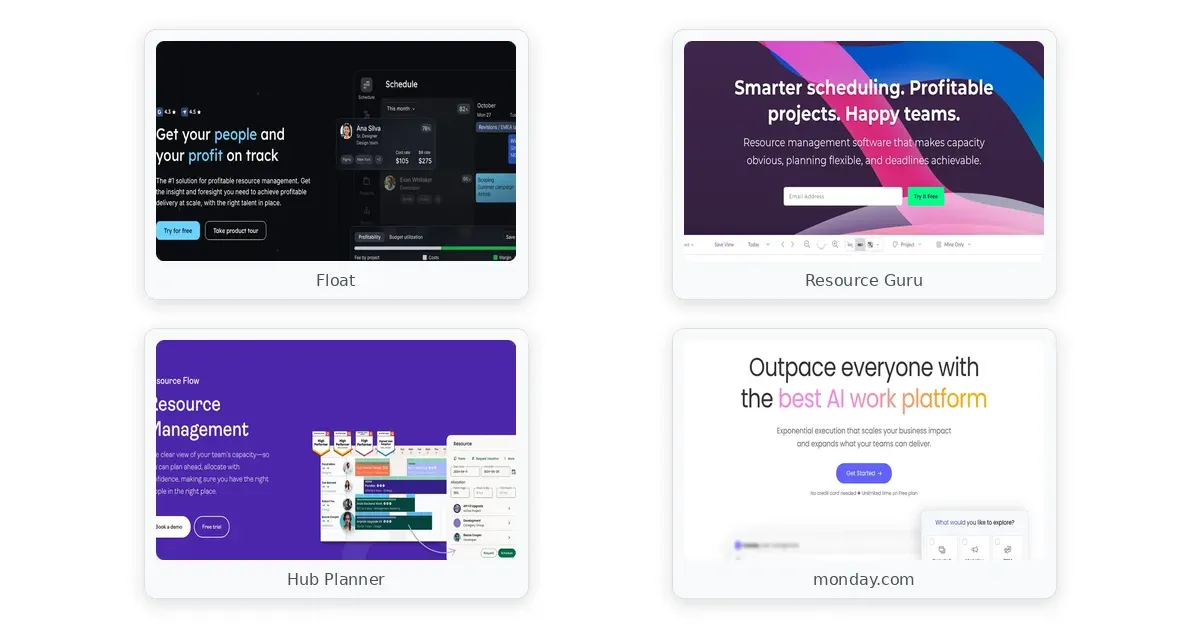
Comparison — Float, Resource Guru, Hub Planner
Comparison table
The table below compares each product across capacity planning, utilization tracking, limitations, and setup time.
| Tool | Capacity Planning | Utilization Tracking | Key Limitation | Setup Time |
|---|---|---|---|---|
| Float | Real-time visual bars, remaining hours per person per week | Billable vs non-billable at individual level | No built-in cost forecasting | 2–4 hours |
| Resource Guru | Utilization bars with role-based filtering | Trend reporting across departments | No cost or revenue analysis | 2–3 hours |
| Hub Planner | Skill-based matching with pipeline forecasting | Built-in time tracking and utilization | 4–6 hours config for 50+ people | 6–8 hours |
| monday.com | Workload view with drag-based reallocation | Integrations required for time tracking | Resource views limited to Pro+ tiers | 4–5 hours |
Each tool handles the core workflow—viewing available capacity and assigning people to projects—but differ in depth. Float excels at pure scheduling with financial granularity. Hub Planner and Resource Guru add forecasting or clash prevention. Monday.com bundles scheduling into a broader work OS, trading scheduling depth for unified task execution.
Product reviews
Float
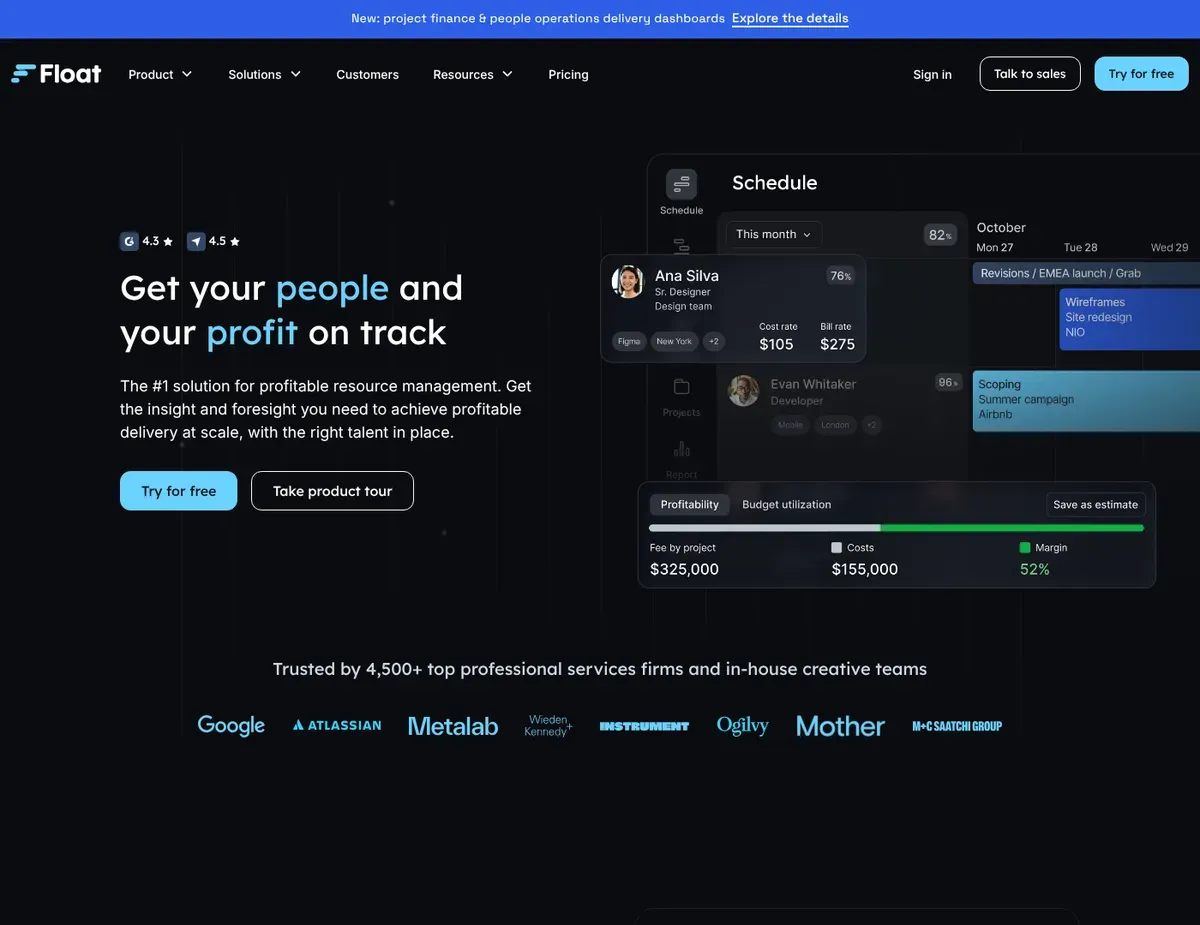
Multi-project timeline view showing team member availability as
Float is built for creative agencies and consultancies managing 15–100 people across multiple concurrent client projects where visual scheduling and billable-hour tracking are non-negotiable. The platform shows each team member as a row with a timeline of allocated weeks, color-coded by project. You can drag allocations between projects or adjust the block size to change utilization—the interface responds immediately with visual conflict warnings when someone is over capacity or double-booked.
One of Float’s primary advantages is real-time capacity visualization. You see remaining hours per person per week as a numeric value, making it trivial to spot when Jane is allocated 45 hours across three projects but only has 40 hours available. The billable versus non-billable split is tracked at the individual level, so agencies can run margin reports showing total billable hours billed to clients against internal time spent on proposals or admin. Integrations with Jira, Asana, and Slack pull task data directly into the scheduling view, eliminating the step of manually entering who is assigned to what. [4]
For teams needing real-time project margin tracking, Float requires integration with financial tools. There’s no built-in project budgeting or cost tracking—you export the allocation data and calculate margin in a spreadsheet or integrate a tool like Harvest. Additionally, task-level time tracking requires upgrading to the Plus plan; free-trial and Starter-plan users cannot log actual hours against scheduled allocations within Float itself, creating a gap between planned and actual when you need to validate forecast accuracy.
Best for: Creative agencies and teams in Jira or Asana ecosystems who prioritize visual scheduling and billable utilization over cost forecasting.
Not ideal for: Organizations requiring built-in project accounting, cost-to-completion analysis, or skill-based resource matching.
Unlike monday.com, Float focuses exclusively on resource scheduling rather than bundling project management, task execution, and allocation into one platform—keeping it lightweight for teams that already have a PM tool they trust. Unlike Hub Planner, Float does not offer built-in skill-based filtering to find available developers with specific expertise, so teams assigning specialists must manually cross-reference an external skills matrix.
Float’s pricing aligns with published rates as of this review—verify current tier costs and feature gates at float.com/pricing before committing, as vendor plans change frequently.
Resource Guru
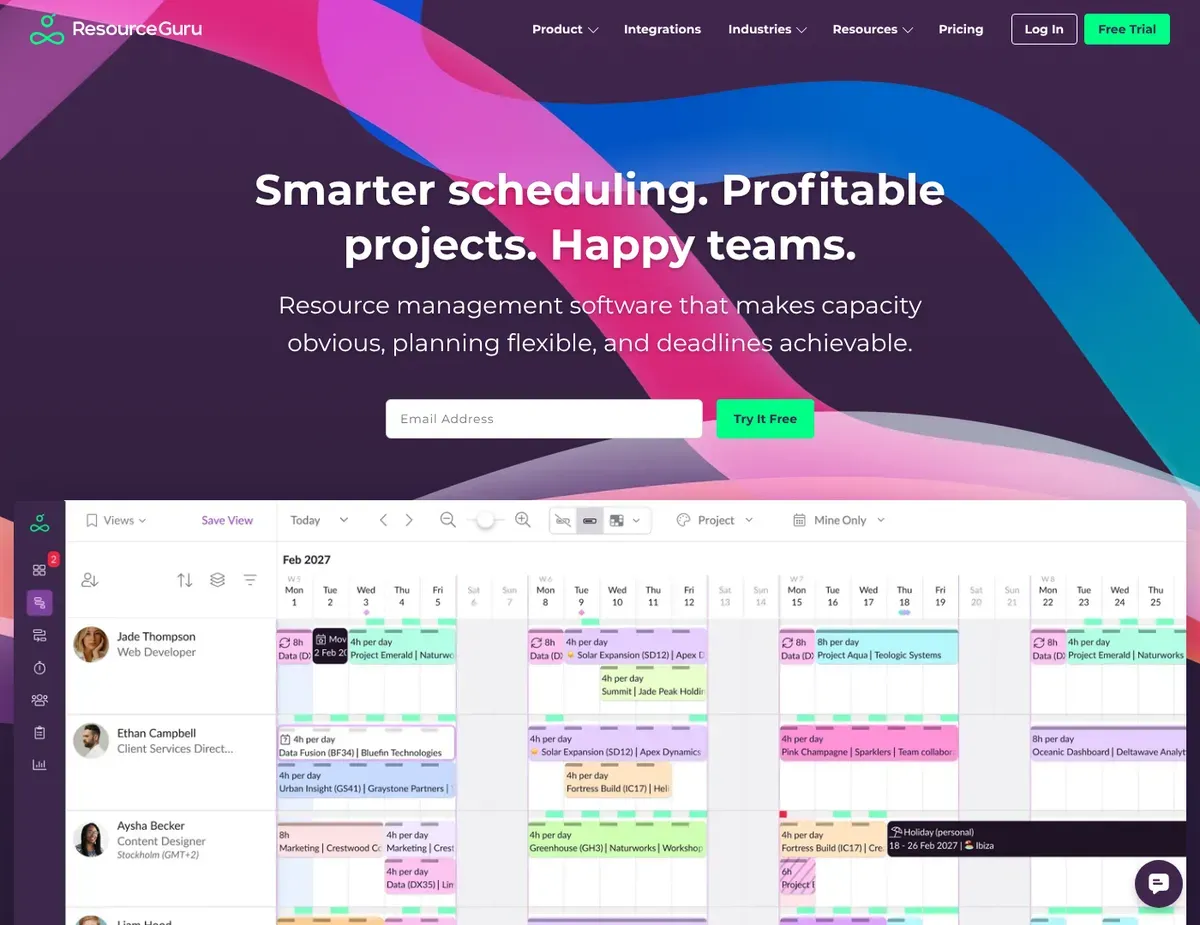
Single-pane booking interface with a clash management panel showing
When scheduling conflicts and double-bookings are your operational pain point, Resource Guru’s clash detection and automated waitlist system address the core friction that agencies encounter when multiple projects compete for the same specialized person. The platform shows resources in a single pane, with booking status indicators (confirmed, tentative, requested) and a clash management panel that helps identify potential clashes when a planner attempts to book someone who is already allocated at overlapping times.
Resource Guru’s strongest assets are clash prevention and waitlist automation. If a developer is fully booked and a new project request arrives, the system queues the request in a waitlist and automatically fills it when the developer cancels a booking—no manual email reminder to re-check availability. The reporting dashboard shows utilization trends across departments and roles over custom date ranges, giving operations managers quarterly visibility into whether your team is under-used, at capacity, or consistently overbooked. Calendar integrations with Google Calendar and Outlook automatically respect personal appointments and PTO without manual entry, reducing the friction of keeping the resource tool in sync with personal schedules.
Without cost and revenue analysis in the reporting suite, Resource Guru can’t answer the profitability question directly. If you track project profitability—comparing revenue from a client engagement against the cost of labor allocated to it—you must export timesheet data and calculate margin in a separate spreadsheet or BI tool, adding steps to monthly financial reviews. There’s also a scaling constraint: the platform caps resources and projects on lower-tier plans, so teams exceeding 100 resources or 50 active projects must upgrade to the Enterprise tier, which creates a cost jump at scale.
Best for: Agencies and consultancies with 20–150 resources who run frequent booking conflicts and need automated clash prevention and waitlist backfill workflows.
Not ideal for: Organizations where financial tracking and project profitability are core requirements, or teams needing scenario planning and what-if forecasting.
Unlike Float, Resource Guru enforces booking approval workflows, requiring a manager to sign off before a resource is committed—adding a governance step but ensuring oversight. Unlike monday.com, Resource Guru cannot manage task execution or project workflows, so teams must operate a separate project management tool and manually reconcile task completion data.
Resource Guru’s pricing reflects the published tier structure as of this review—verify current rates and any tier limits at resourceguruapp.com/pricing before signing a contract, as vendor pricing changes without advance notice.
Hub Planner
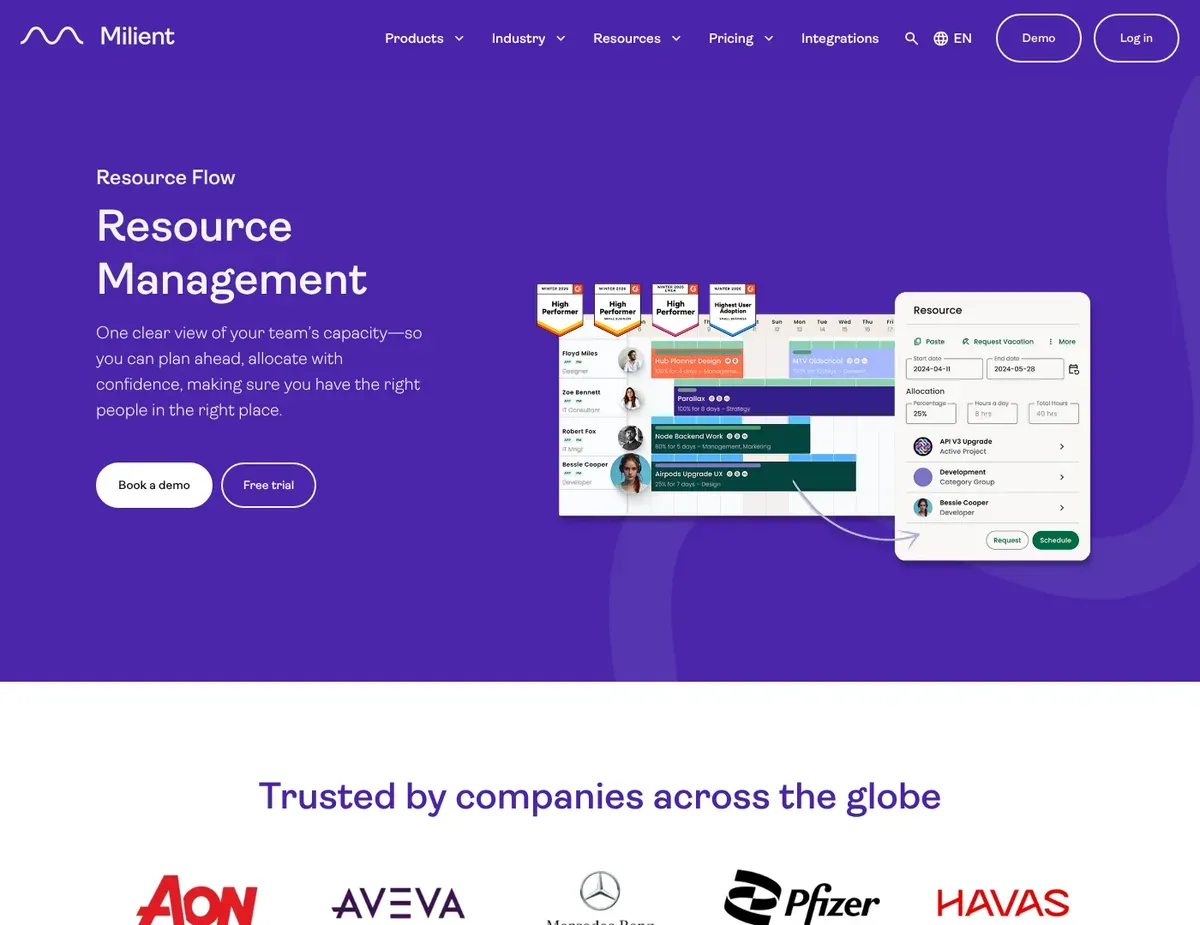
Multi-view resource scheduling interface toggling between timeline
Where Hub Planner earns its reputation is in skill-based resource matching and combined scheduling with time tracking—two features that professional services firms and agencies needing to staff specialized roles cannot find bundled together elsewhere. The platform shows resources with inline skill tags (Java, Salesforce Admin, UX Design). Once configured, it enables planners to filter available people by certification or seniority level rather than searching by name and checking an external spreadsheet.
Hub Planner’s core strengths are skill matching and integrated time tracking. When a project manager searches for “an available Salesforce architect with 10+ years of experience,” the platform filters the available pool by role and skill level, reducing time-to-assignment. More importantly, the same tool that schedules also tracks time—enabling direct comparison of planned hours (“we allocated Jane 40 hours to this project”) versus actual hours (“Jane logged 38 hours”), visible in a single report. Advanced reporting supports custom templates for utilization burn-down, capacity forecasts, and pipeline projections, exportable to PDF for stakeholder reviews. Pipeline forecasting lets you create tentative allocations for unsold opportunities without inflating confirmed resource availability calculations, critical for sales-driven consultancies. [3]
Configuration overhead during initial setup is the main limitation. For teams of 50+, typical onboarding involves 4–6 hours of work—setting up custom fields for skills, defining role taxonomies, and configuring report templates—before the tool delivers value. Planners expecting immediate scheduling capability often encounter frustration when the first week is spent configuring, not scheduling. A second constraint is that resource-level permissions are limited on the Standard plan; teams needing granular access control (e.g., restricting certain planners to specific departments) must upgrade to Enterprise, creating a cost barrier for mid-size agencies with multi-team structures.
Best for: Professional services firms and agencies needing skill-based resource matching combined with time tracking and quarterly capacity forecasting.
Not ideal for: Small teams under 15 people, or organizations without a dedicated resource planner to configure and maintain the system.
Unlike Float, Hub Planner includes built-in time tracking and skill matching alongside scheduling, reducing the number of tools required—but at the cost of significantly longer setup time. Unlike Resource Guru, Hub Planner supports pipeline forecasting for tentative future projects, allowing you to model capacity under different sales scenarios before projects are confirmed.
Feature availability across pricing tiers changes between releases—verify current permissions, skill-tag limits, and report templates at hubplanner.com/pricing before committing to a plan tier.
monday.com
Workload view showing task assignments across team members with
For teams wanting project management and resource scheduling consolidated in one platform rather than managing separate tools, monday.com offers workload view, timeline dependencies, and task automation in a unified interface. The Workload widget highlights overallocation in red and provides drag handles to redistribute effort across available days—a visual scheduling experience embedded alongside your Gantt chart, sprint boards, and status dashboards.
Monday.com’s core promise is unified work execution and allocation visibility. Teams can manage task assignments, project phases, timeline dependencies, and resource allocation in the same workspace—reducing context-switching between a PM tool and a scheduling tool. Automations may automatically flag overallocation when configured to do so, triggering resource reassignment and capacity alerts based on project changes, so when a scope change adds 10 hours to a task, the system can help you identify overallocation without manual manager review. The platform integrates with 200+ tools including Slack, Teams, Google Workspace, and Jira, fitting into existing ecosystems with minimal configuration. Customizable dashboards aggregate resource utilization and project health into executive-level views without requiring a separate BI tool. [5]
Resource management views are available only on Pro and Enterprise plans; Standard plan users cannot access the Workload widget and must use basic timeline views while manually calculating capacity in spreadsheets or upgrading. Separately, monday.com’s resource views lack skill-based matching and role-specific filtering—a planner searching for an available React developer must manually cross-reference a skills matrix maintained outside the platform, adding friction during staffing decisions. This is a significant constraint for agencies and consultancies where specialists are matched to projects based on expertise.
Best for: Teams of 20–100 who want project management and resource scheduling in one tool and prioritize workflow automation over deep capacity planning.
Not ideal for: Dedicated resource planners needing advanced forecasting, scenario modeling, or skill-based matching; or agencies requiring isolated resource management separate from task workflows.
Unlike Float, monday.com bundles resource management into a broader work-OS platform, giving teams task execution and scheduling in one place but with less scheduling depth than a dedicated resource tool like Float. Unlike Resource Guru, monday.com’s resource views lack automated clash detection, so planners must manually review the Workload widget to identify and resolve overallocations.
The Resource management feature rollout is staged by plan tier and region—verify current Workload availability for your tier at monday.com/pricing before depending on this capability.
Scenario recommendations
Scenario 1 – Creative agencies managing 15–100 people across multiple concurrent client projects
If seeing who is available next week and allocating them without overcommitting is your primary challenge, Float addresses it directly. Real-time capacity bars show remaining hours per person, and billable versus non-billable tracking lets you run margin reports by client.
The main caveat is the lack of built-in cost forecasting—you will still need a spreadsheet or external tool to answer “will this project come in under budget?” But for the core scheduling and utilization problem, Float delivers without forcing you into a broader work OS.
Scenario 2 – Agencies and consultancies with 20–150 resources frequently encountering scheduling conflicts
When double-booking is costing you time and creating customer commitments you cannot keep, Resource Guru’s approach to this problem is hard to beat. The clash detection catches conflicts at the moment of allocation, and the waitlist feature automatically fills cancellations without manual backfill emails.
The trade-off is that reporting lacks cost and revenue analysis, so profitability tracking requires exporting to a separate tool. Resource Guru solves the scheduling conflict problem exceptionally well; it does not solve financial forecasting.
Scenario 3 – Professional services firms needing skill-based resource matching combined with time tracking
If your project staffing depends on finding people with specific skills or certifications (“I need a Salesforce architect, not just anyone”) and you want scheduled hours compared against logged hours in the same report, Hub Planner earns its place. The platform’s skill-tagging and role-based filtering save time during assignment, and built-in time tracking eliminates a separate tool. The constraint is onboarding time—expect 4–6 hours of configuration for a team of 50 before the tool is ready to schedule with full power.
If you have a dedicated resource manager, this investment pays off quickly.
Scenario 4 – Teams already using monday.com for task management who want to consolidate resource scheduling
If your team is already managing projects, tasks, and workflows in monday.com, the Workload view and resource automations keep everything in one place—eliminating the overhead of syncing data between a PM tool and a separate scheduler. The caveat is that the Workload view (resource management feature) is available only on Pro and Enterprise plans, so if your team is on Standard, you would need to upgrade before gaining access to resource scheduling.
It also lacks skill-based filtering, so matching specialists to projects by expertise still requires an external skills matrix.
Setup guide
Step 1: Create an account and import your current resource data.
Sign up on the vendor’s website and download the resource template (name, role, department, billable rate, working hours per week). Most platforms provide a CSV import option that maps your existing team roster into their system within 10–15 minutes. If you have custom fields (skills, certifications, cost centers), note them during import configuration so the tool captures them correctly from the start. For Float and Resource Guru, this step typically takes 20–30 minutes for teams up to 100 people.
Step 2: Configure working hours, PTO, and capacity rules.
Set each person’s standard working hours per week (usually 40), mark out company holidays, and define any shared time-off blocks (summer shutdowns, company retreats). Most tools allow bulk PTO entry via calendar import (Outlook, Google Calendar) rather than manual entry per person. This step prevents the tool from showing false availability during planned company closures. Set this up before you start scheduling; it typically takes 30–45 minutes depending on team complexity.
Step 3: Connect your PM tool integrations and test data sync.
If you use Jira, Asana, or Monday.com for task management, authorize the integration in the resource tool’s settings. This allows the platform to pull task data, project names, and assigned people directly from your PM tool, reducing manual data entry. Test the sync by creating one pilot project in your PM tool, confirming the task appears in the resource tool within 5–10 minutes, and verifying allocation data flows in both directions. This step is critical for tools like Float, Hub Planner, and Resource Guru; it typically takes 20–30 minutes and prevents weekly reconciliation headaches later.
Step 4: Set up your first project and allocate a test team.
Create a new project in the resource tool representing one real upcoming engagement (a client project or internal initiative). Add three to five team members to the project, adjust their allocation percentages to match planned effort, and observe the capacity visualization—confirm that overallocation warnings appear if total hours exceed standard availability. This test run reveals configuration issues (incorrect working hours, missing integrations) while the stakes are low. Most teams complete this in 30 minutes to 1 hour.
Step 5: Configure reporting templates and share initial dashboard with stakeholders.
Most resource management tools offer pre-built reports (utilization by role, capacity by project, upcoming overbooking). Customize one report to show the metrics your leadership cares about most (billable utilization, forecast accuracy, team burn rate), set a frequency (weekly or bi-weekly), and share it with project sponsors or operations leaders. This step typically takes 15–20 minutes and ensures the tool becomes a shared visibility artifact rather than something the resource planner uses alone.
FAQ
Q: How do we decide if our team needs a dedicated resource management tool or if a general work OS like monday.com is enough?
Use a dedicated resource tool when scheduling and capacity planning are the primary operational bottleneck—i.e., you spend significant time answering “who is available next week?” or managing conflicting project demands. If your team is small (under 20 people) or projects are sequential rather than concurrent, monday.com’s basic timeline and Workload views often suffice. For teams managing 50+ people across overlapping projects, a dedicated tool like Float or Resource Guru typically saves enough time and prevents enough conflicts to justify the extra tool and cost. The deciding factor is usually whether you have a dedicated resource planner or whether project managers handle scheduling ad-hoc—dedicated planners justify the extra tool investment.
Q: Which of these platforms offers the best integration with Jira or Asana for syncing task data without manual reconciliation?
Float and Hub Planner both integrate directly with Jira and Asana at the API level, pulling task titles, assignees, and estimated hours into the scheduling view automatically. This means when a project manager marks a task as assigned in Jira, the resource tool sees that assignment and reflects the capacity change immediately—no weekly export-and-reupload cycle required. Resource Guru integrates more lightly with Jira (calendar sync rather than task-level sync), requiring more manual reconciliation. If API-level integration with your PM tool is a requirement, Float and Hub Planner are the clear choice.
Q: Can these tools track billable hours separately from internal time for agency profitability reporting?
Float and Hub Planner track billable versus non-billable time directly. Float handles this at the individual level per project, allowing you to run margin reports showing total billable hours allocated to a client engagement versus the revenue from that contract. Hub Planner includes time tracking alongside scheduling, so logged time is automatically categorized as billable or internal based on the project type. Resource Guru and monday.com do not offer built-in billable/non-billable tracking—you would need to export data and calculate margin in a spreadsheet. If you run agency margins, Float and Hub Planner save significant reporting overhead each month.
Q: How long does implementation typically take before the team is scheduling and seeing value?
Float and Resource Guru deliver value fastest—2 to 4 hours of setup (import people, set working hours, connect integrations) and you are scheduling within a day. Hub Planner requires 6 to 8 hours of upfront configuration (setting up skills taxonomies, report templates, permission rules) before you get the full benefit; however, the customization effort pays off in month two and beyond when forecasting and skill matching save hours. Monday.com takes 4 to 5 hours if you are already using it for task management; you mainly need to enable Workload view and configure dashboard visibility. Expect 5 to 7 days of pilot usage before the team is fully comfortable with the new scheduling workflow, regardless of tool.
Q: What happens if we outgrow the plan limit (e.g., exceeding 100 resources in Resource Guru) during a contract year?
Most vendors allow mid-contract upgrades to a higher tier without penalty—you pay the difference between plans for the remainder of your annual term. Resource Guru, in particular, caps resources and projects on lower tiers and offers a clear upgrade path to Enterprise as you scale. Float and monday.com offer more flexible pricing that scales with headcount, reducing the risk of hitting a hard limit mid-year. When evaluating tools, confirm the vendor’s upgrade policy and whether price increases are pro-rated or charged as a lump sum if you need to move to a higher tier mid-contract.
Final verdict
Float stands out as the strongest pick for most teams because it delivers real-time capacity planning and billable utilization tracking without forcing you into a broader work OS you may not need. If scheduling and utilization transparency are your core challenges, Float’s visual timeline, conflict warnings, and billable-hour split address the operational friction most effectively. The main trade-off is the lack of built-in cost forecasting—you will still maintain margin calculations in a spreadsheet—but for the core resource management problem, Float wins.
If clash prevention and automated waitlist management are your highest priority, Resource Guru is the recommendation. Agencies where multiple projects compete for the same specialist benefit from its real-time conflict detection and automatic backfill of cancelled bookings.
For professional services firms where skill-based staffing and time tracking are inseparable from scheduling, Hub Planner is the right call—despite longer onboarding, it combines skill matching, time tracking, and pipeline forecasting in one platform.
For teams already consolidated on monday.com, adding the Workload view keeps everything in one ecosystem and justifies the Pro tier upgrade for resource visibility.
Regardless of tool choice, run a 30-day pilot with real project data and actual team workloads before committing to an annual contract. The best resource management tool is the one your team will actually use—and that only becomes clear after hands-on experience with your actual scheduling patterns and constraints.
Sources
- ↑ Float — Resource Scheduling Features — https://float.com/features
- ↑ monday.com — Product Overview — https://monday.com/product
- ↑ Hub Planner — Resource Management Features — https://hubplanner.com/features
- ↑ Float — Integrations Directory — https://float.com/integrations
- ↑ monday.com — Integrations Marketplace — https://monday.com/integrations

Leave a Reply