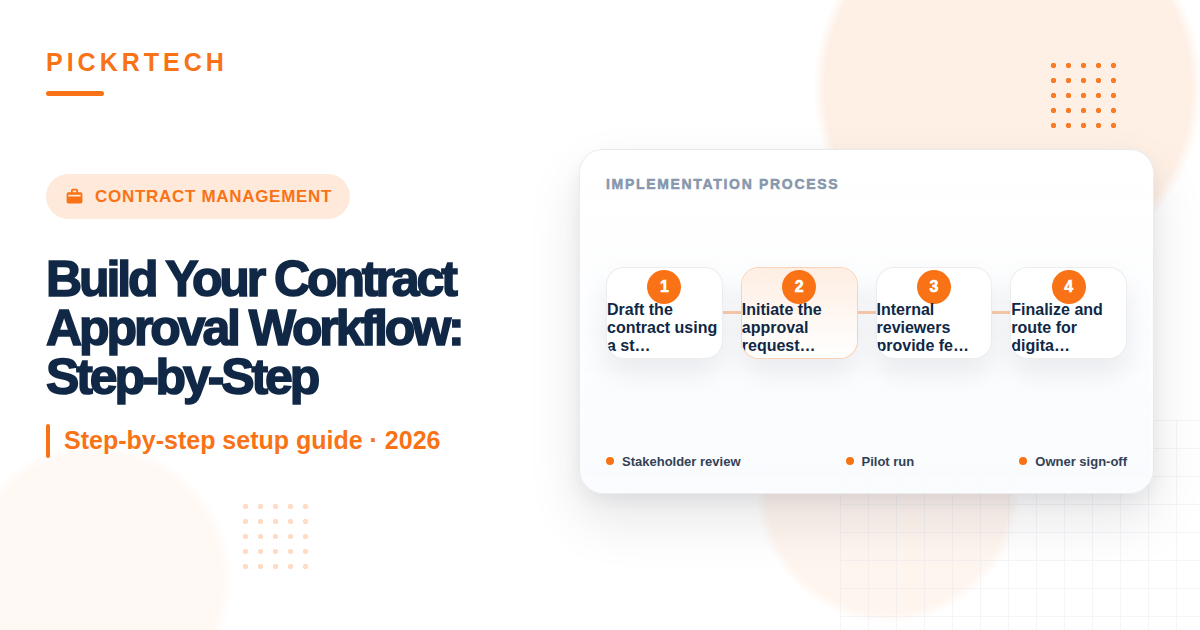
Workflow guide hero image for PickrTech
This article may contain affiliate links. We may earn a commission when you sign up through our links — at no extra cost to you. Our recommendations are based on independent evaluation and are not influenced by commissions.
TL;DR: A contract approval workflow routes documents through internal reviewers (legal, finance) before external signing, reducing errors and cycle time. Three key steps: (1) Draft using templates, (2) Route to approvers digitally, (3) Execute and store securely.
Who this guide is for
This guide is for small business owners and operations managers who handle vendor agreements, employment contracts, client service agreements, or other binding documents that require multiple sign-offs before execution. If your team currently passes contracts via email, risks version-control conflicts, or has experienced missed compliance reviews, this workflow will save time and reduce legal exposure. You likely have 2–15 team members and want to avoid the chaos of managing contract drafts across email threads.
Who should skip this
Skip this workflow if your business operates entirely on verbal agreements or simple one-page service confirmations with no internal review requirements. Enterprise organizations with 200+ employees and dedicated legal departments should adopt more complex contract lifecycle management (CLM) systems instead. Similarly, if your team is under 5 people and contracts arrive less than once per week, a shared spreadsheet checklist may be faster to maintain than tool setup.
The workflow at a glance
- Draft — Create contract using a standardized template
- Route — Upload to digital platform and assign internal approvers (Legal, Finance)
- Review — Designated stakeholders provide feedback and approve in sequence
- Finalize — Lock document, add signature fields, send for external signing
- Execute & Store — Collect signatures, download executed contract, archive securely
Prerequisites
Tools needed
- DocuSign account (free trial available; check official pricing page for paid plans)
- Cloud storage (Google Drive, Microsoft OneDrive, or DocuSign’s native storage)
- Email and basic document creation software (Word, Google Docs)
Team setup
- Contract drafter (typically operations or procurement)
- Internal reviewer/approver (legal or compliance)
- Finance reviewer (for contracts above a set threshold, e.g., $5,000)
- Final signer (CEO, owner, or designated authority)
- External signatories (vendors, clients, partners)
Estimated time: 15 minutes for initial setup; 5–10 minutes per contract thereafter
Difficulty: Beginner
Step-by-step workflow
Step 1: Draft the contract using a standardized template
Start with a contract template that matches your agreement type—vendor services, employment, NDA, whatever you’re signing. Templates do the heavy lifting: they include necessary legal clauses, liability limitations, payment terms, and termination conditions from the start, significantly reducing the risk of omissions and rework during review.
Use a strict naming convention for your draft file: [YYYY-MM-DD]_[ContractType]_[CounterpartyName].docx. For example: 2025-03-15_VendorAgreement_AcmeCorp.docx. This convention enables efficient retrieval and prevents version-control confusion when multiple drafts circulate.
Store the draft in a centralized cloud location accessible only to your team—not on local hard drives or personal email. Keep the document editable and clearly marked as a draft at this stage.
Expected outcome: You have a named, templated draft stored in a shared, cloud-based location ready for review.
Step 2: Initiate the approval request in your digital platform
Log into DocuSign (or your chosen platform) and upload the contract draft. The interface lets you specify who must review and approve the document before it moves to external signing. Establish routing rules based on contract type and financial value.
For example:
- All vendor agreements over $5,000 → requires Finance approval
- All employment contracts → requires Legal approval
- All client agreements → requires Legal + Finance approval (in sequence)
Assign approvers in the order they should review (sequential) or allow them to review simultaneously (parallel), depending on your business need. Sequential routing takes longer but ensures sign-off; parallel routing is faster but requires clear handoff instructions.
Include a brief message to each approver explaining the contract context and deadline (e.g., “Please review for budget alignment and approve by Friday”).
Expected outcome: The contract is uploaded to DocuSign, approvers are assigned in the correct sequence, and each reviewer has received a notification with a direct link to the document.
Step 3: Internal reviewers provide feedback and approve
Each assigned reviewer accesses the contract via the platform link and adds comments or change requests directly in the document. DocuSign’s collaborative tools allow reviewers to highlight text, add sticky notes, and flag sections for revision without creating a new file copy.
The drafter (or document owner) reviews all feedback in one centralized location. If changes are minor, incorporate them directly into the active draft in DocuSign. If changes are substantial or conflicting, schedule a brief call with reviewers to align on the revised language, then update once in the platform.
Here’s the critical rule: Only one active version exists at any time. Disable local downloads during the review phase to prevent reviewers from negotiating on outdated copies. Once the drafter incorporates approved changes, re-route the updated version to the next approver or mark the document as ready for signature.
Expected outcome: All reviewers have approved the contract, changes are documented in the version history, and the contract is marked “Approved – Ready for Signature” in the platform.
Step 4: Finalize and route for digital signature
Once internal approvers sign off, lock the contract text to prevent accidental edits. In DocuSign, this means marking the document as final and adding designated signature fields for each party who must sign (e.g., vendor representative, your company’s authorized signer).
Specify the signing order if required (e.g., your company signs first, then vendor signs). Add a brief message to external signers explaining what they’re signing and the deadline. DocuSign generates a secure signature link they can access from any device.
Digital signatures created via DocuSign are generally legally binding under the ESIGN Act and UETA (Uniform Electronic Transactions Act), giving external signers full legal effect. Be aware, though: certain document types—real estate deeds, wills, and some powers of attorney—may require wet-ink signatures in some jurisdictions, so verify your state’s requirements if you’re handling sensitive documents. For standard commercial contracts, DocuSign signatures are fully enforceable. Consider enabling automated reminders—DocuSign can send reminder emails at day 3 and day 7 if the contract remains unsigned, which typically reduces cycle time by up to 30%.
Expected outcome: The contract is locked, signature fields are placed, external signers have received their signing links, and reminders are scheduled.
Step 5: Execute, verify, and store securely
Once all parties sign, DocuSign generates a Certificate of Completion—a detailed audit trail that logs IP addresses, timestamps, signer names, and the exact actions taken by each party. Download this certificate alongside the executed contract PDF and store both in your secure cloud repository.
Organize your storage using a folder structure that mirrors your approval routing (e.g., /Executed Contracts/2025/Vendor Agreements/AcmeCorp_Signed_2025-03-15.pdf). Set access permissions so only authorized team members can view or download executed contracts; sensitive agreements should be encrypted and restricted to finance and legal staff only.
Send a brief confirmation email to all parties acknowledging execution and providing a summary of key dates, renewal terms, or payment schedules. The signed copy serves as strong evidence of a binding agreement should disputes arise—though be aware that legal disputes sometimes involve additional context beyond the signed document itself.
Expected outcome: Executed contract is stored securely with audit trail intact, all parties have been notified, and the agreement is retrievable within seconds if needed.
Common pitfalls and how to avoid them
- Reviewers negotiate terms on outdated contract versions, creating conflicting edits and duplicated legal review.
⚠️ Why: Teams commonly email contract drafts back and forth, and reviewers lose track of which version is current. One reviewer edits a 2-day-old copy while another reviews the newest version, causing confusion and rework.
🔧 Prevention: Centralize all drafting and review in DocuSign or a similar platform. Disable local downloads during the review phase and enforce a single-source-of-truth rule: only the active platform link is valid. Once changes are incorporated, the previous version is archived and unavailable for new edits. This prevents reviewers from working on stale copies.
- Essential approvers are bypassed, exposing the business to unbudgeted liabilities or compliance violations.
⚠️ Why: Without enforced routing rules, a drafter might send a $50,000 vendor contract directly to the external signer and forget to loop in Finance or Legal, resulting in unreviewed financial terms or missing liability clauses.
🔧 Prevention: Set up mandatory, automated workflow routing rules in DocuSign based on contract value and type. For example: Any agreement over $5,000 automatically requires Finance approval before the “Send for Signature” step unlocks. Legal must approve all employment contracts before Finance sees them. These rules are enforced at the platform level, not by email reminders.
- Executed contracts containing sensitive data are lost, stored on unencrypted local drives, or accidentally shared via unsecured email.
⚠️ Why: Teams download signed PDFs and save them locally on personal laptops or shared folders without access controls, making sensitive agreements vulnerable to theft, loss, or accidental exposure.
🔧 Prevention: Store all executed contracts in a centralized, access-controlled cloud repository (DocuSign’s native vault or a secure SharePoint folder). Enforce role-based permissions: only Finance and Legal staff can access vendor agreements, only HR can access employment contracts. Encrypt downloads and disable screenshot/copy functionality if your platform supports it. Never email executed contracts—instead, provide secure repository access to authorized parties only.
Scenario fit: When to adapt this workflow
Scenario 1: High-volume sales contracts (10+ per week)
If your team executes many similar service agreements with clients or vendors, automate the approval routing further. Create conditional rules: contracts under $5,000 skip Finance review and go directly to legal; contracts with standard terms skip legal review. Set up template fields that pre-populate counterparty name, dates, and amounts, reducing the drafting step from 30 minutes to 2 minutes. This adaptation cuts cycle time significantly but requires your legal team to pre-approve standard terms.
Scenario 2: Complex vendor agreements requiring parallel expert review
If contracts involve technical, financial, and legal risk (e.g., SaaS vendor agreements with security, pricing, and liability implications), adapt the workflow to allow parallel review instead of sequential. Route the contract to Legal, Finance, and Technical teams simultaneously so they review in parallel over 2–3 days, then consolidate feedback in a single meeting rather than routing sequentially (which could take a week). This requires clear role definitions but accelerates execution for high-stakes contracts.
Scenario 3: Counter-offer negotiations
If external signers frequently propose amendments, set up a sub-workflow within the main approval process. After the external party signs with mark-ups or comments, re-route the marked-up version back to your internal approvers (Legal and Finance) before accepting the changes. Lock the original version so the counter-offer is visible as a separate layer, then proceed with the approval workflow again. This prevents accidental acceptance of unfavorable terms.
Templates and examples
Contract Routing Rules Template
Copy and customize this table for your business. Input it into a shared document or your DocuSign setup instructions:
| Contract Type | Financial Threshold | Approver 1 | Approver 2 | Approver 3 | Routing Order |
|---|---|---|---|---|---|
| Vendor Services | < $5,000 | Legal | — | — | Sequential |
| Vendor Services | ≥ $5,000 | Legal | Finance | — | Sequential |
| Employment | Any | Legal | HR | — | Sequential |
| Client Services | < $10,000 | Legal | — | — | Sequential |
| Client Services | ≥ $10,000 | Legal | Finance | CEO | Sequential |
| NDA | Any | Legal | — | — | Sequential |
| Partnership | Any | Legal | Finance | CEO | Sequential |
Sample Approval Request Email
Use this template when routing a contract to an internal reviewer:
Subject: Contract Review Needed – [Contract Type] with [Counterparty Name] by [Due Date]
Hi [Reviewer Name],
I’ve uploaded a [contract type] with [counterparty name] to DocuSign for your review. Here’s the context:
- Contract Value: $[amount]
- Key Terms: [1–2 sentence summary, e.g., “12-month service agreement with auto-renewal; $500/month SaaS fee”]
- Review Focus: Please confirm [financial terms / liability clauses / data security terms] align with our standards.
- Deadline: Please approve or flag concerns by [date/time].
Access the document here: [DocuSign review link]. You can add comments directly in the platform—no download needed.
Thanks,
[Your name]
Frequently asked questions
Q: Are digital signatures from DocuSign legally binding?
A: Yes, with caveats. Digital signatures created via DocuSign meet the requirements of the ESIGN Act (federal) and UETA (state-level), making them fully enforceable in court for most commercial contracts. DocuSign generates a Certificate of Completion that serves as proof of execution, including timestamps and signer identity verification. However, some contracts—real estate deeds, wills, powers of attorney in certain states—require wet-ink signatures by law. Verify your state’s requirements if you’re handling sensitive document types, and when in doubt, consult your legal advisor.
Q: What happens if an external signer proposes changes to the contract?
A: If a signer adds comments or mark-ups before signing, DocuSign flags the document as “signed with exceptions” or routes it back to you with the proposed changes visible. You should re-route the marked-up version to your internal legal and finance reviewers to assess whether the changes are acceptable. If you accept them, incorporate the changes into the document, lock it, and re-send for signature. If you reject them, remove the mark-ups, explain your position to the external signer, and re-request signature on the original terms.
Q: How long should I keep executed contracts?
A: Retention depends on contract type and statute of limitations in your state, typically 3–7 years. Vendor and service agreements should be kept for the duration of the contract plus 3 years after expiration to handle disputes or audits. Employment contracts and NDAs should be retained for 7 years. Check with your accountant or legal advisor for your specific industry requirements. Store them in your secure cloud repository with clear naming so they’re retrievable during an audit.
Q: Can I use DocuSign for contracts that require notarization?
A: DocuSign offers a “Notary” add-on for contracts that require notarized signatures. A remote notary public verifies the signer’s identity and adds a notarial seal to the document. This is increasingly accepted for real estate, powers of attorney, and affidavits, depending on your state. Check your state’s notarization laws before relying on remote notarization—some states restrict it for specific document types. DocuSign’s pricing for notary services is typically $25–$50 per signature, separate from your main subscription.
Q: What if a team member leaves—how do I access contracts they approved?
A: Contracts and their full history (including approvals from departed team members) remain in your DocuSign account and cloud repository indefinitely, tied to the DocuSign organization, not the individual user. When a team member leaves, remove their DocuSign user account but keep their approval records intact. Future approvals will be assigned to their replacement. All historical execution data (timestamps, names, IP addresses) is preserved in the Certificate of Completion, so you have a complete audit trail even if the approver is no longer with the company.
Recommended tools for this workflow
DocuSign — The primary tool in this guide. DocuSign handles document upload, multi-step routing, digital signing, and audit trail generation. For most teams needing straightforward sequential approval workflows and legally binding digital signatures, it’s the standard choice. Pricing varies by plan; check the official pricing page for details. One note: premium add-ons (notary, advanced reporting) can add $25–$100/month, so factor that into your budget.
Adobe Sign — A strong alternative offering similar functionality: multi-step approval, e-signature, and audit trails. Adobe integrates tightly with Microsoft Office and Creative Cloud, which may be advantageous if your team already uses Adobe products. Pricing and feature parity are comparable to DocuSign; check the official pricing page. One limitation: integrations with third-party tools (CRM, accounting software) often require additional setup fees or premium plans, so compare total cost of ownership.
Google Drive / Microsoft SharePoint — A free or low-cost option if you want to avoid software subscription costs. You can manage contract versions, approvals, and storage entirely within cloud storage with access controls and version history. This works best for teams under 10 people with simple approval workflows (internal approval only, no external signing). Trade-off: there’s no built-in digital signature or audit trail, so external signers require a separate tool or must sign printed copies, which undermines the automation benefit.
Disclaimer
This guide is for general informational purposes only and does not constitute professional advice. Workflow steps, tool interfaces, and feature availability were verified against each product’s official documentation as of May 2026 and may change without notice. Always test workflows in a non-production environment first. PickrTech may earn a commission when you sign up through our links at no extra cost to you. Our recommendations are based on independent evaluation and are not influenced by compensation.
Sources and notes
- DocuSign Contract Management Platform — used to verify workflow steps and feature availability
- Small Business Administration – Contracts Guide — used to confirm best practices for contract templates and legal compliance
_Last reviewed: May 2026 by the PickrTech editorial team. We use public sources only unless otherwise stated. Product names, pricing, features, and plan details may change over time — verify current details on official websites before making decisions._
